
Android Overnight Battery Drain: Causes, Tests and Step-by-Step Fixes
Find out why your Android phone loses battery while you sleep and learn how to isolate background apps, weak mobile signal, syncing, display activity and battery-health problems.
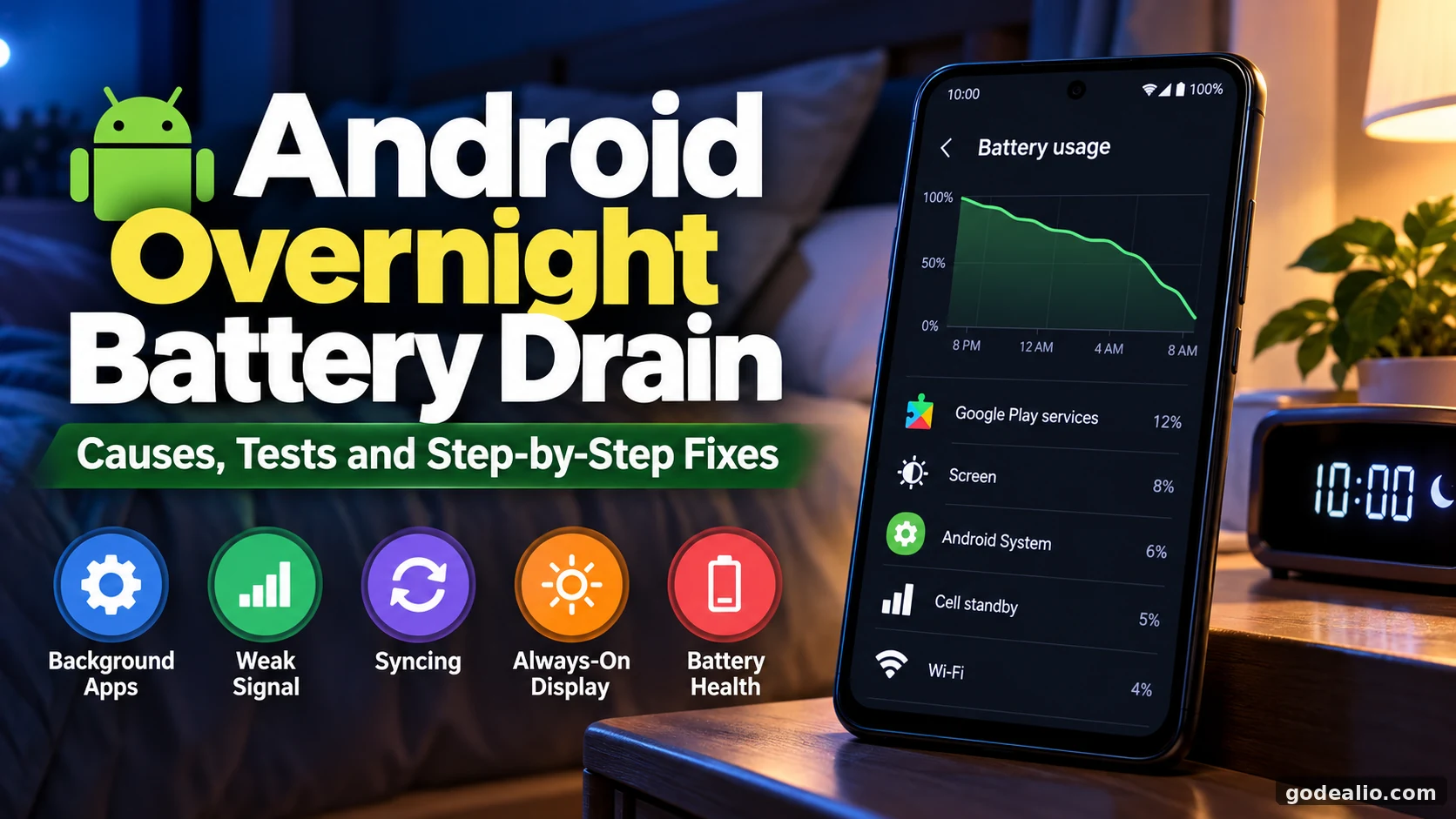
A practical Android overnight battery-drain troubleshooting guide covering background apps, weak mobile signal, cloud syncing, Always-On Display, location, network radios, Google Play services and battery health.
Quick Verdict
Main rule: Diagnose before disabling features. Check Battery usage first, then isolate apps, cellular connectivity, Wi-Fi, syncing, display activity and accessories one category at a time.
Best for: Android phones showing unusually high or suddenly increased battery loss while sitting unused overnight
Guide Overview
- Guide type
- explainer
- Difficulty
- beginner
- Market
- India
Who this guide is for
Android users whose phone loses an unusual amount of battery while sitting unused overnight, including Samsung Galaxy, Google Pixel, OnePlus, Xiaomi, Redmi and POCO owners who want to identify the cause before disabling features or replacing the battery.
Before You Start
Requirements
- An Android phone with access to the Settings app.
- Enough battery charge to leave the phone unplugged for an overnight test.
- Access to Battery usage or equivalent battery statistics on the phone.
- Approximately one normal overnight period for each isolation test.
- Knowledge of which apps must continue delivering important notifications.
- Optional access to the manufacturer's built-in battery diagnostics where supported.
Prerequisites
- Do not begin testing while the phone is installing a major system update or restoring a large backup.
- Record the battery percentage immediately before sleeping.
- Use approximately the same overnight duration and phone location when comparing tests.
- Change only one major variable at a time whenever practical.
- Do not disable emergency alerts, essential communications or security functions solely for battery testing.
- If the battery is swollen, physically damaged or causing the phone enclosure to separate, stop normal troubleshooting and seek professional service.
Best by Use Case
Sudden Overnight Drain
Check Battery usage immediately after waking and compare recent app or system activity with what changed before the problem started.
Poor Mobile Signal
Run an Airplane Mode comparison test before modifying unrelated application settings.
Background App Drain
Restrict only applications showing unnecessary background activity and verify that important notifications continue working.
Notification-Heavy Phone
Use scheduled Do Not Disturb and review lock-screen wake behaviour, while remembering that DND does not stop permitted background syncing.
Always-On Display
Disable AOD for one controlled night or configure an overnight schedule and compare the result.
Google Photos or Cloud Sync
Check for pending photo, video or device backups and distinguish one-time upload activity from recurring drain.
Older Phone
If controlled software and network tests do not explain the problem, investigate battery health and usable capacity.
Comparison Advice
- Compare overnight drain under similar conditions instead of comparing a single night with another person's phone.
- Record bedtime percentage, wake-up percentage and total idle duration.
- Keep the phone in approximately the same physical location because cellular signal can vary substantially around a building.
- Change one major variable per test.
- Do not assume the highest percentage in Battery usage is automatically abnormal; interpret it alongside actual activity.
- Menu names and battery controls vary by Android version and manufacturer.
Mistakes to Avoid
- Force-stopping every application without first identifying the actual source.
- Installing unknown battery-cleaner, RAM-booster or task-killer applications.
- Assuming Do Not Disturb prevents background syncing.
- Turning off essential notifications or account services unnecessarily.
- Restricting every messaging app and then expecting immediate notifications.
- Assuming Google Play services is automatically the root cause whenever it appears in Battery usage.
- Changing Wi-Fi, mobile network, AOD, syncing and app restrictions simultaneously, which makes the test impossible to interpret.
- Judging battery health from one unusual night.
- Ignoring poor cellular reception.
- Ignoring a large cloud backup or device-restore operation.
- Disabling system applications without understanding their role.
- Factory-resetting the phone before trying simpler isolation tests.
- Continuing to use or charge a visibly swollen or physically damaged battery.
Deal Advice
- Do not replace a phone solely because of one abnormal overnight result.
- Determine whether the issue is caused by software, an application, connectivity or battery ageing before buying another device.
- When comparing replacement phones, consider battery capacity together with chipset efficiency, modem behaviour, display technology and software optimisation.
- Long software support is useful, but lithium-ion battery capacity still decreases with age and usage.
- Use an authorised or reputable repair provider when replacing a degraded battery.
Why Does an Android Phone Lose Battery Overnight?
An Android phone remains active even when its screen is off. Applications can perform permitted background work, accounts can synchronise, cloud services can upload files and network radios continue maintaining connectivity.
Android includes power-management systems intended to reduce unnecessary work while the phone is idle. Overnight drain becomes more noticeable when applications, syncing, network conditions, display features or hardware prevent the phone from spending enough time in efficient low-power states.
The goal is therefore not to disable every background feature. It is to determine which activity is unusual for your phone.
- Background apps can wake the processor.
- Cloud services can transfer photos, videos and backups.
- Poor cellular reception can increase network-related power consumption.
- Always-On Display and lock-screen wakeups consume additional energy.
- Location and nearby-device services can operate while the screen is off.
- Battery ageing reduces usable capacity.
What Does Deep Sleep Mean on Android?
When an Android phone remains unused, its processor and other hardware can spend more time in low-power states. Android also uses mechanisms such as Doze, App Standby and app battery optimisation to limit unnecessary background work.
Deep sleep does not mean every component is completely switched off. Important alarms, calls, scheduled tasks and permitted background services still need ways to operate.
Battery problems can appear when an application or service wakes the device repeatedly or keeps network, processor or location activity running for longer than necessary.
- Screen-off is not the same as powered-off.
- Android can defer some background activity.
- Apps can still perform legitimate scheduled work.
- Repeated wakeups reduce efficient idle time.
- Connectivity can remain active while the display is off.
How Much Overnight Battery Drain Is Normal?
There is no universal percentage that represents normal overnight drain for every Android phone. Battery capacity, age, cellular coverage, Wi-Fi conditions, connected accessories, Always-On Display and installed applications differ substantially.
The most useful comparison is your phone against its own established baseline. Measure several nights under similar conditions and investigate a large or sudden change.
Google provides a more specific troubleshooting benchmark for supported Pixel devices: its current Pixel support guidance recommends an overnight test and treats less than 10% drain in that particular test as expected. That Pixel-specific threshold should not automatically be applied to every Android model.
- Record the bedtime percentage.
- Record the wake-up percentage.
- Record the idle duration.
- Note whether Wi-Fi, mobile data, Bluetooth and AOD were active.
- Compare similar nights.
- Focus on sudden deviation from your established baseline.
The Most Common Causes of Android Overnight Battery Drain
The main causes can be grouped into applications, connectivity, syncing, display activity and battery condition. Grouping the problem this way makes troubleshooting faster than randomly changing settings.
Weak cellular coverage deserves particular attention because both Google and phone manufacturers document connectivity as an important battery factor.
- Background application activity.
- Weak or unstable mobile signal.
- Network-dependent syncing.
- Cloud photo and video backups.
- Account synchronisation.
- Location activity.
- Wi-Fi and Bluetooth scanning.
- Always-On Display.
- Frequent notification wakeups.
- Connected wearables.
- Recently installed or updated applications.
- Temporary post-update processing.
- Battery degradation.
Step 1: Check Battery Usage Before Using the Phone
The Battery usage screen should be your first diagnostic tool. Check it immediately after waking so browsing, social apps and screen-on time from your morning routine do not obscure what happened overnight.
Look at both application usage and system usage when your phone provides those views.
- Open Settings.
- Open Battery.
- Select Battery usage or the manufacturer's equivalent.
- Review the overnight period.
- Look for unexpected background application activity.
- Review system categories such as mobile network or Wi-Fi where available.
- Take a screenshot for comparison with the next test.
Step 2: Identify Apps Running in the Background
An app appearing in the background is not automatically a problem. Messaging, fitness, security, navigation and wearable apps can have legitimate reasons to operate while the screen is off.
Concentrate on applications whose activity appears inconsistent with how you used the phone.
- Open the suspicious app's App info page.
- Review App battery usage.
- Keep the normal or Optimized mode first.
- Use Restricted only when background operation is unnecessary.
- Retest overnight.
- Verify important notifications still arrive.
Step 3: Use Airplane Mode to Separate Network Drain
Airplane Mode is a useful diagnostic tool because it lets you compare standby behaviour without normal cellular connectivity.
For a clean initial test, enable Airplane Mode and leave Wi-Fi and Bluetooth disabled. Compare the result with your normal baseline rather than treating one percentage as universally good or bad.
- Record the starting battery level.
- Enable Airplane Mode.
- Leave Wi-Fi and Bluetooth off.
- Leave the phone unplugged overnight.
- Record the morning percentage.
- Compare it with your baseline.
- Repeat if the first test is inconclusive.
Why Weak Cellular Signal Can Drain Battery
Cellular connectivity requires energy even when you are not actively using the phone. Poor or unstable reception can increase the work required to maintain a usable connection.
If Airplane Mode produces a large improvement, inspect signal quality where the phone normally rests overnight. Bedrooms inside reinforced buildings, interior rooms and other low-coverage locations can behave differently from areas with stronger reception.
Do not automatically blame 5G. Signal quality, network configuration, modem behaviour and operator coverage all matter.
- Observe signal strength in the bedroom.
- Look for unstable reception.
- Compare normal connectivity against Airplane Mode.
- Test Wi-Fi separately if necessary.
- Avoid changing several network options simultaneously.
Step 4: Separate Wi-Fi From Cellular Drain
If Airplane Mode substantially improves standby time, perform another test with Airplane Mode enabled and Wi-Fi manually switched back on.
If battery retention remains good, cellular connectivity becomes a stronger suspect. If significant drain returns, investigate Wi-Fi traffic, cloud backups and internet-dependent apps.
- Baseline: normal connectivity.
- Test A: Airplane Mode with Wi-Fi off.
- Test B: Airplane Mode with Wi-Fi on.
- Keep other conditions similar.
- Compare all results.
Step 5: Test Always-On Display
Always-On Display is designed to operate efficiently on supported phones, but displaying information still requires energy.
Disable it for one night or configure an overnight schedule. Also review notification settings that wake the lock screen.
- Open Display or Lock screen settings.
- Find Always-On Display.
- Disable it temporarily.
- Check notification screen-wake settings.
- Retest overnight.
- Restore AOD if the test shows little meaningful difference.
Step 6: Notifications and Do Not Disturb
Frequent notifications can trigger sound, vibration, connected accessories and lock-screen activity. Reducing unnecessary overnight alerts can therefore help in some situations.
Do Not Disturb should not be treated as a background-process killer. Apps can continue permitted syncing and background work while notifications are suppressed.
- Schedule Do Not Disturb for sleeping hours.
- Keep exceptions for alarms and important contacts.
- Disable unnecessary promotional notifications.
- Review apps that repeatedly wake the lock screen.
- Do not expect DND to stop syncing.
Step 7: Check Google Photos, Backups and Cloud Sync
Large photo libraries, videos, device backups and cloud-storage queues can generate substantial background network and processor activity.
This may be temporary and legitimate, especially after moving to a new phone, restoring data or capturing a large amount of media.
- Check photo-backup status.
- Look for pending video uploads.
- Check cloud-storage queues.
- Check device backup or restore status.
- Allow legitimate one-time operations to complete.
- Investigate only if heavy activity keeps returning unexpectedly.
Step 8: What to Do if Google Play Services Appears High
Google Play services provides functionality used by many Android apps and system features. Seeing it in Battery usage does not automatically identify the root cause.
Another application may be using location, account or notification-related services through Google Play services. Review related app activity before attempting aggressive changes.
- Review recently installed applications.
- Check background location access.
- Check account sync errors.
- Install appropriate updates.
- Restart the phone.
- Do not disable Google Play services as a routine battery fix.
Step 9: Check Location, Wi-Fi Scanning and Bluetooth Scanning
Android can use Wi-Fi access points, Bluetooth devices, cellular towers, GPS and device sensors to improve location accuracy. Wi-Fi and Bluetooth scanning controls are available through Location Services on supported Android versions.
These features are useful and should not automatically be disabled. Include them only when systematic testing has not identified a more obvious cause.
- Open Settings > Location.
- Review app location permissions.
- Check recent location access.
- Open Location Services where available.
- Review Wi-Fi scanning.
- Review Bluetooth scanning.
- Disable features temporarily only for controlled testing.
Samsung Galaxy Overnight Battery Drain: Settings to Check
Samsung provides detailed battery-management controls through Battery and Device care. Current Galaxy support guidance specifically recommends reviewing Battery usage and Background usage limits.
Samsung also distinguishes between Sleeping apps and Deep sleeping apps. Deep-sleep restrictions are stronger and can prevent normal background operation, so avoid placing messaging or other time-sensitive applications there unless you understand the effect.
- Open Settings > Battery or Settings > Device care > Battery.
- Review Battery usage.
- Open Background usage limits.
- Review Sleeping apps.
- Use Deep sleeping apps only for applications that do not need background operation.
- Check Always-On Display.
- Check signal quality.
- Use Samsung Members diagnostics if persistent drain remains unexplained.
Google Pixel Overnight Battery Drain: Settings to Check
Pixel phones provide Battery usage views for applications and system components. Current Google support guidance also provides Battery Diagnostics on supported Pixel models.
Google recommends keeping Adaptive Battery and battery optimisation enabled for normal use. Restrict individual apps only when their activity warrants it.
- Open Settings > Battery > Battery usage.
- Use View by apps to inspect applications.
- Use View by systems where available.
- Review background usage for suspicious apps.
- Keep Adaptive Battery enabled unless troubleshooting requires otherwise.
- Open Battery Diagnostics on supported Pixel models.
- Use Google's overnight battery test if investigating persistent Pixel drain.
OnePlus Overnight Battery Drain: Settings to Check
OnePlus battery-menu names vary between OxygenOS releases. Begin with the Battery section and app-level usage rather than applying aggressive global restrictions.
Use the same diagnosis-first approach: identify unusual activity, check connectivity and then adjust only the suspected application or feature.
- Open Settings > Battery.
- Review available battery-usage details.
- Inspect suspicious applications.
- Review background battery controls.
- Check Always-On Display.
- Review signal quality.
- Check location-heavy applications.
- Retest after each significant change.
Xiaomi, Redmi and POCO Overnight Battery Drain: Settings to Check
Xiaomi support recommends checking Settings > Battery to identify power-hungry applications and notes that poor signal, background apps, system updates and Always-On Display can affect consumption.
HyperOS and older MIUI menu names can vary by device and region, so use the equivalent battery-management page available on your phone.
- Open Settings > Battery.
- Review power usage.
- Identify high-consumption applications.
- Review unnecessary background activity.
- Check Always-On Display.
- Check mobile signal.
- Consider whether a recent system update is still completing background work.
- Seek service if severe unexplained drain persists.
Step 10: When Battery Health Becomes the Main Suspect
Rechargeable lithium-ion batteries are consumable components. Their usable capacity gradually decreases with charge cycles, temperature exposure and age.
When capacity declines, the same amount of background energy represents a larger percentage of the available charge. Battery degradation becomes more plausible when poor overnight standby accompanies poor active-use endurance, percentage jumps or unexpected shutdowns.
Use manufacturer battery-health information or diagnostics where available rather than relying on unsupported third-party health estimates alone.
- Consider battery age.
- Check manufacturer diagnostics.
- Watch for unexpected shutdowns.
- Watch for unusual percentage jumps.
- Compare active-use endurance with standby endurance.
- Seek professional testing if software diagnostics remain inconclusive.
Phone Warm in the Morning? Investigate It
A phone that remains noticeably warm despite sitting unused indicates that energy has been consumed somewhere in the system. Background processing, network searching, data transfer or a hardware problem can contribute.
Check Battery usage before starting normal morning activity. Persistent unexplained heat deserves more attention than a small percentage change alone.
A swollen or physically damaged battery is a safety issue rather than a normal optimisation problem.
- Check temperature immediately after waking.
- Review Battery usage.
- Restart if a process appears stuck.
- Check recent apps and network conditions.
- Do not keep charging a visibly damaged or swollen battery.
- Seek professional service for physical battery problems.
A Controlled Multi-Night Battery Test
You may identify the cause after only one or two tests. If not, use a controlled sequence and change only one major variable at a time.
Stop once the evidence clearly points to a cause and restore settings that did not affect the problem.
- Night 1: Normal baseline.
- Night 2: Airplane Mode with Wi-Fi and Bluetooth off.
- Night 3: Airplane Mode with Wi-Fi manually enabled.
- Night 4: Normal connectivity with AOD disabled.
- Night 5: Restrict only the most suspicious background app.
- Night 6: Test without a suspected Bluetooth accessory.
- Night 7: Compare results and restore unrelated settings.
Advanced Troubleshooting if Nothing Explains the Drain
If Battery usage, connectivity isolation and targeted app restrictions do not explain the drain, move to advanced troubleshooting gradually.
Safe Mode can help determine whether normal third-party applications are involved on phones that support the feature. Manufacturer diagnostics can help identify battery or hardware problems.
A factory reset should remain a last-resort software test because it removes user data and requires substantial setup afterward.
- Restart normally first.
- Install stable updates.
- Use manufacturer diagnostics.
- Try Safe Mode where supported.
- Back up important data before resetting.
- Factory-reset only after less disruptive tests fail.
- Consider professional hardware diagnostics if a clean system still drains abnormally.
10-Minute Checklist Before Bed
If you want a fast first investigation, perform these checks before starting an overnight test.
- Record the current battery percentage.
- Screenshot Battery usage.
- Check cellular signal in the bedroom.
- Check whether AOD will remain active overnight.
- Check photo and cloud backup status.
- Review recently installed apps.
- Review unexpected location access.
- Restart the phone if behaviour seems abnormal.
- Choose one controlled overnight test.
- Check the result immediately after waking.
Final Verdict: Diagnose the Cause Instead of Disabling Everything
Android overnight battery drain is best treated as an isolation problem. Start with Battery usage, establish a baseline and then test connectivity, applications, syncing, display activity and accessories individually.
If Airplane Mode produces a substantial improvement, investigate connectivity before blaming unrelated applications. If one application repeatedly dominates background activity, investigate that application before changing system-wide settings.
If software and network tests reveal little but the phone has poor active-use endurance, percentage instability or an ageing battery, hardware health deserves more attention.
Once the cause is identified, restore features that were not responsible. Good battery troubleshooting should preserve useful functionality rather than simply switching everything off.
Troubleshooting
Battery drain almost disappears in Airplane Mode
Likely causes
- Weak or unstable cellular signal
- Mobile-network activity
- Network-dependent background applications
One app dominates overnight Battery usage
Likely causes
- Excessive background activity
- Sync loop
- Location activity
- Application bug
Google Play services appears unusually high
Likely causes
- Location requests
- Account syncing
- Apps calling Google services
- Temporary system activity
Battery drain started after a system update
Likely causes
- Post-update optimisation
- Application compatibility issue
- Background indexing or syncing
- Software regression
Phone is warm when you wake up
Likely causes
- Continuous processor activity
- Heavy background transfer
- Network searching
- Stuck application or service
- Possible hardware problem
Battery drain continues even with Airplane Mode
Likely causes
- Background application or system activity
- Always-On Display
- Bluetooth or Wi-Fi manually re-enabled
- Battery degradation
Important notifications stop after restricting an app
Likely causes
- Battery restriction is too aggressive
- App placed into deep sleep
- Background activity disabled
Battery percentage drops rapidly despite low reported app usage
Likely causes
- System-level activity
- Mobile-network consumption
- Battery ageing
- Battery meter or hardware issue
Key Takeaways
- Check Battery usage immediately after waking before normal morning use changes the statistics.
- A screen-off phone is still active: apps, syncing, network radios, location services and scheduled jobs can continue working.
- Weak or unstable cellular reception can increase power consumption even while the phone is sitting unused.
- An Airplane Mode overnight test is a useful way to determine whether connectivity is contributing to the drain.
- Do Not Disturb suppresses interruptions but does not automatically stop applications from syncing or performing background work.
- Always-On Display consumes some power and is worth testing separately if it remains active throughout the night.
- Google Play services appearing in Battery usage does not automatically prove that Google Play services itself is faulty; other apps can request services through it.
- Restrict suspicious apps selectively rather than putting every application into aggressive battery-saving modes.
- Compare your phone against its own normal standby behaviour instead of assuming one battery-loss percentage applies to every Android device.
- Battery capacity gradually declines with age, so hardware health becomes more relevant when software and connectivity tests do not explain the problem.
Frequently Asked Questions
Why does my Android battery drain overnight when I am not using the phone?
The screen can be off while apps, syncing services, network radios, location features, cloud backups and scheduled system tasks remain active. Check Battery usage immediately after waking to identify unusual activity.
How do I find what is draining my Android battery overnight?
Open Settings > Battery > Battery usage immediately after waking. Review applications and, where available, system categories for unexpected activity during the overnight period.
How much battery drain overnight is normal on Android?
There is no universal percentage for every Android phone. Battery age, signal quality, apps, AOD and connected accessories all affect standby use. Compare your phone against its own baseline. Google provides a specific overnight diagnostic threshold for supported Pixel devices, but that should not automatically be applied to every Android phone.
Can weak mobile signal drain my battery overnight?
Yes. Poor or unstable cellular reception can increase power consumption because the phone still needs to maintain network connectivity. Compare normal standby with an Airplane Mode test if weak reception is suspected.
How do I test whether the mobile network is causing the drain?
Record the starting percentage, enable Airplane Mode with Wi-Fi and Bluetooth off and leave the phone unplugged overnight. Compare the morning result with your normal baseline.
Does 5G cause overnight battery drain?
Network power consumption depends on the phone, modem, operator, coverage and signal quality. Test connectivity rather than assuming 5G alone is responsible.
Does Always-On Display use battery overnight?
Yes, displaying information requires some energy. If you suspect AOD, disable it for one night or configure a sleep schedule and compare the result.
Will Do Not Disturb stop overnight battery drain?
Not necessarily. Do Not Disturb suppresses interruptions but does not automatically prevent permitted background syncing or app activity.
Why is Google Play services using battery?
Google Play services provides functionality used by apps and Android features. High usage can reflect requests from location, accounts, notifications or other applications, so investigate related activity before assuming Play services itself is faulty.
Can Google Photos drain battery overnight?
Large photo or video backups can create background network and processor activity. Check backup status to determine whether a large upload was occurring.
Should I restrict every background app?
No. Restrict applications selectively because messaging, security, health and other apps may need background access for expected functionality.
Should I turn Wi-Fi off every night?
Not automatically. Stable Wi-Fi can be efficient. If Wi-Fi is suspected, test it separately instead of permanently disabling it without evidence.
Can Bluetooth accessories cause overnight drain?
Bluetooth connections are designed to be efficient, but wearable companion apps and connected accessories can sync in the background. Disconnect a suspected accessory for one controlled night if necessary.
Can an old battery cause overnight battery drain?
Yes. Rechargeable batteries lose usable capacity over time. As capacity declines, normal background energy use represents a larger percentage of the remaining charge.
Why is my phone warm in the morning?
Unexpected warmth can indicate processor, network, transfer or application activity. Check Battery usage immediately. Persistent unexplained heat or physical battery damage should be investigated professionally.
Recommended Deals
Related Reading on Godealio
More Guide Details
Guide Hubs
- android-guides
- battery-guides
Featured
true
Sources and Verification
Samsung
Samsung
Xiaomi
Xiaomi
Xiaomi
Xiaomi
https://www.android.com/intl/en_in/articles/tips-to-extend-android-battery-life/https://www.honor.com/ae-en/blog/why-is-my-battery-draining-so-fast/?srsltid=AU7gw4U1LZtZW58mICx-UklRl8vvYVe0B5thBqeuOYbhAqgfJ8ZfsOPB