
Android Storage Cleanup: Safe Step-by-Step Guide
A beginner-friendly Android cleanup guide to free space safely without deleting important files.
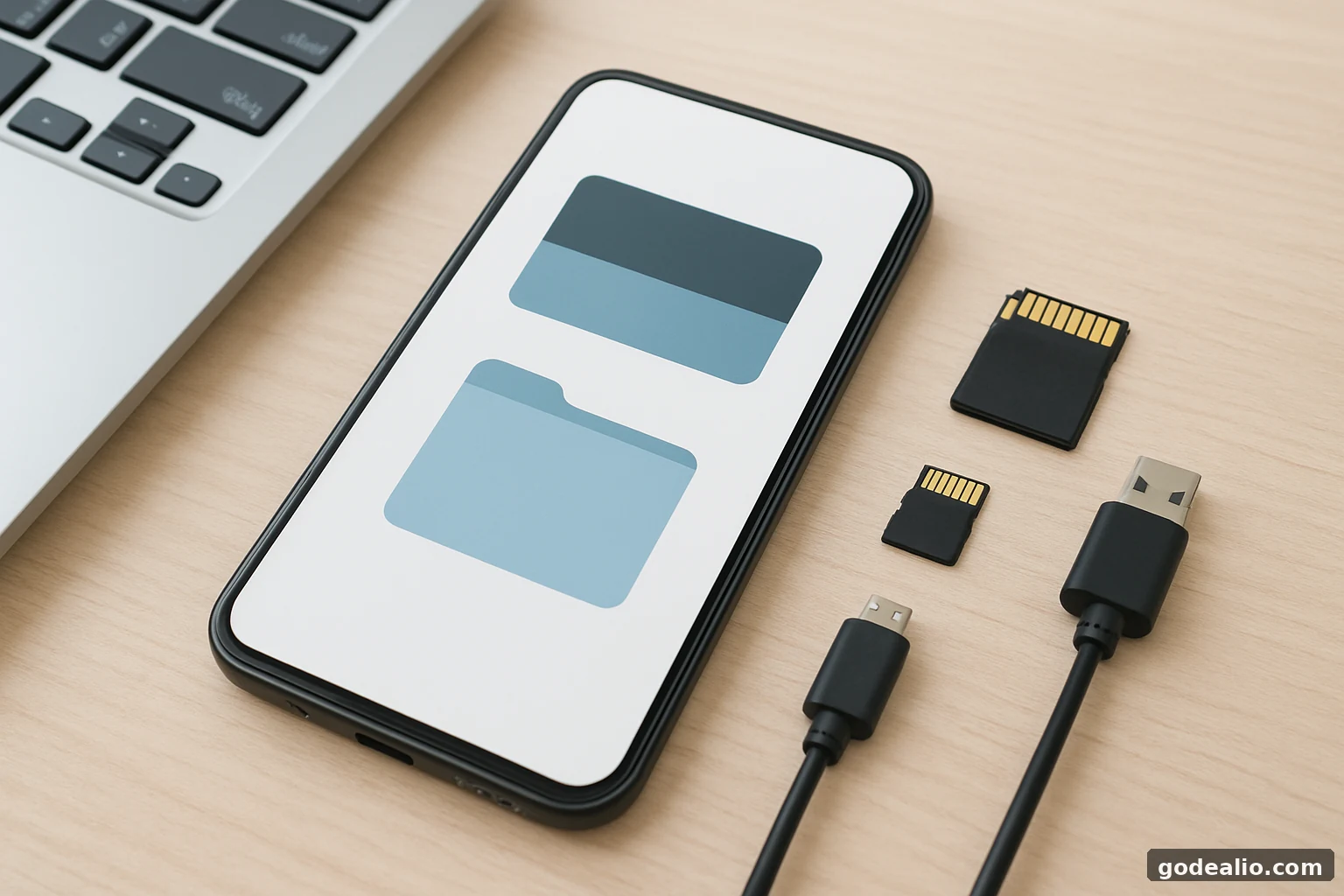
Free up Android storage safely with a clear step-by-step routine: check what uses space, remove clutter, clear cache carefully, uninstall unused apps, move important files, and recheck storage.
Quick Verdict
Main rule: Start with large media, downloads, and unused apps; clear cache only after you understand what is taking space.
Best for: Android users whose phone feels slow, storage is nearly full, or app updates are failing because space is running out.
Guide Overview
- Guide type
- how-to
- Difficulty
- beginner
- Market
- India
- Time required
- About 15–45 minutes for a normal cleanup; longer if you need to review backups, large media, or app-specific data.
- Cost estimate
- Basic cleanup is free using built-in Android tools. Optional cloud storage, memory cards, or external storage may add cost.
Who this guide is for
Beginner Android users in India who want to free up space safely and avoid paying for storage before trying the right cleanup steps.
Before You Start
Requirements
- An Android phone or tablet
- Enough battery to finish the cleanup without interruption
- A stable internet connection if you plan to back up or move files
- Access to your Google account or any other backup account you already use
Prerequisites
- Know whether your important photos, videos, and documents are backed up
- Be ready to spend a few minutes checking what is actually using storage
- Avoid deleting files until you know whether they are personal data, app data, or temporary cache
Tools Needed
- Built-in Android storage settings
- A file manager or Files app already present on the device
- Cloud backup or external storage if you plan to move files
- Optional: a laptop or SD card reader if you transfer data that way
Requirement Details
Android device access
RequiredYou need normal access to the phone or tablet so you can check storage usage and remove files carefully.
Backup access
RequiredIf you plan to delete photos, videos, or documents, make sure you can restore them from a backup or another copy.
Optional storage destination
OptionalA cloud account, memory card, or laptop can help if you want to move files instead of deleting them.
Step-by-Step Guide
Follow the relevant steps in order and avoid changing unrelated advanced settings.
Check what is actually using space
- Open Settings and go to the storage or device-storage section on your Android phone or tablet.
- Review the largest categories first, such as photos, videos, downloads, apps, documents, and other files.
- Note which category is using the most space before deleting anything.
- If your phone shows storage by app, identify the largest apps and whether the space is app data, downloads, or cache.
Expected result
You should know exactly which category is consuming the most storage and what to clean first.
Platform: Android
Remove obvious clutter first
- Open Downloads and remove old installers, PDFs, screenshots, ZIP files, and files you no longer need.
- Review large videos and repeated photos before deleting them.
- Check messaging-app media folders for forwarded images, videos, voice notes, and files saved automatically.
- Empty trash or recently deleted folders only after confirming there is nothing you need to recover.
Expected result
You should free noticeable storage with minimal risk.
Warning
Do not permanently delete personal files until you confirm a backup or another copy exists.
Platform: Android
Clear cache selectively
- Open the storage settings for apps that are unusually large or behaving poorly.
- Use Clear cache when available.
- Avoid Clear storage or Clear data unless you understand exactly what the app will remove.
- Reopen the app after clearing cache and confirm it still works normally.
Expected result
Temporary app files should shrink without removing important app content.
Warning
Clearing app data is more disruptive than clearing cache and may sign you out or remove locally stored information.
Platform: Android
Uninstall apps you no longer use
- Sort or review apps by size or recent usage if your device supports it.
- Remove apps you have not opened in a long time.
- Delete duplicate apps that perform the same job.
- Before uninstalling a large app, check whether it contains offline downloads or files you want to keep.
Expected result
Unused apps and their local storage should no longer occupy space.
Platform: Android
Move important files instead of deleting them
- Move important photos, videos, documents, and work files to a trusted cloud service, computer, SD card, or another safe destination.
- After copying, open a few files from the new location to confirm the transfer worked.
- Only delete the originals after you confirm the backup or copied files are usable.
- Keep a simple folder structure so you can find transferred files later.
Expected result
Important files remain available while internal storage is freed.
Warning
Never delete the only copy of photos, receipts, documents, or work files.
Platform: All
Recheck storage and prevent the problem from returning
- Return to the Android storage summary after cleanup.
- Compare the new storage usage with what you saw before starting.
- Identify which category still takes the most space.
- Repeat only the cleanup steps that helped.
- Adjust app settings for automatic downloads, offline media, or chat-media saving if one app keeps growing.
Expected result
You should know how much space was recovered and what is likely to fill the device again.
Platform: Android
Quick answer: the safest way to clean Android storage
If your Android storage is running low, start with the biggest and easiest wins: large videos, screenshots, downloads, and apps you no longer use. That order usually frees space quickly while keeping the risk low.
After that, use cache clearing carefully and only on apps that are large or acting up. It is better to work app by app than to clear everything at once, because app data can sometimes hold logins, settings, or saved progress.
If a file matters, move it to another safe place first. If you are unsure what is taking space, pause and check the storage summary again before deleting more.
Who this guide is for
This guide is for everyday Android users who want to understand why storage fills up and what to do about it without deleting the wrong thing. It is especially useful if your phone feels cramped, app updates fail, or you keep seeing low-storage alerts.
It is also useful if you are deciding whether to spend money on extra storage, a memory card, or a paid cloud plan. Before paying, it helps to know whether the problem is really too much media, too many apps, or just a few temporary files that can be removed safely.
Why Android storage fills up so quickly
Android storage usually fills for a mix of ordinary reasons rather than one dramatic problem. Photos and videos can take up a lot of space, but downloads, messaging attachments, offline content, and app data can also add up slowly in the background.
The exact labels you see can vary by device brand, model, and software version, so the important part is not the menu name. It is learning which category is growing and whether it contains personal files, temporary cache, or app content you still want.
- Large photos and videos are often the most obvious space users.
- Downloads can contain installers, PDFs, and other forgotten files.
- Apps may hold cache, offline media, or saved data that grows over time.
- Recently deleted items may still occupy space until they are emptied.
What you need before starting
Before you begin cleanup, make sure you can access your phone, your photos, and any backup account you already use. If you plan to delete anything important, first confirm where the backup copy lives.
You do not need special tools for a basic cleanup. Built-in Android storage settings and a file manager are often enough. A laptop, memory card, or cloud account can help if you want to move files instead of deleting them.
- Confirm which photos, videos, and documents are already backed up.
- Have enough battery to finish the cleanup without interruption.
- Keep a safe destination ready if you plan to move files instead of deleting them.
What to clean first and why that order works
The best cleanup order is the one that frees the most space with the least risk. Start with visible clutter such as downloads, screenshots, and large media. These files are usually easy to recognise and easy to move or delete after a quick check.
Next, review app cache and unused apps. Cache is usually less risky than app data, while unused apps can sometimes hide offline downloads or saved content. Only after those steps should you consider deeper changes, such as deleting app data or using more aggressive cleanup tools.
- Large videos and repeated images usually offer the biggest quick win.
- Downloads often contain old installers, documents, and temporary files.
- Messaging app media can build up faster than people expect.
- Cache is safer to clear than full app data in most cases.
- Unused apps may carry hidden local storage, so review them before uninstalling.
A safe Android storage cleanup routine
The safest routine is to check storage, remove obvious clutter, clear cache selectively, and then recheck the results. That keeps you from deleting files you still need and helps you see which category actually changed.
If the device still feels full after the first pass, repeat only the parts that helped. Do not jump straight to random cleanup apps or factory resets. A measured approach is usually enough for most phones that are full because of media, downloads, and app accumulation.
This is also the point where you should decide whether the remaining files are worth moving instead of deleting. If the answer is yes, move them first, verify the copy, and only then remove the original.
- Check the storage summary and note the biggest category first.
- Remove files that are obviously old, duplicated, or unnecessary.
- Clear cache only for large or troublesome apps.
- Uninstall apps you no longer open.
- Move important files to a safe destination before deleting them.
- Recheck storage after each pass so you know what actually helped.
When it makes sense to consider paid storage
Paid storage can make sense when your phone fills up mainly because you keep important photos, videos, documents, or backups and do not want to delete them. In that case, buying extra cloud storage or a memory card may be more practical than deleting more data.
Before spending money, check whether your storage problem is permanent or temporary. If your phone is full mostly because of a few large videos or old downloads, cleanup may solve it. If the device keeps filling up because you use the same apps heavily, a storage plan or card may be more useful.
- Choose paid storage only after you know what is filling the phone.
- Treat extra storage as a way to protect data, not as a replacement for cleanup.
- Confirm that you can restore files if you later delete something by mistake.
- If the phone fills up again quickly, the fix may be changing app habits rather than buying more space.
Common mistakes to avoid
A common mistake is clearing app data when the real problem is just cache or media. Another mistake is deleting files from the gallery without checking whether a backup exists first. Both can create avoidable loss.
It is also easy to trust a cleaner app too quickly. A cleaner should make the process easier, not force you to give up privacy or remove files blindly. Always prefer a simple, visible cleanup process over a tool that feels opaque.
- Deleting files before checking whether they are backed up.
- Clearing app data when cache would have been enough.
- Trusting a single cleanup app without checking permissions or what it actually removes.
- Ignoring large video files because they are fewer in number than photos.
- Cleaning storage once and never rechecking which category keeps growing.
Troubleshooting common storage problems
If the storage figure does not improve after cleanup, check trash folders, offline downloads, and app-specific storage first. A deleted file may still be sitting in a recently deleted area, or a large app may still hold local data that you have not touched yet.
If an app repeatedly fills storage, review its download and media settings. If the problem still returns and the app is not essential, replacing it with a lighter alternative may be better than fighting the same storage issue every week.
If photos or videos seem to be missing, stop further cleanup and confirm whether they were deleted, moved, or still waiting to sync. The safest next move is always to verify recovery before continuing.
- Recheck the storage summary and identify the biggest remaining category.
- Look for recently deleted folders or recycle areas inside the gallery or file manager you use.
- Review the heaviest apps one by one if storage still looks wrong.
- Pause cleanup if an important file appears missing and confirm the backup first.
Buying or decision checklist before you spend money
If you are deciding between cleanup, cloud storage, a memory card, or a paid app, match the choice to the problem. Large media points to storage expansion or backup. Temporary clutter points to cleanup. Repeating app growth points to a usage change or a different app.
The best choice is the one that fits your device, your habits, and your recovery needs. Make sure you can restore files, understand the permissions involved, and avoid paying for space you do not actually need.
- Check whether your phone supports a memory card if you want local expansion.
- Confirm that your backup method can restore files after deletion.
- Review permissions for any third-party storage or cleaner app.
- Choose a paid option only after identifying what is filling the phone.
- Prefer a solution that works with your daily routine, not against it.
- If you move files often, pick a method that is reliable on your internet connection.
Methodology and limitations
This guide is intentionally generic because Android menu labels vary and the supplied evidence does not include device-specific paths. The safest approach is to use the storage summary your device already provides, then act on the biggest category first.
Time and cost are only planning estimates, not fixed claims. Third-party cleaner apps are not validated here, so this guide prefers built-in tools and careful file review over one-click cleanup.
- Use built-in storage tools first.
- Treat timings and costs as approximate.
- Expect menu labels to vary across brands, models, and software versions.
- Do not assume a cleaner app is safer because it promises automation.
- Verify any moved files before deleting originals.
Troubleshooting
Storage still shows as full after you deleted several files
Likely causes
- The largest items were not the ones you removed.
- Deleted items may still be in trash or a recently deleted area.
- An app is still storing large offline data or cache.
What to try
- Recheck the storage summary and identify the biggest remaining category.
- Look for recently deleted folders or recycle areas inside the gallery or file manager you use.
- Review app storage one by one for the heaviest apps.
When to escalate: If the storage view still looks wrong after a careful review, back up important data and seek help from the device maker or a qualified technician.
A cleanup app asks for too many permissions
Likely causes
- The app wants access to files, media, or usage information.
- Some third-party cleaners try to market themselves as all-in-one fixers.
What to try
- Prefer built-in Android tools first.
- Install third-party cleaners only if you understand why you need them.
- Avoid granting permissions that are not needed for a simple cleanup task.
When to escalate: If an app’s request seems excessive or unclear, stop and use the built-in storage tools instead.
Photos or videos disappeared from the gallery after cleanup
Likely causes
- They were deleted instead of moved.
- They were removed from one folder but still exist elsewhere.
- A sync or backup service has not finished updating.
What to try
- Check the trash or recently deleted area in your gallery or file manager.
- Look for backup copies in the service you use.
- Pause further cleanup until you confirm what is missing.
When to escalate: If the files are important business, family, or travel records and you cannot recover them, stop deleting and get recovery help.
An app keeps growing again after you clean it
Likely causes
- The app stores downloads, offline content, or chat media locally.
- You use the app heavily and it keeps caching new content.
What to try
- Find the setting inside the app that controls offline downloads or auto-saving.
- Remove old downloads or media from that app regularly.
- If the app is not essential, uninstall it and reinstall only when needed.
When to escalate: If one app repeatedly fills storage and you cannot control it, consider replacing it with a lighter alternative or ask the app support team for guidance.
Buying & Decision Checklist
- Check whether your phone supports a memory card before paying for one.
- If you are considering cloud storage, confirm that it can hold the file types you need, especially photos and videos.
- Choose a backup or storage service that lets you restore files easily if you delete something by mistake.
- Review the permissions and privacy policy of any cleanup app before installing it.
- Pick a storage option based on what is filling your phone, not on the cheapest headline offer.
- If you transfer files often, choose a method that works well on your internet connection and your daily routine.
Common Mistakes
- Deleting files before checking whether they are backed up.
- Clearing app data when cache would have been enough.
- Trusting a single cleanup app without checking permissions or what it actually removes.
- Ignoring large video files because they are fewer in number than photos.
- Cleaning storage once and never rechecking which category keeps growing.
Key Takeaways
- Check what is using storage before deleting anything.
- Start with large videos, screenshots, downloads, and obvious clutter.
- Clear cache selectively and avoid clearing app data unless necessary.
- Uninstall unused apps and remove offline content you no longer need.
- Move important files before deleting them and verify the copied files first.
- Recheck storage after cleanup and fix the app or file type that keeps growing.
Important Warnings
- Android storage menus and labels can vary by phone brand, model, and software version.
- Do not delete important files until you have confirmed a backup or another copy.
- Prefer built-in storage tools before installing third-party cleaner apps.
- If your phone uses a memory card, review internal storage and card storage separately.
- If cleanup makes little difference, check large app data, offline downloads, and chat media.
Useful Tips
- Start with screenshots, downloads, and large videos because they are usually the easiest items to review.
- Check trash or recently deleted folders after a cleanup so you know what is still recoverable.
- Treat cache as a selective cleanup step, not a default action for every app.
- Move important files first and confirm the copy opens before deleting the original.
- Recheck the storage summary after each pass so you can see which category is still growing.
Frequently Asked Questions
Is clearing cache safe on Android?
Usually yes, but it depends on the app. Cache is meant for temporary files, so clearing it is often safer than deleting app data. Still, some apps may behave differently after cache is cleared, so use this step selectively and avoid it if you are unsure.
What should I delete first when Android storage is full?
Start with large videos, screenshots, downloads, and obvious duplicates. These are usually the easiest files to review and often free the most space quickly.
Should I use a cleaner app to free space?
Not necessarily. Built-in Android storage tools are usually enough for a basic cleanup. If you do use a cleaner app, check its permissions and make sure it explains exactly what it removes.
Why does my storage stay full after I delete files?
The phone may still have trash files, offline app data, or a large remaining category such as photos, videos, or app storage. Recheck the storage summary and look for the biggest leftover category.
When should I buy extra storage instead of cleaning more?
Consider extra storage when your important data is growing and you do not want to delete it. If the phone fills up mainly because of personal media or backups, a cloud plan or memory card may be more practical than constant cleanup.
Recommended Deals
Related Reading on Godealio
More Guide Details
Featured
false