
Android Automation Tricks
Practical Android automation ideas using Routines, Gemini, Google Assistant, Focus Mode, location triggers, charging actions and smart reminders.
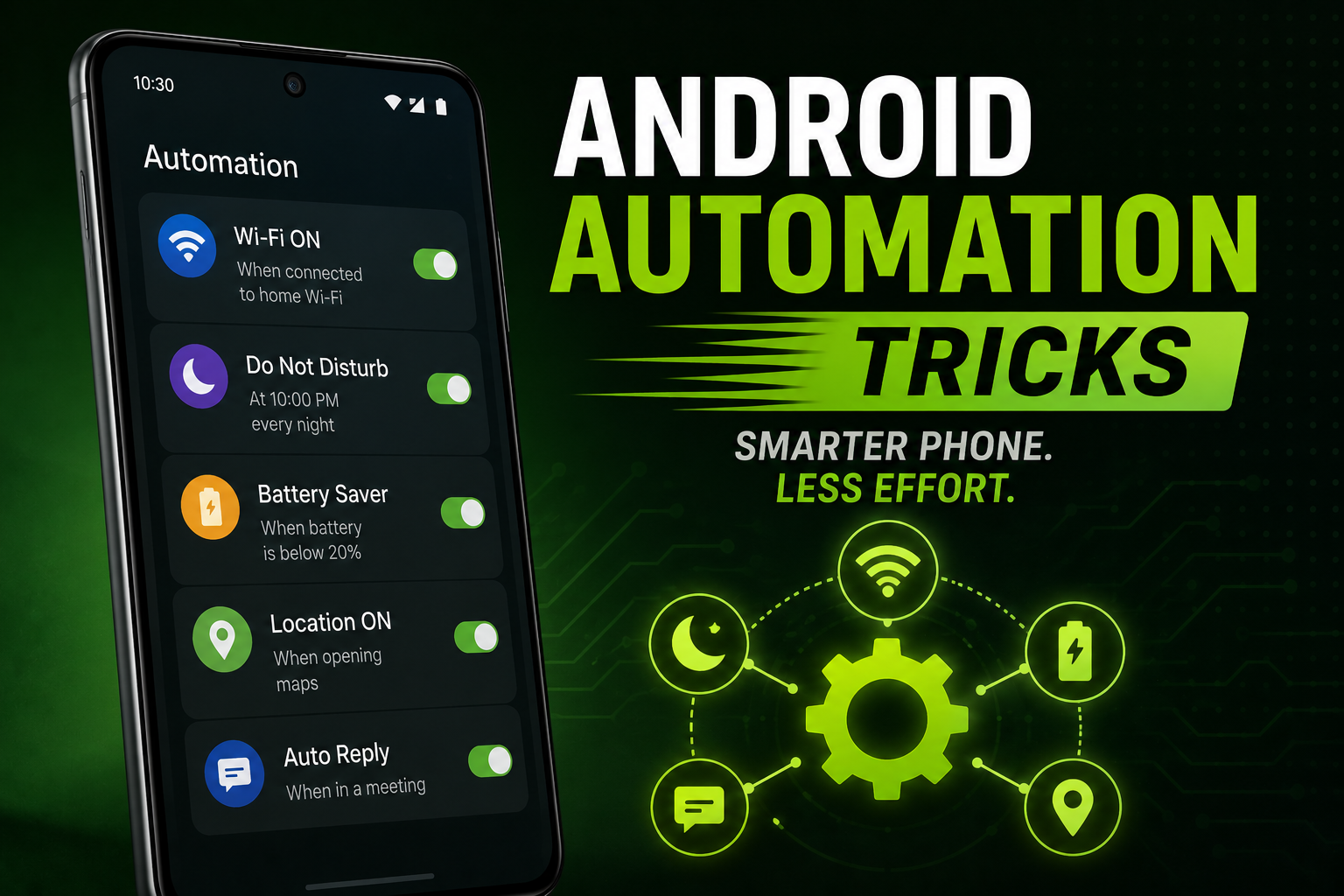
Android Automation Tricks is a practical 2026 guide for users who want to save time, reduce repeated actions and make their phone smarter. This guide explains useful automations for battery saving, work mode, bedtime, driving, travel, payments, camera workflows, students, creators and smart home control.
Quick Verdict
Main rule: Start with simple automations like bedtime, work mode, charging reminders and driving mode before creating complex routines.
Best for: Students, office users, creators, drivers, travellers, heavy Android users and smart-home users.
Avoid if: You do not want location, microphone or app-access permissions enabled for automation features.
Best by Use Case
Battery saving
Create routines to turn off hotspot, reduce brightness and enable battery saver below a chosen battery level.
Work mode
Use Focus Mode or Routines to silence social apps, enable calendar alerts and open productivity apps during office hours.
Driving
Enable Android Auto or driving routines to read messages, start maps, play music and avoid manual phone usage.
Students
Create class-time routines to mute notifications, open notes, start recording reminders and enable Do Not Disturb.
Creators
Create recording routines that enable silent mode, max brightness, camera shortcut and storage reminder before shoots.
Comparison Advice
- Use Google Assistant Routines for simple voice-based automation.
- Use Gemini for planning, summaries and context-based help.
- Use built-in Android settings first before installing third-party automation apps.
- Use third-party apps only if you understand the permissions they request.
Mistakes to Avoid
- Creating too many routines at once
- Allowing unknown automation apps full accessibility access
- Using location triggers without checking battery impact
- Forgetting to test routines before relying on them
- Automating payments or OTP-related actions
- Keeping microphone or location access always on unnecessarily
Deal Advice
- If you are buying a new Android phone for automation, prefer phones with strong software support and reliable battery life.
- Samsung Galaxy phones are better for Modes and Routines.
- Pixel phones are better for Google AI, Assistant and call-related smart features.
- Motorola, OnePlus and Xiaomi phones offer useful but different automation features depending on their software skin.
What Is Android Automation?
Android automation means making your phone perform repeated actions automatically based on time, location, battery level, connected devices, app usage or voice commands.
For example, your phone can turn on silent mode when you reach office, start Google Maps when connected to your car Bluetooth, or enable battery saver when power drops below 25%.
The goal is simple: reduce repeated manual work and make your phone behave smarter based on your routine.
Best Automation Tricks for Beginners
- Create a bedtime routine that enables Do Not Disturb, lowers brightness and turns on alarm.
- Create a charging reminder when battery reaches 80% or drops below 20%.
- Create a work routine to silence Instagram, YouTube and shopping app notifications.
- Create a driving routine that opens Maps and starts your preferred music app.
- Create a Wi-Fi routine to turn off mobile data when connected to home Wi-Fi.
Battery Saving Automation
Battery automation is one of the most useful Android tricks because it works quietly in the background.
You can set your phone to reduce brightness, disable Always-On Display, turn off hotspot and enable battery saver when the battery reaches a specific percentage.
This is especially useful for Indian users who travel, use mobile data heavily or depend on UPI apps throughout the day.
- Turn on Battery Saver below 25%
- Disable hotspot when no device is connected
- Reduce screen refresh rate when battery is low
- Turn off Always-On Display at night
- Enable dark mode after sunset
Work Mode Automation
A good work automation setup helps you avoid distractions without missing important calls or meetings.
Use Focus Mode, Do Not Disturb exceptions and app restrictions to create a cleaner office workflow.
You can allow only calls from family, calendar alerts and work apps while blocking social media notifications during office hours.
- Mute social apps from 9 AM to 6 PM
- Allow only priority contacts
- Open calendar and task app automatically
- Turn on vibration instead of ringtone
- Disable notification previews on lock screen
Student Automation Tricks
Students can use Android automation to reduce distractions during classes, online learning and exam preparation.
Instead of manually changing settings every day, create study routines for class time, library time and bedtime revision.
- Turn on Focus Mode during class hours
- Open notes app when connected to college Wi-Fi
- Enable reading mode at night
- Set reminders for assignments
- Mute games and social apps during study blocks
Creator Mode Automation
Creators need a different automation setup because camera, storage, battery and notifications matter heavily during recording.
Before recording reels, YouTube Shorts or product videos, your phone should be ready with silent mode, enough storage and stable brightness.
- Turn on Do Not Disturb when opening Camera
- Increase brightness while recording
- Show storage reminder before video shoots
- Open CapCut or Canva after recording
- Disable battery saver while exporting videos
Driving and Android Auto Automation
Driving automation is one of the safest and most practical uses of Android routines.
When your phone connects to your car Bluetooth, it can open Maps, start music, read messages aloud and keep notifications minimal.
With Gemini becoming more useful in Android Auto, voice-first driving workflows are becoming much better.
- Open Google Maps when car Bluetooth connects
- Start Spotify or YouTube Music automatically
- Read important messages aloud
- Reject distracting notifications
- Send automatic reply while driving
Location-Based Automation
Location routines can be powerful, but they should be used carefully because constant location tracking can affect battery life.
Use them only for important places like home, office, college, gym or car parking.
- Turn on Wi-Fi when reaching home
- Set silent mode when reaching office
- Open workout playlist at gym
- Turn off work notifications after leaving office
- Remind you to charge phone when reaching home
Smart Home Automation
Android works well with Google Home, smart bulbs, smart plugs, speakers and TVs.
You can create routines like Good Morning, Movie Time, Work Time and Good Night.
For example, saying Good Night can turn off lights, reduce phone brightness, set alarm and enable Do Not Disturb.
Privacy and Permission Warning
Automation features often require sensitive permissions such as location, microphone, accessibility, notifications and app usage access.
Only give these permissions to trusted apps.
Avoid automation apps that ask for SMS, call log, banking app or full accessibility access without a clear reason.
- Review automation app permissions monthly
- Avoid automating OTP or payment actions
- Use built-in Samsung, Pixel or Android routines first
- Do not install unknown APK automation tools
- Disable unused routines
Advanced Automation Ideas
- Use NFC tags to trigger home, office or car routines.
- Use Bluetooth triggers for earbuds, car and smartwatch workflows.
- Use calendar-based routines for meetings.
- Use app-open triggers for camera, gaming or creator mode.
- Use smart plugs with Google Home to automate charging habits.
Buying Impact: Which Android Phones Are Best for Automation?
If automation matters to you, the software experience becomes more important than raw specifications.
Samsung Galaxy phones are excellent for Modes and Routines, Pixel phones are strong for Google AI features, and OnePlus phones are good for smooth performance and fast charging workflows.
Budget phones can also support useful automation, but cheaper models may limit background routines more aggressively to save battery.
Final Verdict
Android automation is not just for power users. Even simple routines can save time, improve battery life and reduce distractions.
Start with battery, bedtime, work and driving routines first.
Once those are working properly, move to advanced automations like NFC tags, creator mode and smart-home actions.
Frequently Asked Questions
What is the easiest Android automation trick to start with?
Start with a bedtime routine that enables Do Not Disturb, lowers brightness and sets your alarm.
Which Android phone is best for automation?
Samsung Galaxy phones are very strong because of Modes and Routines, while Pixel phones are excellent for Google Assistant, Gemini and AI-based workflows.
Does Android automation drain battery?
Simple time-based routines do not drain much battery. Location-based routines can use more battery if used too often.
Can Gemini help with Android automation?
Gemini can help with planning, reminders, summaries and voice-based tasks, but some deep device automation still depends on Android settings or brand-specific routines.
Is it safe to use third-party automation apps?
Use them carefully. Avoid apps that ask for unnecessary accessibility, SMS, call log or banking-related permissions.
Can I automate WhatsApp messages?
You should avoid automating sensitive communication or OTP-based workflows. Use reminders and shortcuts instead of risky full automation.
Related Reading on Godealio
More Guide Details
Article Type
evergreen_guide
Platform
Android
Featured
false