
How to Enable Samsung's New Network Speed Indicator on Galaxy Phones
Samsung has finally introduced a built-in network speed indicator for Galaxy devices through Good Lock and QuickStar, allowing users to monitor real-time internet activity directly from the status bar.
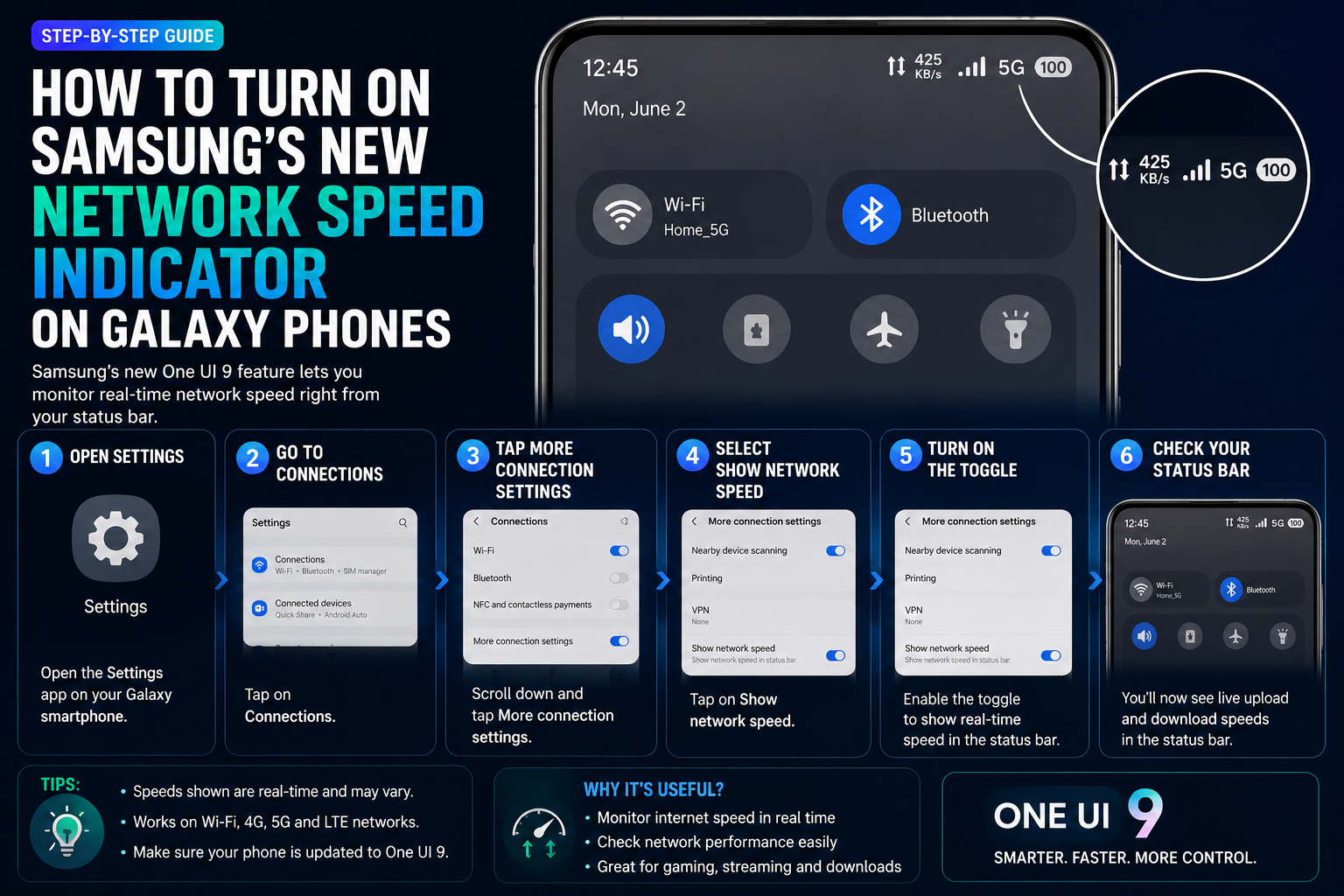
Samsung Galaxy users can now enable a built-in network speed indicator that displays real-time upload and download activity in the status bar. The feature arrives through Samsung's Good Lock customization suite and the QuickStar module, bringing a capability Android users have requested for years. Once activated, the indicator helps users monitor internet speeds during downloads, streaming sessions, online gaming, video calls and everyday browsing. This guide explains how to enable the feature, which Galaxy devices support it and why it can be useful for troubleshooting network issues.
Brand
Samsung
Model
Galaxy Network Speed Indicator
Topic
Samsung One UI Tips
Content Type
guide
Launch Status
Available
Availability
Supported One UI 9 Devices
Rating
9.1
Pros
- Displays real-time internet activity
- Shows upload and download speeds
- Useful for network troubleshooting
- Helps monitor streaming and downloads
- Works with Wi-Fi and mobile data
- Simple setup through Good Lock
- No third-party app required
- Lightweight status bar integration
Cons
- Requires Good Lock and QuickStar
- Not available on all Galaxy devices
- Regional availability may vary
- Currently hidden behind customization tools
Final Verdict
Samsung's network speed indicator is a simple but highly practical addition to Galaxy phones. It provides useful visibility into internet activity without requiring third-party applications and is particularly valuable for gamers, streamers and users troubleshooting network problems.
What Is Samsung's Network Speed Indicator?
The network speed indicator displays real-time upload and download activity directly in the status bar.
Instead of opening separate apps to monitor internet performance, users can instantly see whether data is actively moving across their connection.
The feature helps identify slow connections, stalled downloads and network-related issues.
What You Need Before Enabling It
The feature currently relies on Samsung's Good Lock customization platform and the QuickStar module.
Users should ensure they are running a compatible One UI version and have the latest QuickStar update installed.
- Samsung Galaxy smartphone
- Supported One UI version
- Good Lock installed
- Latest QuickStar module
- Samsung account access
Step 1: Install Good Lock
Open the Galaxy Store and search for Good Lock.
Download and install the application if it is not already available on your device.
Good Lock serves as Samsung's official customization platform.
Step 2: Open QuickStar
Launch Good Lock and navigate to the QuickStar module.
If QuickStar is not installed, download it directly through Good Lock.
Make sure the module is updated to the latest version.
Step 3: Enable the Network Speed Indicator
Inside QuickStar, locate the new Network Speed Indicator option.
Enable the toggle to activate the feature.
The indicator should immediately appear in the status bar.
- Open QuickStar settings
- Locate Network Speed Indicator
- Enable the feature
- Return to the home screen
- Verify the status bar display
Step 4: Test the Feature
Open a video stream, download a file or browse the web.
You should see real-time speed values update in the status bar as data is transferred.
Both Wi-Fi and mobile data activity can be monitored.
Why the Network Speed Indicator Is Useful
Many Android brands have offered this feature for years because it provides valuable insight into network activity.
Users can quickly determine whether a slow-loading page is caused by internet connectivity or by the application itself.
The feature is especially useful for streaming, gaming and downloading large files.
- Monitor internet activity
- Check download speeds
- Verify mobile data performance
- Troubleshoot network issues
- Track streaming quality
- Monitor cloud backups
Who Benefits Most?
The feature can be useful for almost everyone, but certain users will appreciate it more than others.
Power users often rely on network indicators to understand exactly what their device is doing.
- Mobile gamers
- Video streamers
- Remote workers
- Students
- Developers
- Frequent travelers
- Content creators
Could Samsung Add It Directly to One UI?
Many Galaxy users would prefer the feature to be available directly in Settings rather than through Good Lock.
If adoption is strong, Samsung may eventually integrate it as a standard One UI feature.
Doing so would make the functionality easier for mainstream users to discover.
A Small Feature That Makes Daily Use Better
The network speed indicator is not a major software upgrade, but it solves a common request from Galaxy users.
For anyone who wants better visibility into their internet connection, enabling the feature is worth the few minutes required for setup.
FAQs
What is Samsung's Network Speed Indicator?
It is a status bar feature that displays real-time upload and download activity on Galaxy phones.
Do I need Good Lock to use it?
Currently, the feature is available through Samsung's Good Lock platform and the QuickStar module.
Does it work on Wi-Fi and mobile data?
Yes. The indicator can show network activity for both Wi-Fi and cellular connections.
Why can't I see the option?
The feature may require the latest QuickStar update and a supported One UI version.
Will it affect battery life?
The impact is expected to be minimal because the indicator simply displays existing network activity information.
Can it help troubleshoot internet problems?
Yes. It helps users quickly determine whether data is actively flowing through the network connection.