
Instagram & WhatsApp Hidden Features: 30 Useful Tricks
A step-by-step 2026 guide to useful Instagram and WhatsApp features for privacy, security, Stories, Reels, chats, calls, storage and everyday productivity.

Learn 30 useful Instagram and WhatsApp tricks with step-by-step guidance for privacy, security, Stories, Reels, chats, calls, storage, notifications and account management. Feature names and availability can vary by app version, device, account and rollout.
Quick Verdict
Guide Overview
- Guide type
- explainer
- Difficulty
- beginner
- Market
- India
- Time required
- About 20-30 minutes to review and try the main features.
- Cost estimate
- No additional purchase is required for the built-in Instagram features covered here.
Who this guide is for
Instagram and WhatsApp users in India who want practical step-by-step guidance for privacy, security, content creation, chat management and everyday productivity.
Before You Start
Requirements
- An active Instagram account for the Instagram features.
- An active WhatsApp account for the WhatsApp features.
- The official Instagram and WhatsApp apps for mobile-specific features.
- A supported Android phone or iPhone.
- Current app versions are recommended because menus and feature availability change.
Prerequisites
- Update Instagram and WhatsApp before looking for a feature that appears to be missing.
- Back up important WhatsApp chats before making major device or account changes.
- Never share WhatsApp verification codes, passkeys, two-step-verification credentials or Instagram passwords.
- Expect labels and menu positions to vary between Android, iPhone and newer app versions.
- Use only features that are actually available on your account and device.
Tools Needed
- Android phone or iPhone
- Internet connection
Step-by-Step Guide
Follow the relevant steps in order and avoid changing unrelated advanced settings.
Add and switch between multiple Instagram accounts
- Open your Instagram profile.
- Use the account switcher shown from your profile photo or account name.
- Choose the option to add an Instagram account, then log in to an existing account or create another account.
- Return to the account switcher whenever you need to move between profiles.
Expected result
You can manage more than one Instagram profile from the same device without repeatedly signing out.
Warning
Always check which account is active before publishing, commenting or replying to messages.
Platform: Android|iPhone
Find posts and Reels you previously liked
- Open your profile and enter the activity area.
- Open Likes under the interactions controls.
- Use the available filters to narrow liked content by author, content type, date or order.
Expected result
You can rediscover content you previously liked instead of searching for it again.
Warning
The exact labels or filter layout may change between Instagram versions.
Platform: Android|iPhone
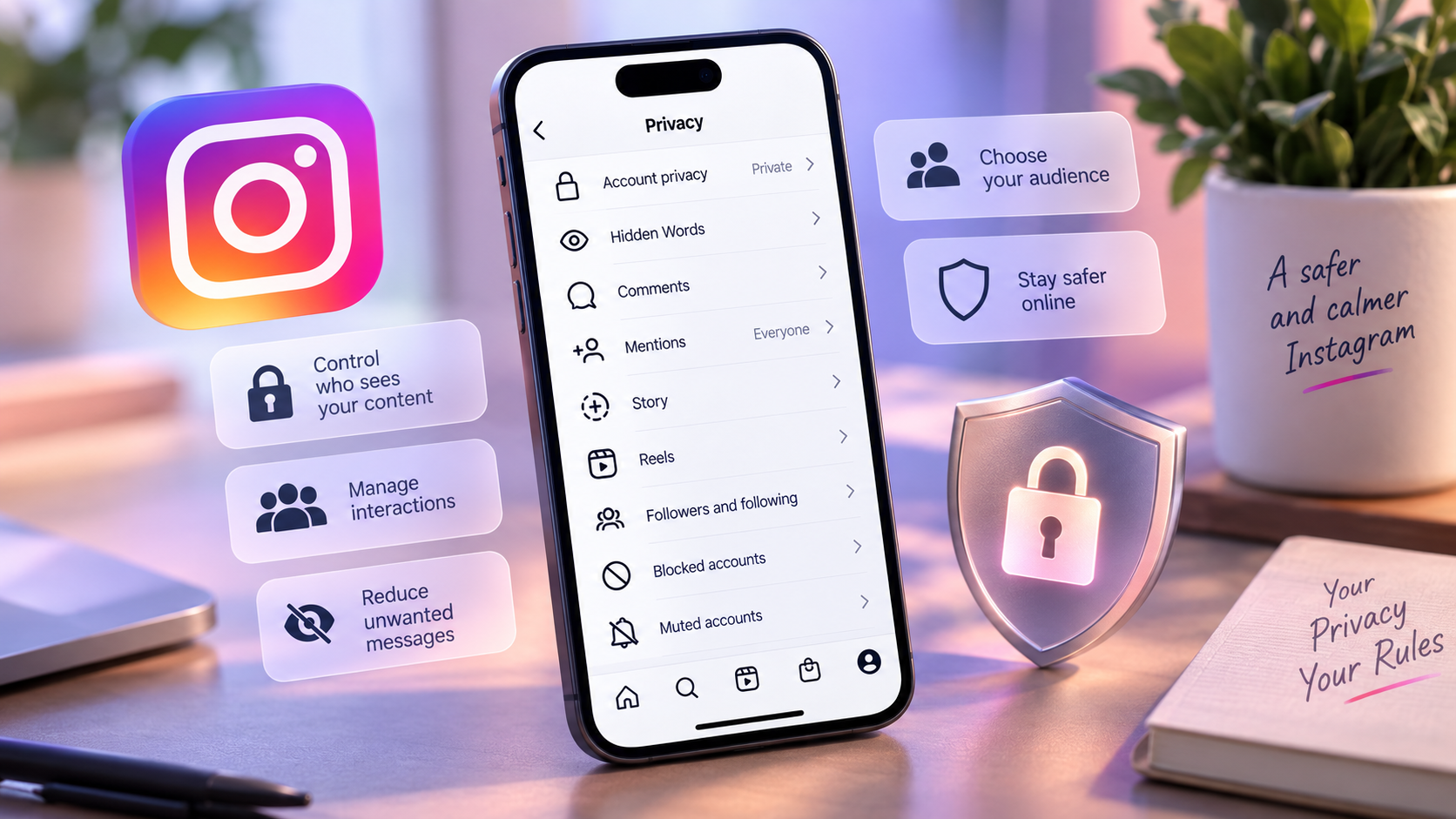
Filter unwanted comments with Hidden Words
- Open Instagram's settings and activity controls.
- Find Hidden Words in the interaction controls.
- Enable Instagram's offensive-comment filtering if appropriate.
- Add custom words and phrases when you need a more specific filter.
Expected result
Comments containing filtered or custom terms can be hidden from normal view.
Warning
Automated filtering is not a substitute for reviewing serious harassment, impersonation or threats.
Platform: Android|iPhone
Clear your Instagram search history
- Open your profile and go to Your activity.
- Open Recent searches.
- Review the entries before choosing Clear all.
Expected result
Your visible recent-search history is cleared.
Platform: Android|iPhone
Create collections for saved posts
- Save a useful post with Instagram's bookmark control.
- Open the Saved area in Instagram.
- Create a new collection and give it a useful name.
- Add relevant saved posts to that collection.
Expected result
Saved posts are organised into collections instead of remaining in one long list.
Platform: Android|iPhone
Pin important posts or Reels to your profile grid
- Choose the post or Reel you want visitors to notice first.
- Open the available post options.
- Choose the pin-to-grid option when it is shown.
Expected result
The selected content remains prominently positioned at the top of your profile grid.
Warning
Menu wording can change between app versions.
Platform: Android|iPhone
Add a clickable link to an Instagram Story
- Create or upload the photo or video for your Story.
- Open the Story sticker controls.
- Choose the Link sticker.
- Enter the destination URL and customise the sticker text when the option is available.
- Check the destination before publishing.
Expected result
Viewers can tap the Story link sticker to open the destination you supplied.
Warning
Check links carefully before publishing, especially for business, payment or promotional destinations.
Platform: Android|iPhone
Create a Reel from an Instagram template
- Find a Reel that displays the option to use it as a template, or begin creating a new Reel and open Templates.
- Choose a suitable template.
- Add your own clips using the template structure.
- Review the finished Reel before sharing.
Expected result
Instagram uses the selected template structure to speed up Reel creation.
Warning
Only eligible Reels expose the template option.
Platform: Android|iPhone
Add automatic captions to Reels or Stories
- Create the Reel or Story and add your media.
- Open the sticker controls.
- Choose Captions when it is available.
- Review the generated transcription and correct mistakes before publishing.
Expected result
Spoken audio is represented with on-screen captions.
Warning
Automatic transcription can make mistakes, so review names, numbers and technical terms.
Platform: Android|iPhone
Reply to a Reel comment with another Reel
- Open a comment on one of your Reels.
- Choose Reply and use the camera option when it is shown.
- Record or upload your response Reel.
- Position or style the comment sticker, then review and share.
Expected result
The original comment becomes context for a video response.
Platform: Android|iPhone
Use Stories Highlights to keep useful Stories visible
- Open the Highlight creation control from your profile.
- Select eligible past Stories.
- Choose a name and cover for the Highlight.
- Add it to your profile and review how it appears to visitors.
Expected result
Selected Stories remain accessible from your profile beyond the normal Story period.
Platform: Android|iPhone
Pause notifications or use Sleep mode
- Open Instagram's notification settings.
- Use Pause all for a temporary break, or Sleep mode when you want a scheduled or longer interruption-free period.
- Review the notification summary after returning.
Expected result
Instagram notifications become less disruptive during the selected period.
Warning
Do not rely on Instagram notification controls for emergency communication.
Platform: Android|iPhone
Create a Favorites feed
- Open the feed selector from the Instagram home feed.
- Choose Favorites.
- Add the accounts whose posts you most want to see.
- Return to the Favorites feed when you want a more focused view.
Expected result
Posts from selected accounts receive priority and can be viewed in a dedicated Favorites feed.
Warning
Instagram can change feed controls and limits over time.
Platform: Android|iPhone
Turn on notifications for a specific account
- Open the Instagram profile you want to follow closely.
- Use the profile's notification control.
- Choose the content types for which you want alerts, such as posts, Stories, Reels or Live videos.
Expected result
Instagram can notify you when the selected account publishes the content types you chose.
Warning
Instagram notifications must also be permitted by your phone's operating-system settings.
Platform: Android|iPhone
Use Broadcast Channels when your account is eligible
- Check whether Broadcast Channels are available for your creator account.
- Use the channel for updates, behind-the-scenes material, images, video, voice notes or polls.
- Set expectations clearly because followers can react and vote but do not use the channel like a normal group chat.
Expected result
Eligible creators gain a one-to-many channel for communicating with followers.
Warning
Availability and account eligibility can change, so use only the controls shown on your account.
Platform: Android|iPhone
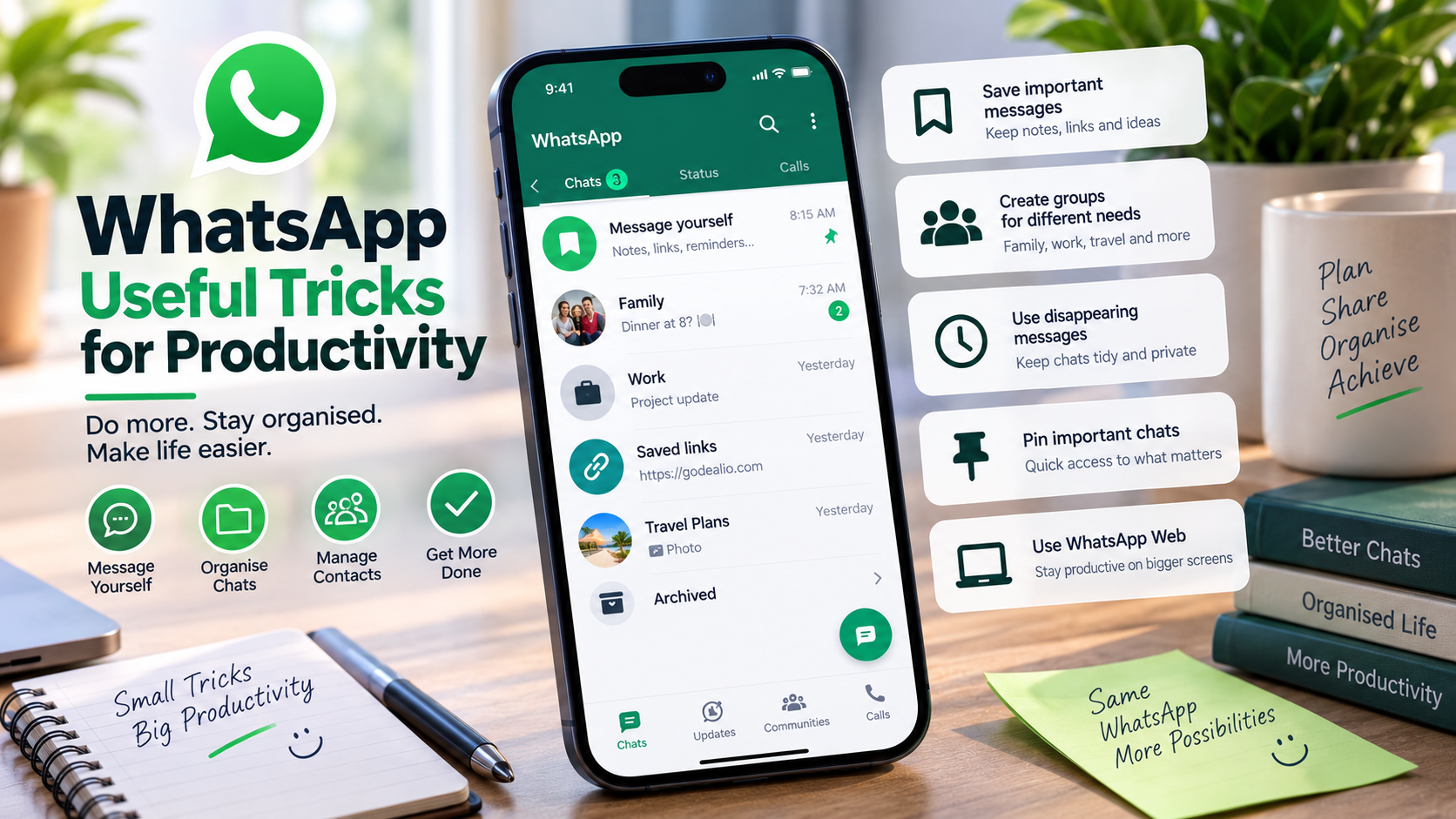
Message yourself on WhatsApp for notes, links and reminders
- Open WhatsApp and go to the Chats tab.
- Tap New chat.
- Search for or select your own name or phone number.
- Send notes, links, photos, documents or messages you want to keep handy.
- Forward an existing message to your self-chat when you want to save it for later.
Expected result
You get a private self-chat that behaves much like a normal WhatsApp conversation.
Warning
A self-chat is convenient but should not replace a dedicated secure password manager or long-term backup system.
Platform: Android|iPhone|Web|Mac|Windows
Lock sensitive WhatsApp chats
- Find the individual or group chat you want to protect.
- Use the chat's options and choose Lock Chat when available.
- Authenticate with the protection method offered by your device or WhatsApp.
- Open the Locked Chats area when you need the conversation.
- If available on your account, review Secret Code options for additional privacy.
Expected result
The selected conversation is protected behind WhatsApp's chat-lock controls.
Warning
Chat Lock adds device-level privacy; it does not make unsafe messages, links or files trustworthy.
Platform: Android|iPhone|Web|Windows
Turn on disappearing messages
- Open the chat where you want messages to expire.
- Open the chat or contact information.
- Choose Disappearing messages.
- Select an available duration such as 24 hours, 7 days or 90 days.
- For new individual chats, review Settings > Privacy > Default message timer if you want a default duration.
Expected result
New messages in the configured conversation are set to disappear after the chosen period, subject to WhatsApp's documented exceptions.
Warning
Disappearing messages are not a guarantee that information cannot be copied, forwarded, captured or retained elsewhere.
Platform: Android|iPhone
Silence calls from unknown WhatsApp numbers
- Open WhatsApp.
- Go to Settings > Privacy.
- Tap Calls.
- Turn on Silence unknown callers.
- Review the Calls tab later if you want to check a silenced number.
Expected result
Calls from unknown numbers do not ring normally while remaining visible for later review.
Warning
An unknown caller can still be legitimate, so review call details before deciding whether to block or call back.
Platform: Android|iPhone
Run WhatsApp Privacy Checkup
- Open WhatsApp Settings.
- Open Privacy.
- Choose Start checkup when Privacy Checkup is available.
- Review who can contact you and who can see your personal information.
- Review chat, call and account protection options rather than accepting defaults automatically.
Expected result
You review several important WhatsApp privacy settings in one guided workflow.
Warning
Choose settings based on your communication needs; the most restrictive option is not always appropriate for every user.
Platform: Android|iPhone
Use Advanced Chat Privacy for sensitive conversations
- Open the individual chat or eligible group.
- Open the contact or group information.
- Choose Advanced chat privacy when the option is available.
- Turn it on for that conversation.
- For groups, review admin permissions because group admins can control this setting.
Expected result
WhatsApp applies additional restrictions on sharing messages and media outside that conversation.
Warning
Participants using an outdated WhatsApp version may not receive every protection described for the latest version.
Platform: Android|iPhone|Web|Mac|Windows
Strengthen WhatsApp two-step verification
- Open WhatsApp Settings.
- Open Account.
- Open Two-step verification or the current equivalent security control.
- Create the stronger credential offered by your current WhatsApp version.
- Add or confirm recovery information where WhatsApp offers it.
- Never share this credential or a registration code with anyone.
Expected result
Your account has an additional protection layer against takeover attempts.
Warning
WhatsApp's 2026 rollout changed two-step verification from the older six-digit-PIN model toward a stronger password, so follow the controls shown in your current app.
Platform: Android|iPhone
Set up WhatsApp passkeys
- Open WhatsApp Settings.
- Go to Account > Passkeys.
- Choose the option to create or add a passkey.
- Complete verification using the supported fingerprint, Face ID or device screen-lock method.
- Store and manage passkeys only through trusted device/account security controls.
Expected result
A supported passkey becomes available as a secure way to verify access to your WhatsApp account.
Warning
Passkey options depend on your current WhatsApp version, operating system and device security setup.
Platform: Android|iPhone
Control who sees your WhatsApp profile and activity
- Open WhatsApp Settings > Privacy.
- Review Last seen and online.
- Review Profile photo, About and Status visibility.
- Review who can add you to groups.
- Adjust Read receipts if the option fits your privacy needs.
- Review advanced privacy controls such as call IP protection or link-preview controls if they are available.
Expected result
Your WhatsApp profile exposes only the information you choose under the available privacy settings.
Warning
Privacy controls do not make an account anonymous and do not prevent recipients from retaining information you deliberately share.
Platform: Android|iPhone|Web
Use Strict Account Settings if you face elevated cyber risk
- Update WhatsApp to a version that includes the feature on your account.
- Open Settings > Privacy.
- Open Advanced.
- Choose Strict Account Settings when available.
- Read the restrictions carefully before enabling the lockdown-style protection.
Expected result
WhatsApp applies a more restrictive security configuration to reduce exposure to sophisticated attacks.
Warning
This is an extreme-protection mode and can limit normal app behaviour; it may not be necessary for every user.
Platform: Android|iPhone
Manage WhatsApp storage without deleting entire chats
- Open WhatsApp Settings and locate Storage and data or Manage storage.
- Review large media and conversations using significant storage.
- Open a chat's storage details before deleting anything.
- Remove only the photos, videos or files you no longer need.
- Confirm that important media is backed up elsewhere before deletion.
Expected result
You recover storage while preserving the conversations and media you still need.
Warning
Storage menus can differ by platform and rollout; verify important files before deleting them.
Platform: Android|iPhone
Use multiple WhatsApp accounts for work and personal chats
- Update WhatsApp and check whether multiple-account controls are available on your device.
- Open WhatsApp account settings or the account switcher.
- Add the second supported WhatsApp account using its own phone number and verification process.
- Switch accounts from the account control instead of repeatedly signing out.
- Check the active account before sending a business or personal message.
Expected result
Supported devices can keep separate WhatsApp identities easier to manage.
Warning
Multiple-account availability and exact setup can vary by operating system and current rollout.
Platform: Android|iPhone
Back up important WhatsApp chat history
- Open WhatsApp Settings.
- Open Chats and find the chat-backup controls.
- Review the Google account or iCloud destination used by your platform.
- Choose a suitable backup frequency and confirm whether videos should be included.
- Check the last successful backup before resetting, replacing or migrating a phone.
Expected result
Your configured WhatsApp chat history is backed up using the supported cloud backup option for your platform.
Warning
Backup and restore behaviour depends on platform, account, encryption settings and available cloud storage.
Platform: Android|iPhone
Block and report suspicious WhatsApp accounts
- Do not click an unexpected link or share a verification code.
- Open the suspicious chat or caller information.
- Use Block when you no longer want that account to contact you.
- Use Report when the behaviour appears abusive, fraudulent or otherwise problematic.
- If account access is lost, use WhatsApp's official recovery process rather than paying a third party.
Expected result
The unwanted account is blocked and, when reported, WhatsApp receives the relevant report through its supported process.
Warning
Never send money or credentials merely because a WhatsApp message claims to be from a friend, bank, employer or support agent.
Platform: Android|iPhone|Web
Review unknown caller context before answering
- When WhatsApp shows a call from a number outside your contacts, do not answer automatically.
- Review the caller context WhatsApp displays on supported Android versions, such as whether the number is from another country or shares groups with you.
- If the call looks suspicious, let Silence unknown callers handle it when enabled.
- Open the Calls tab later to review the number.
- Block or report the number when appropriate.
Expected result
You can make a more informed decision before engaging with an unknown WhatsApp caller.
Warning
Never treat a shared group or familiar-looking country code as identity verification.
Platform: Android
1. Manage multiple Instagram accounts without repeatedly logging out
Instagram can keep multiple accounts available on the same device and lets you move between them from the account switcher. This is particularly useful for someone who maintains a personal profile alongside a creator, business or hobby account. Social-media managers can also use it to move between profiles without going through a complete sign-out and sign-in cycle every time. The convenience creates one important risk: posting from the wrong identity. Before uploading a Reel, publishing a Story, commenting or replying to a direct message, check the active profile photo and account name. That small habit matters even more when one account represents a company. If you no longer need an account on the device, review the account setup instead of leaving unnecessary profiles accessible.
2. Find liked posts and clear searches from Your Activity
If you remember liking a useful Reel or post but cannot find it again, Instagram's activity controls can save a lot of searching. The Likes area brings previously liked content together and can provide filters such as author, content type, date and sorting order. That makes it useful for rediscovering a product idea, recipe, travel post or tutorial you interacted with earlier. The same broader activity area also provides access to recent searches. Clearing that list can tidy the visible search history when you no longer need old queries. These tools are organisation controls rather than a promise that every piece of account data is erased. Use them for managing what you see in your own Instagram interface, and check the current app if menu wording differs from the instructions here.
4. Turn Saved posts into organised collections
The bookmark button is easy to overlook because saved posts disappear into a private area rather than appearing publicly on your profile. Collections make the feature much more useful. Instead of keeping hundreds of unrelated saved posts together, create collections around subjects such as phone photography, travel ideas, recipes, home design, work references or content inspiration. When you save a post, add it to the relevant collection when Instagram offers the choice. You can also organise material from the Saved area. A simple naming system makes the archive far easier to reuse later. This is especially helpful for creators doing visual research because a collection can become a lightweight reference board without requiring a separate bookmarking application.
5. Pin important content and make your profile easier to understand
Instagram lets you pin important posts or Reels to the top of the profile grid. Pinning is useful when your newest upload is not necessarily the first thing a visitor should see. A creator might pin an introduction, a strong Reel and a current project; a business might pin a product explainer, important announcement or popular piece of content. Instagram also supports mentioning another Instagram account in a bio by using its handle. That can help connect related profiles, such as a personal creator account and a separate project profile. Keep the profile focused: pinned content should explain who you are or what matters now, rather than becoming a permanent archive. Review pins when a campaign ends or when the information is no longer representative.
6. Make Stories more useful with links and Highlights
A Story can do more than display a temporary photo or video. Instagram's Link sticker lets you attach an external destination to a Story. After adding your media, open the sticker controls, choose Link, enter the URL and customise the visible sticker text where supported. Always test the destination before publishing, particularly if the Story promotes a product, article, registration page or other important action. Highlights solve a different problem: they keep selected Stories accessible from the profile after the normal Story period. Group Highlights by a clear purpose such as FAQs, tutorials, events, travel or products, and choose a useful name and cover. For a business or creator, Highlights can function like a compact navigation layer on the profile. Keep the most useful collections current instead of preserving every old Story.
7. Create Reels faster with templates, captions and comment replies
Reel templates can reduce editing effort by giving you an existing structure into which you place your own clips. Instagram exposes the template option only on eligible Reels, and templates can also be browsed from the Reel creation workflow. They are useful when you want a familiar rhythm or format without manually rebuilding every timing decision. Automatic captions are another practical creation tool. Instagram can transcribe spoken audio into on-screen captions for supported Reels and Stories, which can help people follow content without sound. Review the transcription before publishing because automatic speech recognition can misread names, numbers or technical words. Instagram also lets creators reply to a comment on a Reel with another Reel, turning a useful audience question into visible follow-up content.
8. Take control of the feed with Favorites and notification tools
Instagram's Favorites feature can prioritise accounts you care about and provides a dedicated Favorites feed. The supplied research describes support for up to 50 favourite accounts and notes that the Favorites feed avoids ads and suggested posts. This can make Instagram more intentional when you want to check selected friends, creators or brands rather than browse the main recommendation-heavy feed. Notification controls work at two levels. Instagram can pause broad notifications or use Sleep mode when you want a break, while a specific profile can have alerts enabled for selected content types such as posts, Stories, Reels or Live videos. Device-level notification permission must also allow Instagram alerts. Use these controls selectively; enabling alerts for too many accounts defeats the purpose and can make the app more distracting.
9. Use Broadcast Channels for one-to-many creator updates
Broadcast Channels are designed for creators who want to communicate directly with a large follower audience. The supplied research describes support for text, video, voice notes and images, along with reactions and polls. Followers can react and vote, but the channel is not structured like an ordinary group conversation where everyone sends normal messages. That makes a channel useful for announcements, behind-the-scenes updates, launch reminders or quick polls. It is less suitable when the goal is an open community discussion. Eligibility can depend on the account and Instagram's current feature availability, so creators should confirm that the channel option exists before building a communication plan around it. Keep channel posts purposeful; another notification-heavy stream can quickly lose value if every minor update is broadcast.
12. Use Message Yourself and Chat Lock for better organisation and privacy
Message Yourself is one of the simplest WhatsApp productivity tricks. Start a new chat, select your own name or phone number and use that conversation for temporary notes, useful links, documents or messages you want to revisit. You can also forward an existing message into the self-chat. WhatsApp documents self-messages as end-to-end encrypted, but the feature is best treated as a convenient inbox rather than a replacement for a password manager or structured notes application.
Chat Lock solves a different problem. It protects selected conversations behind the security mechanism offered by WhatsApp and your device and places them in the locked-chat area. This is useful when another person may briefly use your phone and you do not want a sensitive conversation sitting openly in the main chat list. On supported versions, additional Secret Code controls can make locked chats less obvious.
- Self-chat: New chat → your own name/number.
- Chat Lock: choose the chat → options → Lock Chat.
- Do not store passwords or recovery codes in an ordinary self-chat.
13. Combine disappearing messages with Advanced Chat Privacy
Disappearing messages let you set new messages to disappear after an available timer such as 24 hours, 7 days or 90 days. You can enable the feature for a specific conversation or set a default timer for new individual chats. It is useful when keeping a permanent history is unnecessary, but it should not be confused with guaranteed deletion: messages can sometimes be retained through forwarding, replies, backups, keeping or other actions described by WhatsApp.
Advanced Chat Privacy adds another layer for a selected conversation. WhatsApp says it can prevent chat export, stop automatic media saving to the gallery and restrict certain Meta AI actions within that chat. It is configured per conversation, and group administration can affect who controls it. Use it for conversations where reducing the ways content leaves WhatsApp is valuable, while remembering that participants on older versions may not receive every protection.
- Disappearing messages control retention time.
- Advanced Chat Privacy restricts certain sharing/export behaviours.
- Neither feature makes it safe to send secrets to an untrusted recipient.
14. Stop nuisance calls and run WhatsApp Privacy Checkup
To silence unknown callers, open WhatsApp Settings, choose Privacy, open Calls and enable Silence unknown callers. WhatsApp says these calls will not ring normally but remain visible in the Calls tab and notifications so you can review them later. This is useful for reducing spam and scam interruptions without completely losing the record of an incoming call.
Privacy Checkup provides a guided way to review multiple protection settings from the Privacy area. Use it after installing WhatsApp on a new device, changing a phone number or whenever you have not reviewed your settings for a long time. Check profile visibility, group controls, caller settings and other available protections rather than assuming the defaults match your needs.
- Settings → Privacy → Calls → Silence unknown callers.
- Review silenced calls later instead of calling back immediately.
- Use Privacy Checkup as a periodic security review.
15. Protect WhatsApp with stronger verification, passkeys and Strict Account Settings
WhatsApp announced stronger two-step verification in August 2026, moving beyond the older six-digit PIN model toward a longer password that can include letters, numbers and special characters. Because this is a recent rollout, use the security controls shown in your current app rather than relying on an older tutorial. Never give the credential or a registration code to someone who claims they need it to verify, recover or support your account.
Passkeys provide another supported verification method using device security such as a fingerprint, Face ID or screen-lock code. WhatsApp's 2026 update also announced the ability to add more than one passkey. Users facing unusually sophisticated attacks can additionally check Settings → Privacy → Advanced for Strict Account Settings when available. Meta describes this as a lockdown-style configuration aimed particularly at high-risk people such as journalists or public figures, so ordinary users should understand its restrictions before enabling it.
- Account → Passkeys for supported passkey setup.
- Never share verification codes or security credentials.
- Strict Account Settings is an extreme-protection option, not a mandatory setting for everyone.
16. Manage WhatsApp storage, multiple accounts and backups
Large videos, family groups and forwarded media can consume substantial phone storage. Use WhatsApp's storage-management controls to identify large conversations and media, then remove only what you no longer need. WhatsApp expanded its storage-management capabilities in 2026 so users can free space without automatically deleting an entire conversation. Before deleting important photos or documents, make sure another copy exists where appropriate.
WhatsApp also expanded multiple-account support in 2026, making it easier to separate personal and work identities on supported devices. Each account still needs its own valid setup, and you should verify which account is active before sending a message. For device replacement or migration, review chat backup settings and confirm the most recent successful backup before resetting the old phone.
- Delete large media selectively.
- Keep work and personal WhatsApp accounts clearly separated.
- Confirm the last successful backup before changing phones.
- Internal reading: https://godealio.com/guides/how-to-verify-warranty-after-buying-phone-online
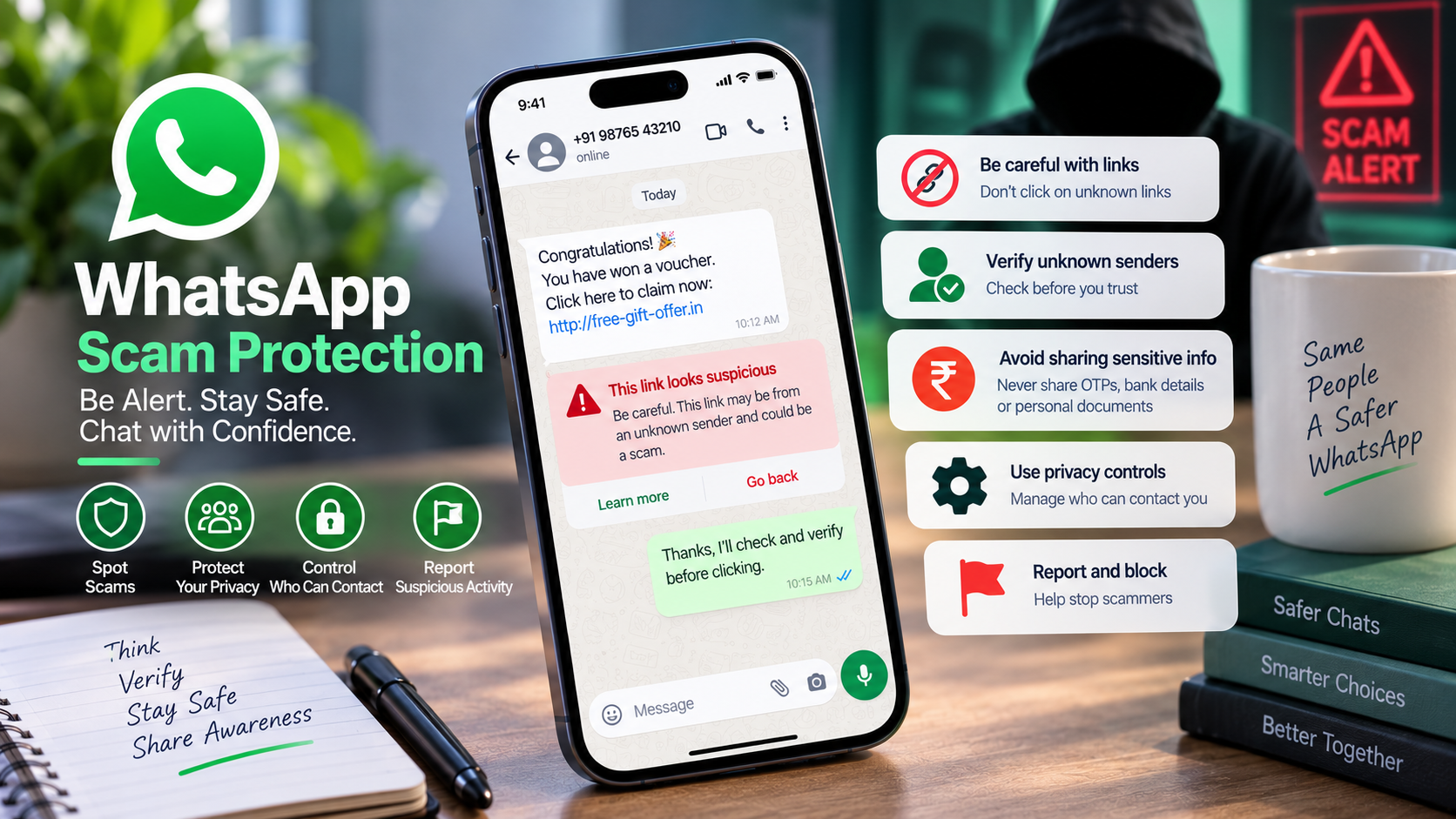
17. WhatsApp scam protection: what to do with suspicious calls and messages
Treat urgency as a warning sign. A message claiming that your account will be disabled, a relative needs immediate money, a prize is waiting, a courier payment failed or a support agent needs your verification code should be independently checked before you act. Do not rely on the display name or profile photo as identity proof. WhatsApp's Block and Report controls are available when an account is unwanted or suspicious.
WhatsApp's August 2026 update also added more context for calls from people outside your contacts on Android, including information such as whether the number is from another country and whether you share groups. This context can help, but it is not proof of identity. If a product deal or social-media seller looks suspicious, compare it against Godealio's scam guidance and verify the seller, invoice, warranty and payment destination independently.
- Never share an OTP, registration code or password.
- Do not trust a caller solely because you share a group.
- Block and report suspicious accounts.
- Internal reading: https://godealio.com/guides/common-mobile-scams-in-india
18. Continue with related Godealio guides
Instagram and WhatsApp settings are only part of a safer and more productive smartphone setup. Godealio's guide hub contains Android tips, iPhone guides, privacy and security explainers, creator advice and troubleshooting. Android users who enjoy hidden settings can continue with the Developer Options guide, while the Android widgets guide covers home-screen productivity and customisation.
For online buying safety, the common-mobile-scams and warranty-verification guides are particularly relevant when a deal originates in a social-media post or messaging conversation. Use those guides alongside the app-level privacy controls covered here.
- https://godealio.com/guides
- https://godealio.com/guides/android-hidden-features-developer-options
- https://godealio.com/guides/best-android-widgets
- https://godealio.com/guides/common-mobile-scams-in-india
- https://godealio.com/guides/how-to-verify-warranty-after-buying-phone-online
- https://godealio.com/news
Guide Images



Troubleshooting
A feature in this guide is missing.
Likely causes
- The Instagram app is outdated.
- The menu has moved.
- The feature is account- or rollout-dependent.
What to try
- Update the official Instagram app.
- Look for the equivalent control in current settings or activity areas.
- Check again later if the feature is not yet exposed to your account.
When to escalate: Use Instagram's official in-app help when a documented feature remains unavailable or fails consistently.
Instagram captions contain incorrect words.
Likely causes
- Automatic speech transcription misheard the audio.
- Names, accents, numbers or technical words were interpreted incorrectly.
What to try
- Review captions before publishing.
- Edit incorrect transcription where Instagram provides the editing control.
When to escalate: Use manually prepared on-screen text when accurate wording is essential and automatic captions remain unreliable.
Notifications are still missing for a favourite account.
Likely causes
- Account-specific alerts are not enabled.
- Instagram notifications are disabled at operating-system level.
What to try
- Review the profile's notification settings.
- Check the phone's notification permission for Instagram.
When to escalate: Check Instagram's help resources if both settings are enabled but alerts repeatedly fail.
A WhatsApp feature in this guide is missing.
Likely causes
- WhatsApp is outdated.
- The feature is still rolling out.
- The feature differs between Android, iPhone, Web or desktop.
What to try
- Update the official WhatsApp app.
- Check the same feature under the current Privacy, Account, Chats or Storage settings.
- Verify whether the feature is supported on your platform.
When to escalate: Use the official WhatsApp Help Center or in-app support if the feature is documented for your platform but remains unavailable.
Unknown WhatsApp calls keep disturbing you.
Likely causes
- Silence unknown callers is off.
- The caller is no longer treated as unknown after previous interaction.
What to try
- Enable Settings > Privacy > Calls > Silence unknown callers.
- Block or report persistent suspicious callers.
When to escalate: For credible threats, financial fraud or persistent harassment, preserve relevant evidence and use appropriate official reporting channels.
WhatsApp is using too much phone storage.
Likely causes
- Large videos or forwarded media.
- Long-running group chats.
- Automatic media downloads.
What to try
- Use Manage storage.
- Delete unneeded large media selectively.
- Review automatic media-download settings.
When to escalate: Back up important data before reinstalling or clearing application data.
Buying & Decision Checklist
- No paid third-party app is required for the built-in features covered in this guide.
- Use the official Instagram application.
- Avoid services that request your Instagram password merely to unlock supposed hidden features.
- For creator or business workflows, confirm that the feature is supported by your current account type before planning around it.
Common Mistakes
- Publishing from the wrong profile after switching between multiple accounts.
- Assuming every Instagram account has exactly the same menus and feature availability.
- Using automatic captions without checking transcription errors.
- Saving large numbers of posts without organising them into collections.
- Using third-party hacks when Instagram already provides a built-in control.
- Posting a Story link without testing the destination first.
- Turning on too many account-specific notifications and creating unnecessary alert fatigue.
- Sharing a WhatsApp registration code or security credential with someone claiming to be support.
- Calling an unknown WhatsApp number back without checking available context.
- Assuming disappearing messages guarantee that a recipient cannot retain information.
- Deleting an entire WhatsApp chat to recover storage before checking selective media cleanup.
- Resetting or replacing a phone before confirming a recent WhatsApp backup.
Key Takeaways
- Multiple-account switching is useful but makes checking the active profile before publishing essential.
- Your Activity can help rediscover liked content and manage recent searches.
- Hidden Words, comment controls and notification settings make Instagram easier to manage.
- Saved Collections and Favorites reduce the effort required to find useful content.
- Story link stickers and Highlights can make Stories more useful beyond casual updates.
- Reel templates, captions and comment-reply Reels can speed up content creation.
- Feature names and menu positions can change as Instagram updates.
- WhatsApp Privacy Checkup, Chat Lock and unknown-caller controls are strong first settings to review.
- Message Yourself is useful for notes and links but is not a password manager.
- Advanced Chat Privacy and disappearing messages solve different privacy problems.
- Passkeys and stronger verification can improve account takeover resistance.
- Storage management, multiple accounts and backups improve day-to-day WhatsApp organisation.
- Never trust a social-media or WhatsApp seller solely because the profile looks legitimate.
Important Warnings
- Do not share your Instagram password with third-party services promising hidden features.
- Test external links before publishing them.
- Review automatically generated captions for errors.
- Account type, app version and rollout can affect feature availability.
- Never share WhatsApp verification codes, passkeys, two-step-verification credentials or recovery information.
- Do not use modified or unofficial WhatsApp clients.
- Disappearing messages do not guarantee that information cannot be retained elsewhere.
- Strict Account Settings can reduce functionality and is intended for elevated-risk scenarios.
Useful Tips
- Use WhatsApp's self-chat as a lightweight inbox for links and temporary notes.
- Silence unknown callers if spam calls are frequent, then review the Calls tab later.
- Use Chat Lock for conversations that should not be visible when someone briefly uses your phone.
- Run Privacy Checkup after moving WhatsApp to a new device.
- Use disappearing messages for conversations where long-term chat history is unnecessary, while remembering recipients can still retain information in other ways.
- Keep Instagram Saved collections organised by purpose so useful posts are easy to rediscover.
- Proofread Instagram's automatic captions before publishing Reels or Stories.
- Test every Instagram Story link before publishing.
- Check the active Instagram or WhatsApp account before sending business content.
- Avoid unofficial modified WhatsApp or Instagram apps and services asking for passwords or verification codes.
Conclusion
The best Instagram and WhatsApp hidden features are the ones that remove everyday friction while improving privacy and security. On Instagram, organise Saved posts, control comments and notifications, and use Story and Reel tools more deliberately. On WhatsApp, start with Privacy Checkup, unknown-caller protection, Chat Lock, stronger account security and reliable backups, then add productivity features such as Message Yourself, selective storage cleanup and multiple accounts. Keep both apps updated because menus and rollout availability change, and never trade account credentials for a supposed third-party shortcut.
Frequently Asked Questions
How can I see posts I previously liked on Instagram?
Open your Instagram profile, go to Your Activity and open Likes under the interaction controls. The supplied research says liked content can be filtered by author, content type, date and order.
Can I manage more than one Instagram account on the same phone?
Yes. Instagram supports adding and switching between multiple accounts from the same device. Check which account is active before posting or replying.
Can I organise saved Instagram posts?
Yes. Instagram lets you create collections for saved posts, which is useful for grouping references such as travel ideas, products, recipes or content inspiration.
Can I add a clickable website link to an Instagram Story?
The supplied research documents a Link sticker for Stories. Add your Story media, open the sticker controls, choose Link and enter the destination URL.
Can Instagram automatically caption Reels?
The supplied research documents automatic captions for Reels and Stories through the Captions sticker. Review the transcription before publishing because automatic captions can contain errors.
What is Instagram Favorites?
Favorites lets you prioritise selected accounts and view a dedicated feed for them. The supplied research says up to 50 accounts can be added and that other people are not told who you placed in Favorites.
How do I stop unknown WhatsApp calls from ringing?
Open WhatsApp Settings > Privacy > Calls and turn on Silence unknown callers. The calls can still appear in your Calls tab so you can review them later.
Can I send WhatsApp messages to myself?
Yes. Open New chat and select your own name or phone number. You can use the self-chat for notes, links, files and forwarded messages.
How long can WhatsApp disappearing messages last?
WhatsApp currently documents 24-hour, 7-day and 90-day timers. The selected timer applies to new messages and has documented exceptions, so it should not be treated as guaranteed deletion.
What does WhatsApp Advanced Chat Privacy do?
For a protected conversation, WhatsApp says it can block chat export, stop automatic media saving and restrict certain Meta AI actions. Availability and behaviour can depend on app version and chat type.
Should I enable WhatsApp Strict Account Settings?
It is mainly designed as a lockdown-style option for people at elevated risk from sophisticated cyber attacks. Review the restrictions before enabling it because it can limit normal app behaviour.
Are WhatsApp passkeys safer than verification codes?
Passkeys use supported device authentication such as a fingerprint, Face ID or screen lock and reduce dependence on manually entered codes. Availability depends on your device and current WhatsApp version.
Related Reading on Godealio
More Guide Details
Featured
false
Sources and Verification
41 Instagram features, hacks, & tips everyone should know about
HubSpot
WhatsApp Help Center — Silence unknown callers
WhatsApp Help Center — Advanced chat privacy
WhatsApp Help Center — Disappearing messages
WhatsApp Help Center — Privacy settings
WhatsApp Help Center — Message yourself
WhatsApp Help Center — Account safety
Meta — New WhatsApp account security features, August 2026
Meta
Meta — WhatsApp Strict Account Settings
Meta
Meta — WhatsApp storage and multiple-account features
Meta