
Android Battery Drains Overnight: Complete Troubleshooting Guide (2026)
Learn why your Android phone loses battery while you sleep and discover proven solutions for Samsung, Pixel, Xiaomi, OnePlus, Nothing, Motorola and other Android phones.
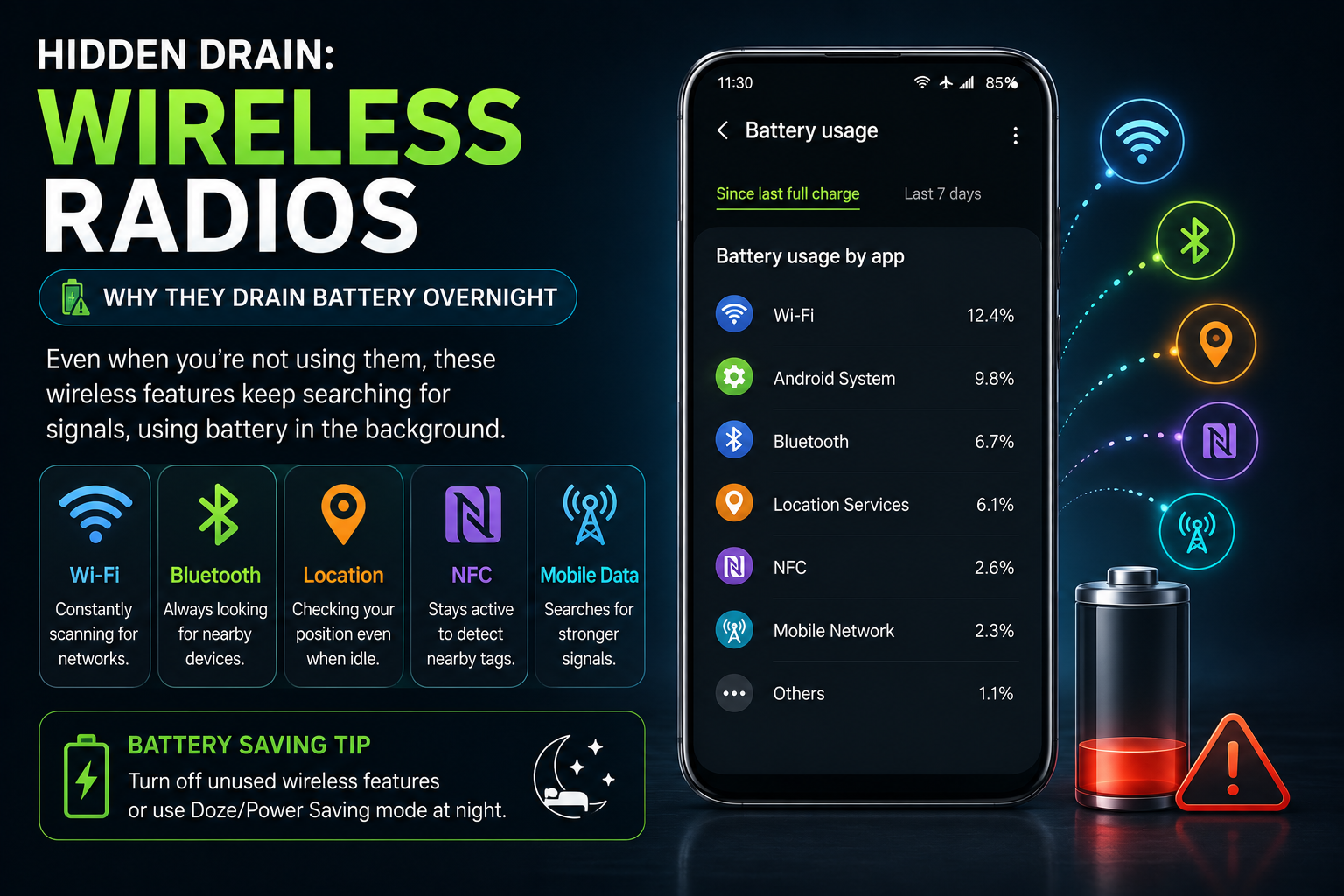
Overnight battery drain is one of the most common Android problems. While a small amount of battery loss is completely normal, excessive battery drain usually indicates background apps, poor network conditions, software issues, battery ageing or incorrect settings. This comprehensive guide explains how Android consumes power while idle, what level of battery drain is considered normal, how to diagnose the real cause, and how to fix it using Android's built-in tools instead of unnecessary battery saver apps.
Quick Verdict
Guide Overview
- Guide type
- Evergreen Troubleshooting Guide
Editorial Methodology
Why Does an Android Phone Lose Battery Overnight?
A small amount of overnight battery drain is completely normal because Android continues performing important background tasks while the display is off.
Many Android users expect their phone battery to remain almost unchanged while they sleep. In reality, every Android phone continues running dozens of background services even when the display is turned off.

During the night, Android maintains mobile network connections, Wi-Fi connectivity, Bluetooth devices, alarms, notifications, security services, cloud synchronization, backup jobs and scheduled maintenance. These activities consume a small amount of battery power.
Modern Android devices include advanced battery management technologies such as Doze Mode, Adaptive Battery, App Standby Buckets and Battery Optimization to reduce unnecessary power consumption. When everything works correctly, overnight battery drain should remain relatively low.
If your phone regularly loses 15%, 20% or even 30% every night, there is almost always an identifiable cause. The goal of this guide is to help you identify that cause instead of randomly changing settings or installing battery saver applications.
How Much Overnight Battery Drain Is Normal?
Normal overnight battery drain depends on your phone, signal strength, battery age and enabled features.
There is no single battery drain percentage that applies to every Android phone. Devices with Always-On Display, connected smartwatches, dual SIM cards and weak mobile signals naturally consume more standby power.
Most healthy Android phones lose between 2% and 8% during six to eight hours of idle time. This assumes stable network coverage, moderate notification activity and a healthy battery.
Losing around 10% may still be acceptable if your phone remains connected to Bluetooth accessories, receives many notifications or performs cloud backups overnight.
Repeated battery loss exceeding 15% usually indicates background applications, poor signal conditions, software problems or battery ageing.
Battery Drain vs Incorrect Battery Percentage
Many users confuse real battery drain with inaccurate battery percentage reporting.
Battery drain refers to actual energy being consumed by your phone. Incorrect battery percentage means Android is displaying an inaccurate estimate of the remaining battery charge.
For example, if your phone shuts down while still showing 20%, the battery may not actually be draining quickly. Instead, Android may simply be reporting the wrong battery percentage.
Similarly, a phone may lose only 5% overnight but display sudden battery percentage jumps due to inaccurate battery estimation.
Understanding this difference prevents unnecessary troubleshooting and helps determine whether battery calibration is appropriate.
What Happens While Your Android Phone Is Sleeping?
Even with the display turned off, Android continues performing many background tasks.
Android never completely stops working when the display turns off. The operating system continues managing communications, security, synchronization and scheduled maintenance tasks.
Incoming notifications, instant messaging applications, mobile network registration, Wi-Fi connectivity, Bluetooth accessories, alarm scheduling, automatic backups and security verification all continue operating throughout the night.
Fortunately, Android intelligently groups many of these operations together to reduce processor wake-ups. This technology significantly extends battery life compared to older Android versions.
When an application continuously prevents Android from entering deep sleep, battery drain increases dramatically. Identifying these applications is one of the most important troubleshooting steps.
How Android Doze Mode Saves Battery
Doze Mode is Android's most important battery-saving feature during idle periods.
Introduced in Android 6, Doze Mode automatically reduces background activity whenever the phone remains stationary with the display turned off for an extended period.
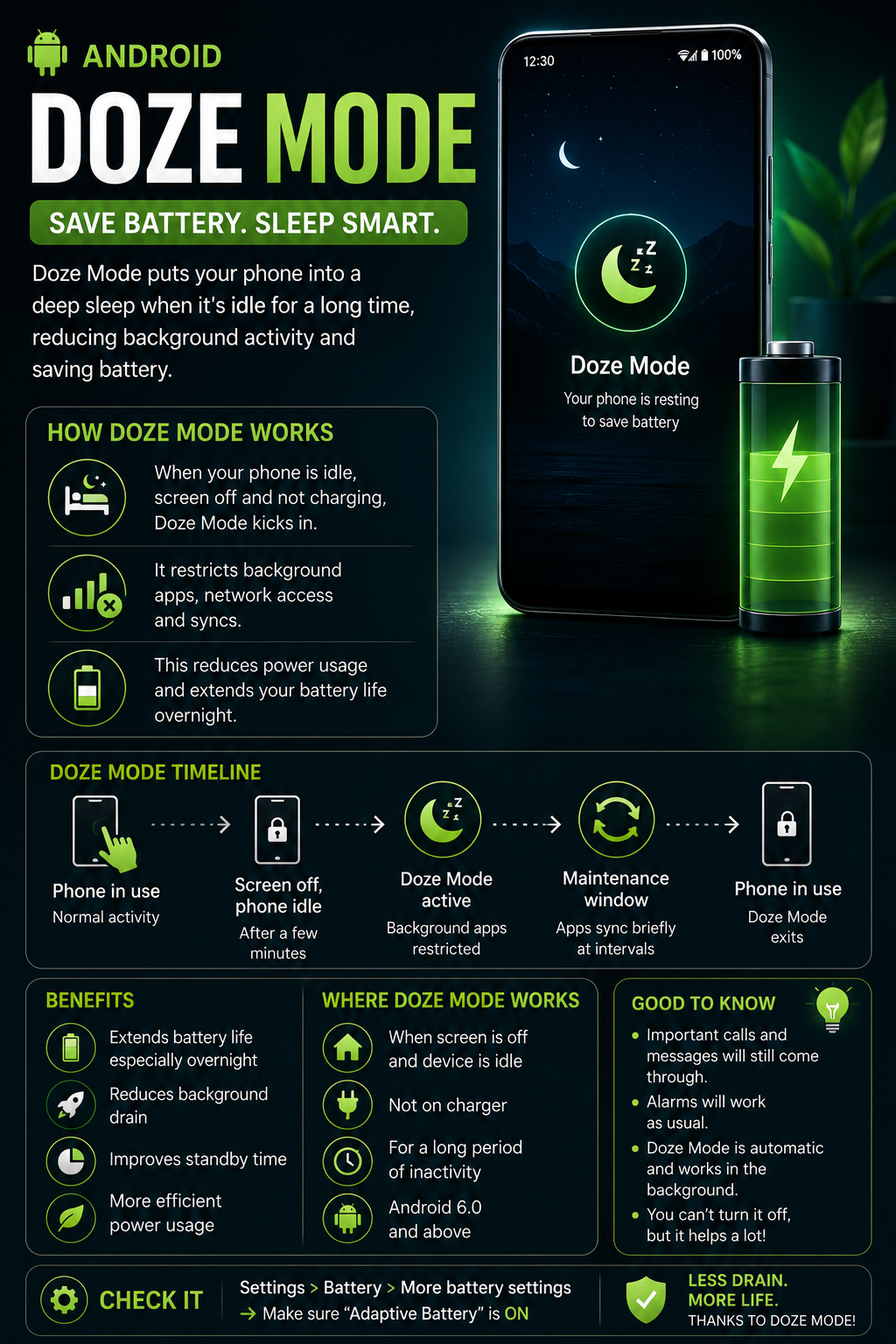
Instead of allowing every application to wake the processor whenever it wants, Doze Mode groups background work into scheduled maintenance windows. This dramatically reduces processor activity throughout the night.
Network access, synchronization, scheduled jobs and background processing are temporarily delayed until Android determines the optimal time to perform them together.
Most users never notice Doze Mode because notifications from supported messaging services continue arriving normally while battery consumption remains significantly lower.
Adaptive Battery and App Standby Buckets
Adaptive Battery learns your usage habits and limits battery consumption from apps you rarely use.
Adaptive Battery uses on-device machine learning to understand which applications you use frequently and which ones remain inactive for long periods.
Apps that you rarely open receive fewer opportunities to run in the background. This reduces unnecessary processor activity, network requests and battery consumption while the phone is idle.
Android automatically classifies applications into standby buckets such as Active, Working Set, Frequent, Rare and Restricted. Applications in lower priority buckets receive fewer background resources.
Disabling Adaptive Battery rarely improves performance but often increases battery drain because more applications remain active throughout the day and night.
After a factory reset or major Android update, Adaptive Battery may require several days to learn your usage patterns. Temporary battery drain during this learning period is normal.
Background Apps Are the Biggest Cause of Overnight Battery Drain
Applications that continue running after the screen turns off are responsible for most overnight battery drain problems.
Every Android application requests different background permissions. Messaging apps check for new messages, navigation apps update location, cloud storage apps synchronize files and fitness applications monitor health data.
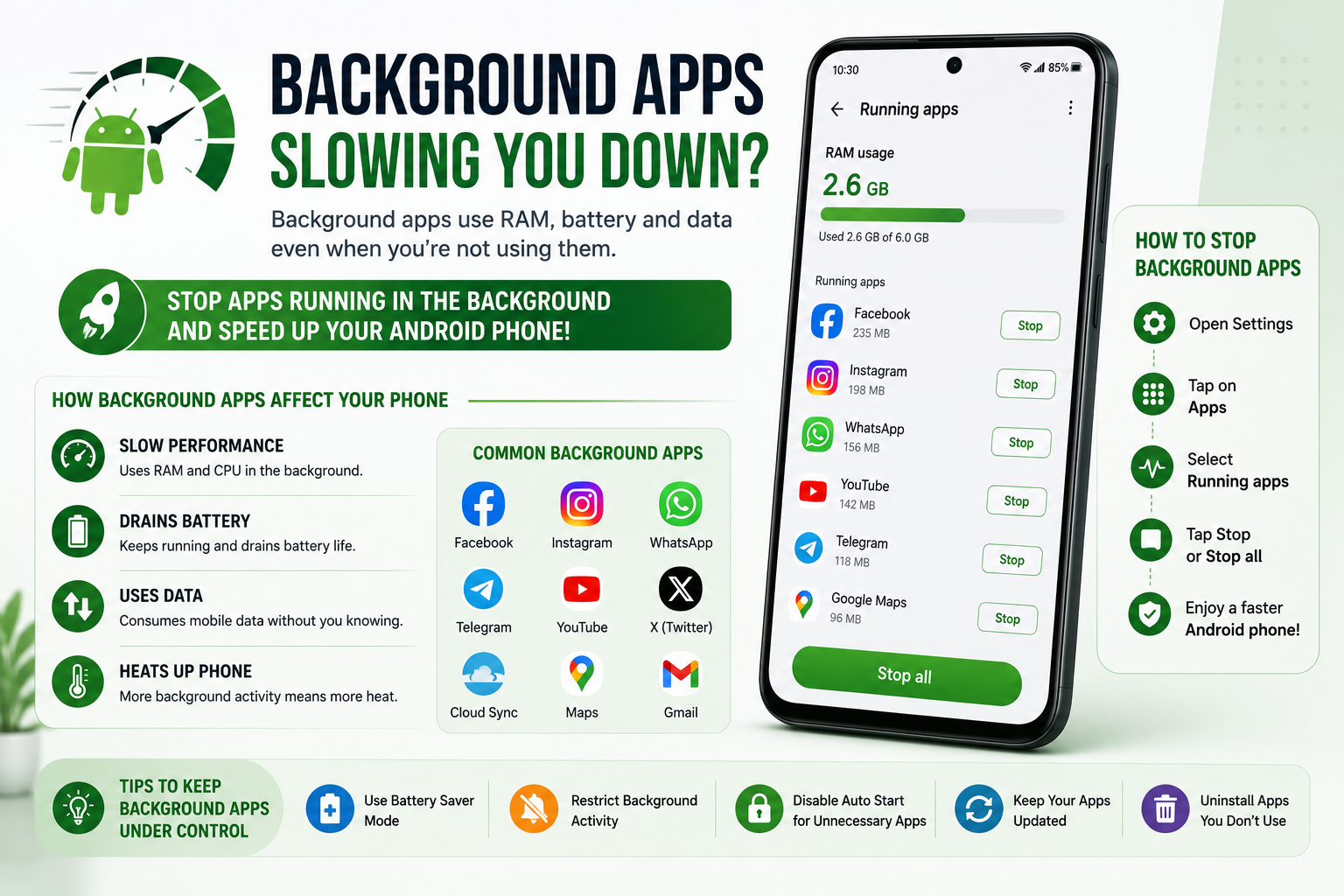
Normally Android manages these activities efficiently. However, poorly optimized applications, software bugs or excessive permissions can prevent the processor from entering deep sleep.
Applications that repeatedly access GPS, synchronize large files, maintain VPN connections or continuously communicate with remote servers may consume significant battery even while the display remains off.
Social media applications, shopping apps, cloud storage clients, automation software, VPN services and some fitness applications are among the most common causes of overnight battery drain.
Before uninstalling applications, review Battery Usage to determine which apps actually consume the most background power.
Understanding Android Wakelocks
Wakelocks prevent Android from entering deep sleep when applications need to complete important tasks.
A wakelock is a legitimate Android feature that temporarily keeps part of the phone awake while important work finishes. Without wakelocks, alarms, downloads, music playback and navigation would not function correctly.
Problems occur when an application accidentally holds a wakelock much longer than necessary. Instead of allowing the processor to sleep, the phone remains active throughout the night.
Excessive wakelocks are often caused by application bugs, failed synchronization attempts, repeated network retries or poorly optimized background services.
Modern Android versions automatically limit abusive background behaviour, but applications with unrestricted battery access can still keep the device awake longer than expected.
Weak Mobile Signal Can Drain Battery All Night
Poor cellular reception forces the modem to work harder, making it one of the largest causes of overnight battery drain.
When your phone struggles to maintain a mobile network connection, it repeatedly increases transmission power, searches for nearby towers and attempts reconnection. These operations consume considerably more energy than maintaining a strong signal.
Buildings with thick concrete walls, underground parking areas, elevators, rural regions and locations far from cellular towers often experience poor reception throughout the night.
Phones constantly switching between 5G, LTE and older network technologies may consume additional battery because the modem repeatedly negotiates new network connections.
If your battery drain improves dramatically after enabling Airplane Mode overnight, weak mobile reception is likely responsible.
Wi-Fi, Bluetooth and Connected Accessories
Wireless connections are usually efficient, but unstable accessories and repeated scanning can increase battery usage.
Contrary to popular belief, leaving Wi-Fi enabled overnight usually consumes less battery than forcing the phone to rely on a weak mobile data connection.
Bluetooth itself consumes very little power. However, connected smartwatches, wireless earbuds, fitness trackers and other accessories may repeatedly synchronize data throughout the night.
Nearby device scanning, Bluetooth discovery and unstable wearable connections can all contribute to additional battery drain.
Disconnect accessories temporarily to determine whether they contribute to overnight battery loss.
GPS and Location Services
Continuous location requests can prevent Android from remaining in its lowest power state.
Applications requesting precise location updates throughout the night may repeatedly wake the processor and GPS hardware.
Weather applications, navigation software, family tracking applications, automation tools and fitness trackers commonly request location access in the background.
Many applications function perfectly with 'While Using the App' permission instead of 'Allow All the Time'. Restricting unnecessary location access often reduces battery consumption without affecting normal functionality.
Review your location permissions periodically to ensure only essential applications have continuous access.
Notifications and Always-On Display
Frequent notifications and Always-On Display increase overnight battery usage, although their impact varies by device.
Every incoming notification briefly wakes part of the phone to process the message. Hundreds of notifications throughout the night can noticeably increase battery consumption.
OLED displays are extremely efficient, but Always-On Display still consumes a measurable amount of battery because part of the display remains active continuously.
Many manufacturers allow Always-On Display to follow a schedule so it automatically disables itself during sleeping hours.
Using Bedtime Mode or Sleep Mode reduces unnecessary interruptions while also extending battery life overnight.
Cloud Backup and Automatic Synchronization
Cloud synchronization is a common but often overlooked reason for overnight battery drain.
Many Android users charge their phones overnight while cloud services quietly synchronize photos, videos, contacts, documents and application data. If the phone is not charging, these same background jobs can noticeably reduce battery life.
Google Photos, OneDrive, Dropbox, Samsung Cloud and other backup services continuously monitor for new files. Large photo libraries or recently recorded videos may trigger hours of synchronization.
Backup activity is especially noticeable after vacations, factory resets, Android updates or transferring data from another phone.
Instead of disabling cloud backup completely, configure uploads to occur only while charging and connected to Wi-Fi whenever possible.
Google Play Services Battery Drain
Google Play Services supports essential Android functions, but synchronization problems can occasionally increase battery consumption.
Google Play Services manages push notifications, device security, account synchronization, location services, Google Wallet, Find My Device and many other Android features.
Normally, Google Play Services consumes very little battery. However, failed account synchronization, corrupted cache, repeated location requests or software bugs may temporarily increase power usage.
High battery usage from Google Play Services usually indicates another application repeatedly requesting Google services rather than Google Play Services itself being defective.
Updating Play Services, restarting the device or clearing the cache often resolves temporary battery drain issues.
Battery Drain After an Android Update
Temporary battery drain after installing a major Android update is usually normal.
After a significant Android or manufacturer software update, the operating system performs numerous background optimization tasks. Applications are recompiled, media libraries are indexed and machine learning models rebuild optimization data.
Adaptive Battery also begins learning your usage patterns again. During this period, battery consumption may temporarily increase for several days.
Most flagship devices return to normal battery performance within one week of regular use.
If battery drain continues well beyond the first week, investigate applications that may not yet be optimized for the latest Android version.
Use Safe Mode to Find Problematic Apps
Safe Mode temporarily disables third-party applications, making it one of the most effective battery troubleshooting techniques.
If overnight battery drain disappears in Safe Mode, a third-party application is almost certainly responsible.
Safe Mode loads only essential Android system components while preventing downloaded applications from running automatically.
Leave the phone overnight in Safe Mode under similar conditions and compare battery usage with previous nights.
If battery life improves significantly, uninstall recently installed applications one by one until normal battery performance returns.
How to Read Android Battery Usage
Battery Usage provides the most accurate information about which apps are consuming power.
Instead of guessing which application causes battery drain, Android's Battery Usage page provides detailed statistics about foreground activity, background activity and estimated battery consumption.
Pay particular attention to applications showing unusually high background usage despite little or no user interaction.
Applications that appear near the top of the battery usage list every morning deserve closer investigation.
Comparing Battery Usage across several days provides a much clearer picture than analyzing a single overnight result.
7-Night Troubleshooting Plan
Changing multiple settings at once makes troubleshooting difficult. Test one change each night instead.
The most reliable way to identify overnight battery drain is to change only one variable each night. This controlled approach makes it much easier to identify the actual cause.
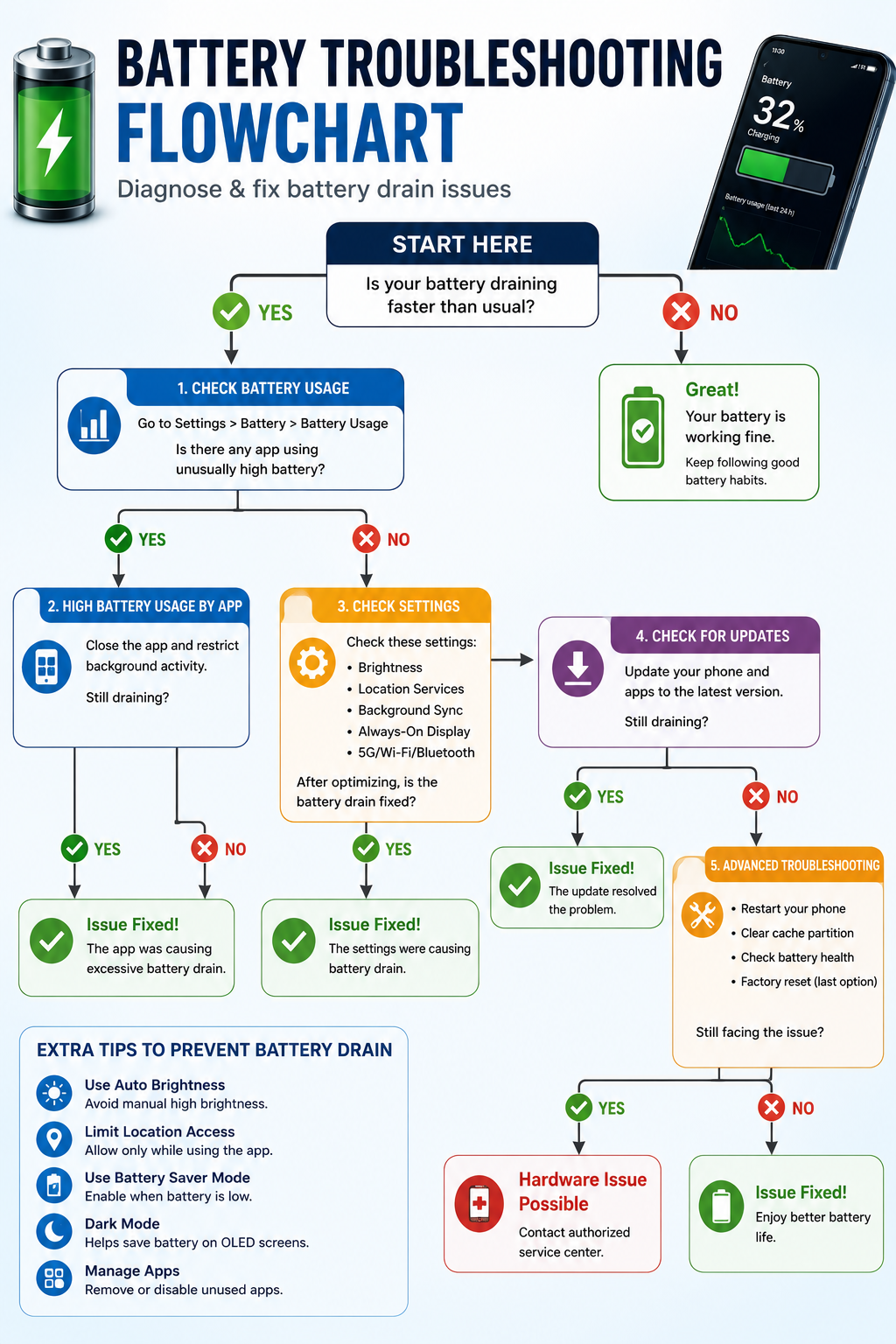
Record the battery percentage before sleeping and immediately after waking under similar conditions.
After one week, compare the results to determine which setting produced the largest improvement.
Check Battery Health Before Replacing the Battery
Battery ageing is one of the biggest reasons for excessive overnight battery drain. Before changing settings, determine whether the battery itself has degraded.
Every lithium-ion battery gradually loses its ability to store energy. This natural ageing process begins from the day the battery is manufactured and accelerates with charging cycles, heat and heavy usage.
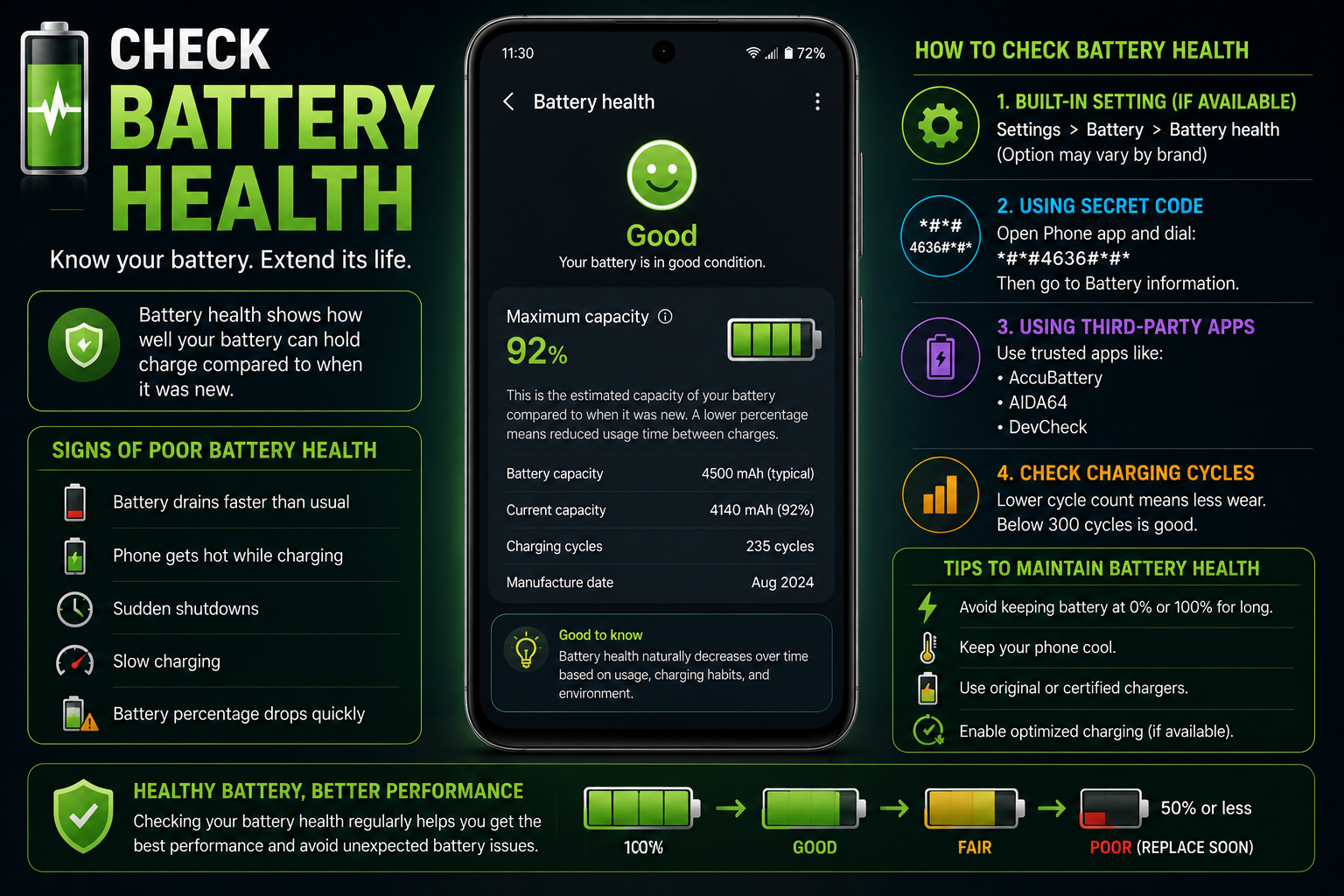
A healthy battery should still retain most of its original capacity after a few hundred charging cycles. However, batteries exposed to frequent overheating or constant high-voltage charging may degrade faster.
If your phone is more than two or three years old and battery life has gradually declined despite software updates and troubleshooting, battery ageing is a likely cause.
Battery calibration cannot restore lost capacity. If diagnostics indicate poor battery health, replacement is the only permanent solution.
Brand-Specific Overnight Battery Tips
Each Android manufacturer includes unique battery optimization features that can reduce standby battery drain.
Although Android's core battery management remains similar across devices, manufacturers add their own optimization features, charging protections and battery-saving modes.
Learning how these features work can significantly reduce overnight battery drain without affecting everyday performance.
When Should You Replace Your Android Battery?
No amount of software optimization can compensate for a physically worn-out battery.
Battery replacement becomes necessary when the battery has permanently lost a significant portion of its original capacity or develops physical defects.
If your phone shuts down unexpectedly, overheats during normal usage, drains rapidly despite minimal activity or develops battery swelling, professional battery replacement is recommended.
Continuing to use a swollen battery can be dangerous. Stop using the device immediately and seek authorized service.
Frequently Asked Questions
How much battery drain overnight is normal?
Most Android phones lose between 2% and 8% during six to eight hours of idle time.
Why does my Android lose 20% battery overnight?
Common causes include background apps, weak mobile signal, cloud backups, battery ageing and software issues.
Does Airplane Mode stop battery drain?
It significantly reduces battery consumption caused by mobile networks but does not eliminate all battery usage.
Can Wi-Fi cause overnight battery drain?
Stable Wi-Fi usually consumes less battery than maintaining a weak cellular connection.
Should I close all apps before sleeping?
No. Android automatically manages applications efficiently. Focus on apps with unusually high background usage.
Does Always-On Display drain battery?
Yes, but on OLED displays it is usually a small and predictable amount.
Can battery calibration fix overnight battery drain?
No. Calibration only improves battery percentage accuracy and does not reduce actual battery consumption.
Why is Google Play Services using battery?
It usually supports other apps such as notifications, location and account synchronization. High usage often indicates another app requesting Google services.
Can software updates temporarily reduce battery life?
Yes. Android often performs optimization tasks for several days after a major update.
When should I replace my battery?
Replace it if diagnostics show poor battery health, the battery swells, overheats or no longer provides acceptable battery life.
Related Reading on Godealio
More Guide Details
Featured
true
Author
Name
Godealio Editorial Team
Type
Organization
Url
https://godealio.com/about
Images
Role
hero
Path
/images/guides.png
Alt
Android phone losing battery overnight
Role
section
Path
/images/guides/background-apps.png
Alt
Background apps consuming Android battery
Role
section
Path
/images/guides/android-doze-mode.png
Alt
Android Doze Mode reducing battery usage
Role
section
Path
/images/guides/battery-troubleshooting-flow.png
Alt
Android battery troubleshooting flowchart
Role
section
Path
/images/guides/check-battery-health.png
Alt
Checking Android battery health
Diagnostic Summary
Test
Battery Usage
Purpose
Find apps consuming battery in the background.
Test
Airplane Mode Test
Purpose
Determine whether mobile signal is responsible.
Test
Safe Mode
Purpose
Identify third-party apps causing battery drain.
Test
Battery Health
Purpose
Determine whether the battery has degraded.
Test
Temperature Check
Purpose
Identify overheating caused by hardware or software.