
AI Portrait Mode Explained: Depth, Edge Detection and Better Smartphone Portraits
Understand subject separation, synthetic blur, portrait lighting and common edge-detection problems.
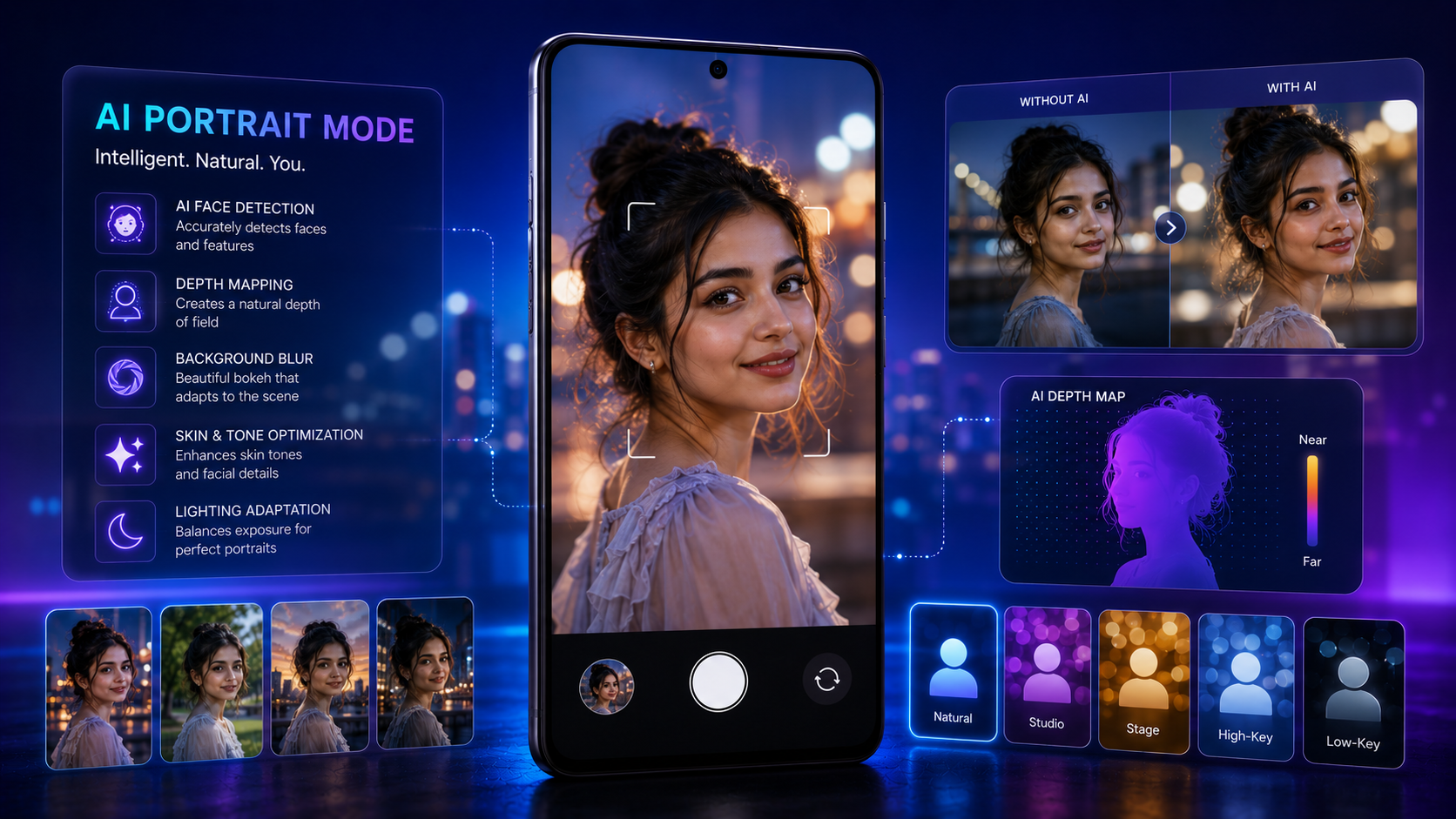
Learn how AI portrait mode detects people, estimates depth, separates hair and edges, and applies simulated background blur.
Quick Verdict
Main rule: Start with the strongest possible original capture and use AI processing subtly.
Best for: people, pets, professional headshots, product portraits, social media photos
Avoid if: You require an untouched documentary image or cannot verify problems such as bad hair edges, blurred accessories, unnatural skin.
Best by Use Case
People
Use the feature for people, then compare the processed result with the original before sharing.
Pets
Use the feature for pets, then compare the processed result with the original before sharing.
Professional Headshots
Use the feature for professional headshots, then compare the processed result with the original before sharing.
Product Portraits
Use the feature for product portraits, then compare the processed result with the original before sharing.
Social Media Photos
Use the feature for social media photos, then compare the processed result with the original before sharing.
Comparison Advice
- Compare how different phones handle AI-powered portrait photography rather than relying only on feature names.
- Test difficult scenes involving hair, text, motion, reflections and low light.
- Check whether processing is on-device or cloud-based.
- Review export resolution, watermarking, account requirements and regional availability.
Mistakes to Avoid
- Ignoring bad hair edges.
- Ignoring blurred accessories.
- Ignoring unnatural skin.
- Ignoring flat lighting.
- Ignoring excessive blur.
- Deleting the original before checking the edited result.
- Assuming realistic-looking generated detail is always accurate.
Deal Advice
- Do not buy a phone for one AI feature alone.
- Prioritise camera consistency, stabilisation, useful focal lengths and software support.
- Confirm whether advertised AI tools are free, permanent and available in your region.
- For creators, also compare video quality, microphones, thermals and storage.
What Is AI Portrait Mode Explained?
This guide focuses on AI-powered portrait photography. Modern smartphones combine camera hardware, image-signal processing and machine-learning models to analyse the scene and produce a result more quickly than a fully manual workflow.
The technology is most useful for people, pets, professional headshots, product portraits and social media photos. Results still depend on lighting, camera hardware, software quality and how aggressively the phone processes the image.
- Primary purpose: AI-powered portrait photography.
- Key techniques include subject segmentation, depth estimation, portrait lighting, skin-tone mapping and post-capture blur.
- Some processing happens during capture, while other processing happens after capture.
- The original file should be preserved before applying strong generative or corrective edits.
How the AI Processing Works
The phone first analyses the scene and identifies relevant visual or audio information. Depending on the feature, it may compare multiple frames, estimate depth, detect motion, classify subjects or generate replacement pixels.
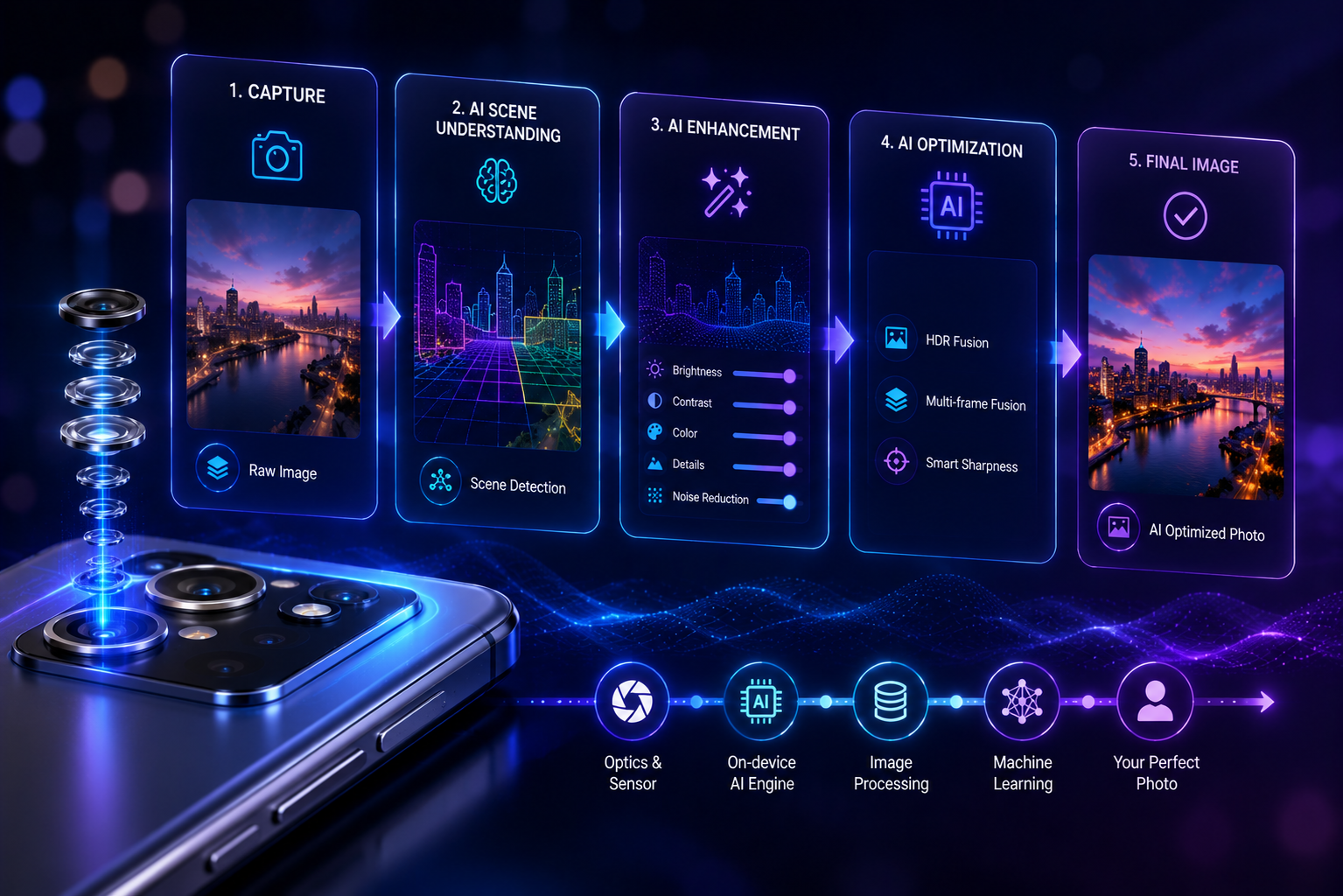
For AI-powered portrait photography, the most important processing stages are subject segmentation, depth estimation, portrait lighting, skin-tone mapping, post-capture blur. The exact pipeline varies by phone, app and software version.
- Stage 1: Subject segmentation.
- Stage 2: Depth estimation.
- Stage 3: Portrait lighting.
- Stage 4: Skin-tone mapping.
- Stage 5: Post-capture blur.
Best Use Cases
This feature is especially useful for people, pets, professional headshots, product portraits, social media photos. It performs best when the input is technically clean and the phone has enough visual information to make a reliable decision.
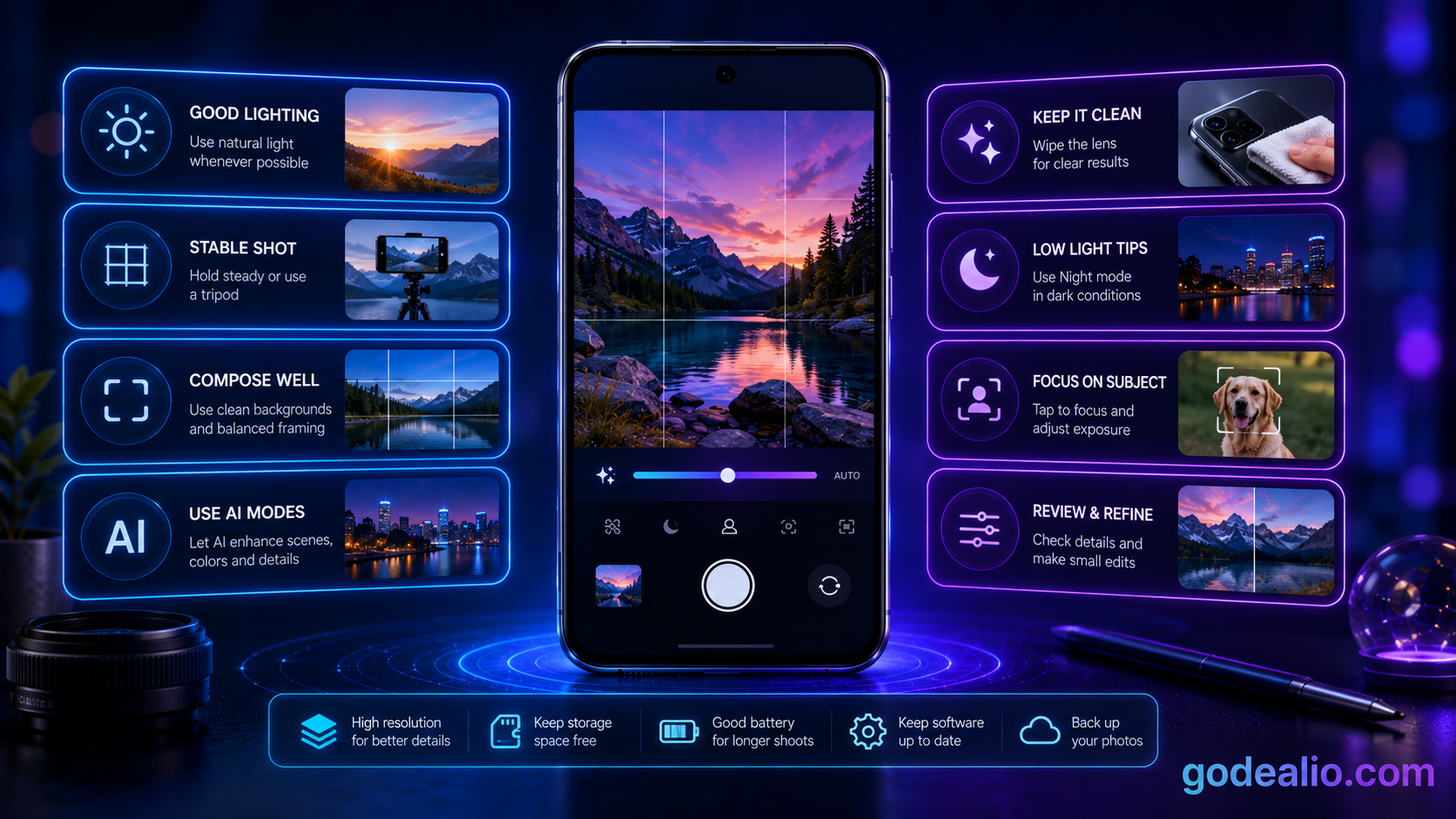
Good lighting, stable framing and a clean lens improve the quality of almost every AI-assisted result.
- Use it for people.
- Use it for pets.
- Use it for professional headshots.
- Use it for product portraits.
- Use it for social media photos.
How to Use It Effectively
Open the camera or gallery tool that contains the feature, start with the highest-quality original available and apply only the minimum correction needed.
After processing, zoom in and inspect faces, hands, text, edges, reflections and repeating patterns. Compare the result with the original before exporting or sharing.
- Clean the lens and capture the strongest possible original.
- Use the main camera or an optical focal length where possible.
- Apply one major AI adjustment at a time.
- Inspect difficult edges and fine details at full size.
- Save the result as a copy and retain the original.
Common Problems and Limitations
Typical failure cases include bad hair edges, blurred accessories, unnatural skin, flat lighting, excessive blur. AI tools can create convincing results even when some details are inaccurate, so visual realism should not be confused with factual accuracy.
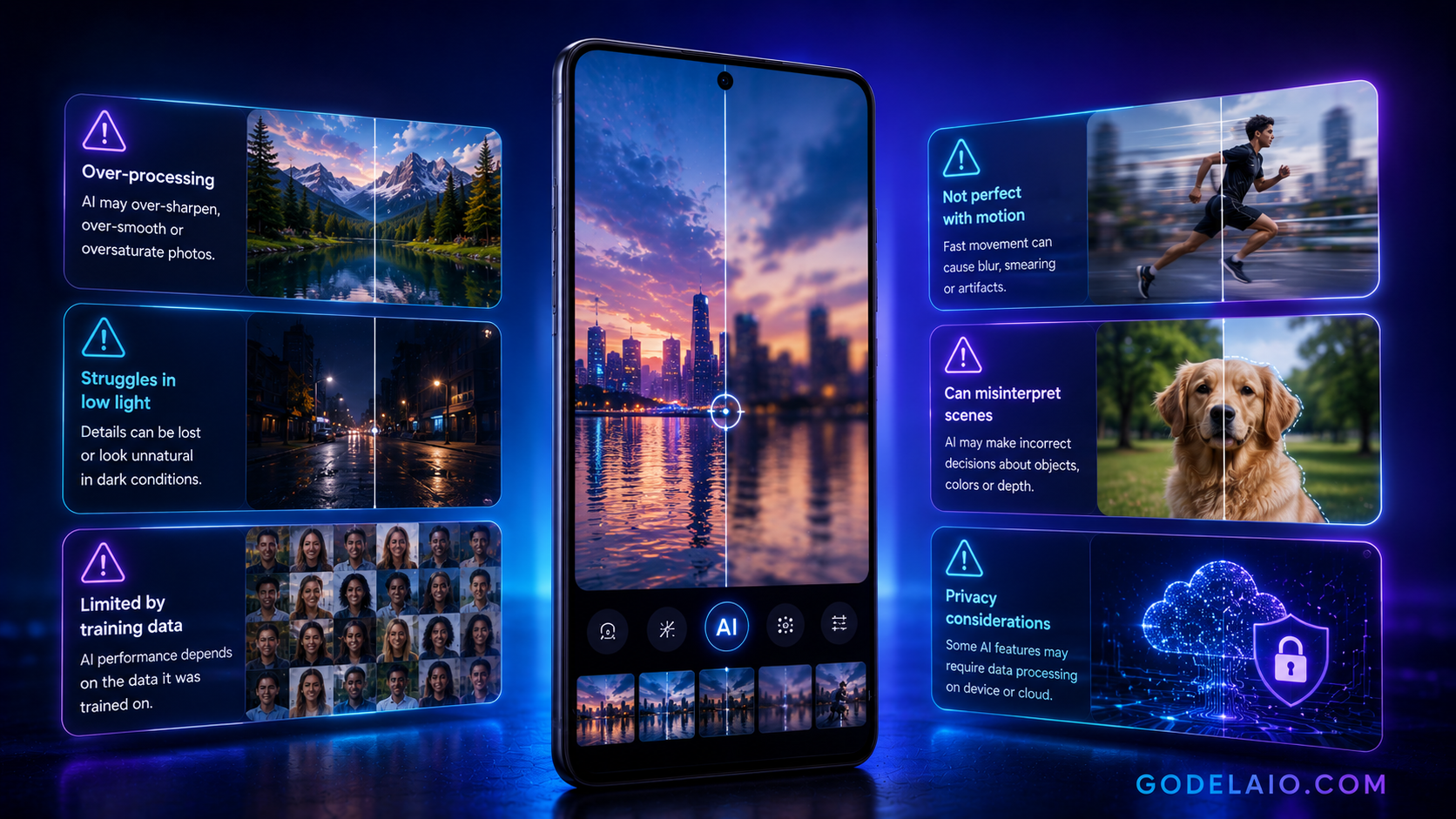
Moving subjects, low light, reflective surfaces, hair, transparent objects and text are common stress tests for camera AI.
- Watch for bad hair edges.
- Watch for blurred accessories.
- Watch for unnatural skin.
- Watch for flat lighting.
- Watch for excessive blur.
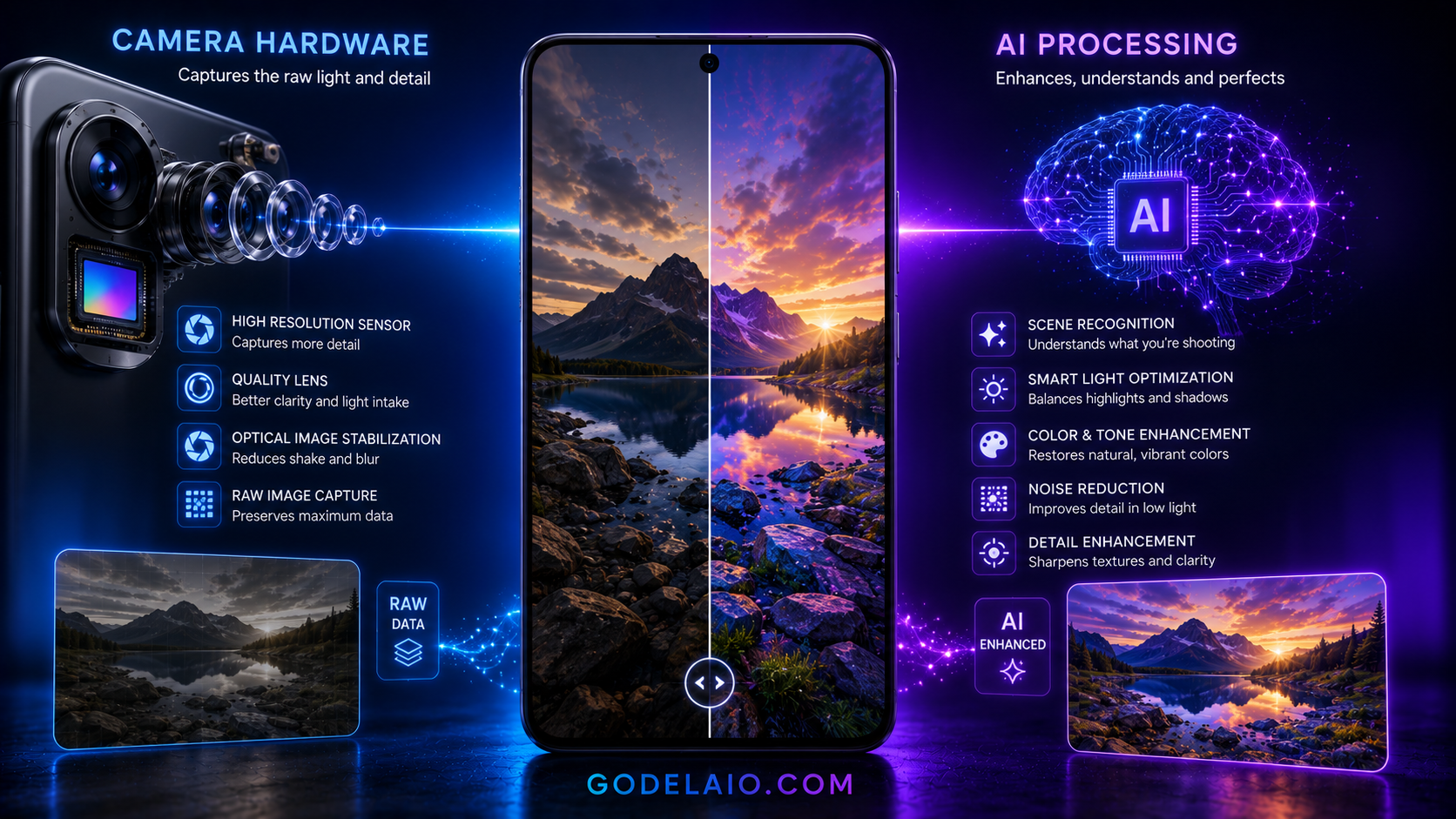
Camera Hardware Versus AI Processing
AI can improve exposure, colour, detail and usability, but it cannot fully replace a good sensor, lens, autofocus system or optical stabilisation.
When comparing phones, first check consistency from the main, ultrawide and telephoto cameras. Then consider whether the AI feature meaningfully improves your real workflow.
- Sensor size affects light collection.
- Lens quality affects sharpness and flare.
- Optical stabilisation helps low-light photos and video.
- Telephoto hardware produces more trustworthy zoom detail.
- AI determines how the captured data is interpreted and rendered.
Privacy, Authenticity and Responsible Use
Some features run entirely on the phone, while others upload media to cloud servers. Check data handling before processing private documents, children, confidential locations or sensitive recordings.

Disclose meaningful generative edits when accuracy matters. This is particularly important for journalism, evidence, product listings, competitions and public-interest content.
- Check whether internet access or an account is required.
- Review whether uploaded media is retained or used for model improvement.
- Keep original files and edit copies.
- Avoid edits that misrepresent people, products or events.
- Use visible disclosure when a major generative change affects context.
Final Verdict
AI Portrait Mode Explained can save time and improve results when used carefully. Its greatest value is making difficult capture or editing tasks more accessible on a phone.
Use AI as an assistant rather than a substitute for strong camera technique. Capture the best original possible, apply subtle processing and inspect the result before publishing.
Frequently Asked Questions
What is ai portrait mode explained?
It is a smartphone camera or editing capability that uses machine learning and computational processing for AI-powered portrait photography.
Does ai portrait mode explained work on every phone?
No. Availability depends on the phone model, processor, operating-system version, app, region and whether cloud processing is supported.
Does the feature require an internet connection?
Some implementations run on-device, while others require cloud processing. Check the exact feature requirements on your phone.
Can the AI result be inaccurate?
Yes. Common issues include bad hair edges, blurred accessories, unnatural skin. Always inspect the processed result at full size.
Should I keep the original photo or video?
Yes. Save AI edits as copies so you can compare, retry or recover the untouched original.
Is camera hardware still important?
Yes. Sensor size, lens quality, autofocus, stabilisation and optical zoom strongly influence the quality of the data available to the AI.
Who benefits most from ai portrait mode explained?
It is most useful for people, pets, professional headshots, product portraits and social media photos.
Related Reading on Godealio
More Guide Details
Guide Hubs
- ai-guides
- camera-guides
Featured
false