
How to Use AirPods as a Remote Camera Shutter for Your iPhone
Apple has introduced a convenient way for supported AirPods models to remotely trigger the iPhone camera, making selfies, group photos, content creation and tripod photography much easier.
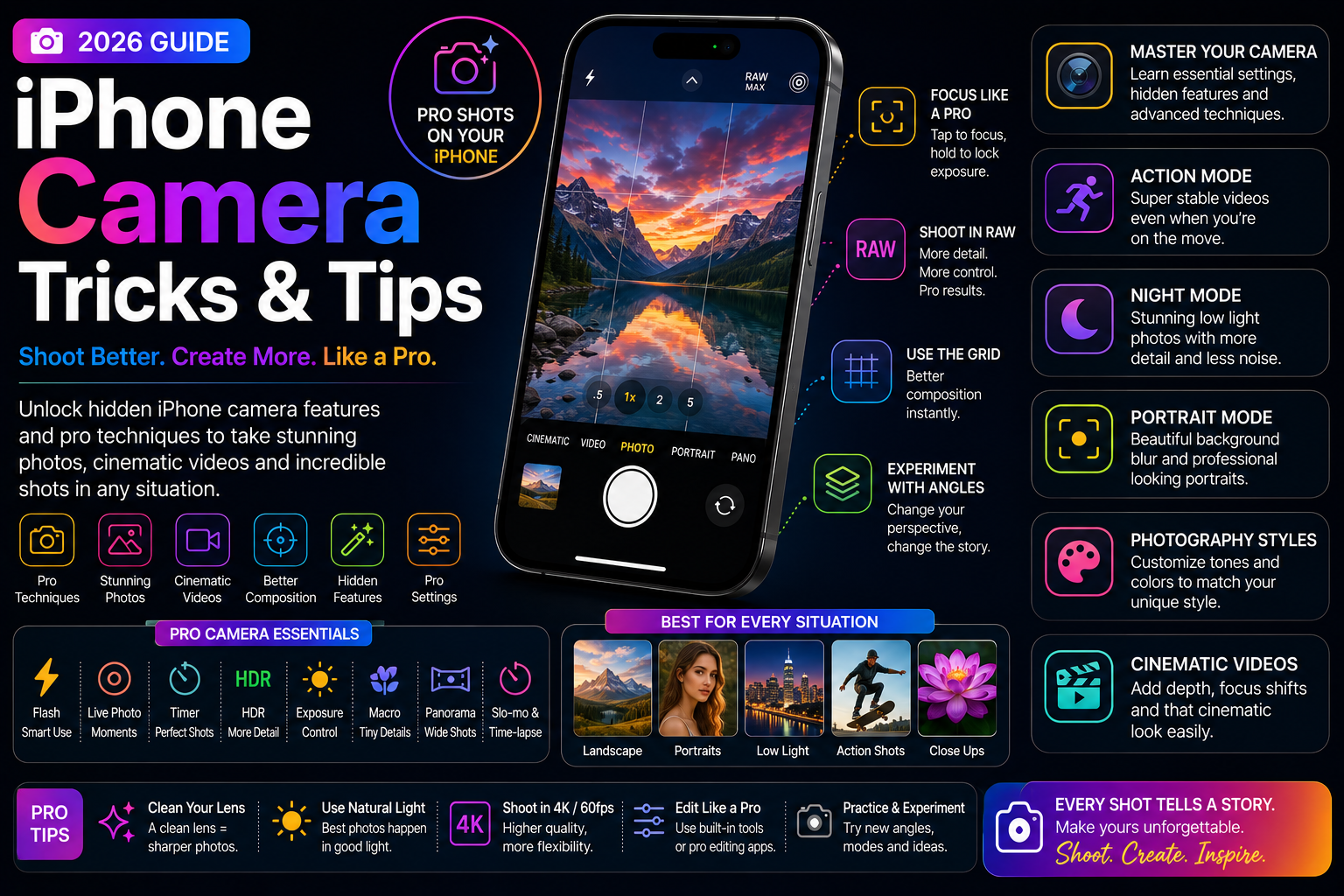
Many iPhone users are unaware that supported AirPods models can function as a wireless remote shutter for the iPhone camera. With recent iOS updates and newer AirPods features, users can start a photo or video session without touching their phone. This capability is particularly useful for creators, vloggers, travelers, families and anyone who regularly uses a tripod. By combining AirPods and the iPhone camera, Apple continues expanding ecosystem features that make content creation simpler and more convenient. This guide explains how the feature works, which devices support it and how to get the best results.
Brand
Apple
Model
AirPods Camera Remote
Topic
iPhone Camera Tips
Content Type
guide
Launch Status
Available
Availability
Supported AirPods and iPhone Models
Rating
9.2
Pros
- Capture photos remotely without touching the phone
- Perfect for tripod photography
- Useful for group photos
- Great for solo creators and vloggers
- Works wirelessly
- No additional accessories required
- Supports hands-free shooting
- Part of Apple's ecosystem integration
Cons
- Requires supported AirPods models
- Requires recent iOS versions
- Not available on all AirPods generations
- Setup process may vary by device
Final Verdict
The AirPods Camera Remote feature is one of the most useful hidden productivity tools available to iPhone users. Whether you're creating content, taking family photos or recording videos alone, it offers a simple and convenient way to control the camera remotely.
What Is AirPods Camera Remote?
AirPods Camera Remote allows compatible AirPods models to act as a wireless trigger for the iPhone camera.
Instead of tapping the shutter button or using a timer, users can initiate photos or videos remotely.
This makes it easier to capture shots when the phone is mounted on a tripod or positioned several feet away.
Which Devices Support the Feature?
Support depends on both the AirPods model and the iPhone software version.
Apple continues expanding ecosystem features through software updates, so compatibility may improve over time.
- Recent AirPods models
- AirPods Pro models
- Latest iOS releases
- Compatible iPhone devices
- Updated AirPods firmware
How to Use AirPods as a Camera Remote
Using the feature is straightforward once AirPods are connected to the iPhone.
Users can launch the Camera app, position the phone and use AirPods controls to trigger the shutter.
- Connect AirPods to iPhone
- Open the Camera app
- Position the iPhone
- Frame the shot
- Use the AirPods control gesture
- Capture the photo or start recording
Best Situations to Use AirPods Camera Remote
The feature becomes especially useful when users need distance between themselves and the phone.
It eliminates the need to rush into frame after setting a timer.
- Group photos
- Family portraits
- Travel photography
- Tripod selfies
- YouTube recording
- Instagram content
- TikTok videos
- Product photography
A Useful Tool for Content Creators
Creators often work alone and need a reliable way to start recording without touching the phone.
AirPods Camera Remote provides a convenient hands-free workflow.
This can improve framing consistency and reduce setup time.
AirPods Remote vs Traditional Camera Timer
While the built-in camera timer remains useful, AirPods provide greater flexibility.
Users can trigger photos exactly when they are ready instead of waiting for a countdown.
This often leads to more natural photos and better timing.
- No countdown required
- More control over timing
- Faster workflow
- Improved group photos
- Better for content creation
Another Example of Apple's Ecosystem Advantage
Features like AirPods Camera Remote demonstrate how Apple's products work together to create convenient user experiences.
Rather than requiring third-party accessories, Apple leverages existing devices users already own.
Tips for Better Results
Using a stable tripod and good lighting can significantly improve results.
Users should also ensure AirPods remain connected before beginning a photo session.
- Use a tripod
- Check Bluetooth connection
- Enable grid lines
- Use Portrait mode when appropriate
- Test controls before recording
- Keep AirPods charged
What Could Apple Add Next?
Future updates could expand remote camera functionality with gesture recognition, voice triggers or Apple Intelligence integrations.
Such improvements could make content creation even easier for iPhone users.
A Hidden Feature Worth Trying
Many AirPods owners are unaware of this capability, but it can dramatically improve the photography experience.
For creators, travelers and families, AirPods Camera Remote is one of the most practical hidden iPhone features available today.
FAQs
Can AirPods really control the iPhone camera?
Yes. Supported AirPods models can trigger photos or video recording on compatible iPhone devices.
Do I need a third-party app?
No. The feature works through Apple's built-in ecosystem features and supported software versions.
Is it useful for group photos?
Yes. It allows users to trigger the camera remotely without relying on timers.
Which AirPods models support the feature?
Support depends on AirPods generation, firmware version and iOS compatibility.
Can I use it for video recording?
Yes. Compatible devices can use remote controls for both photos and video workflows.
Does it work with a tripod setup?
Absolutely. Tripod photography is one of the primary use cases for the feature.