
How to Speed Up Your Android Phone: 35+ Proven Ways to Make Android Faster
Learn the best ways to improve Android performance, reduce lag, free storage, optimize RAM, and make your smartphone feel faster.
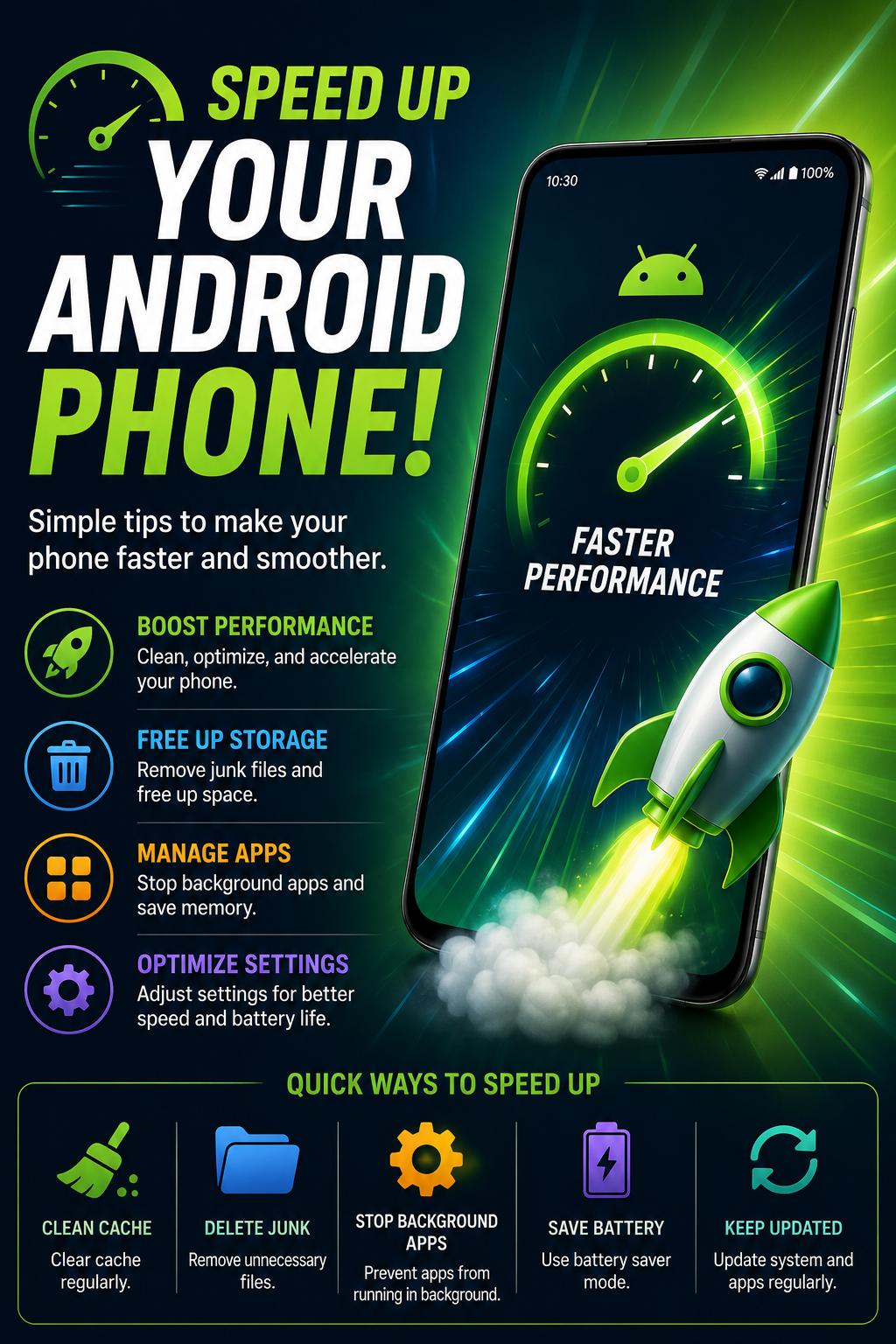
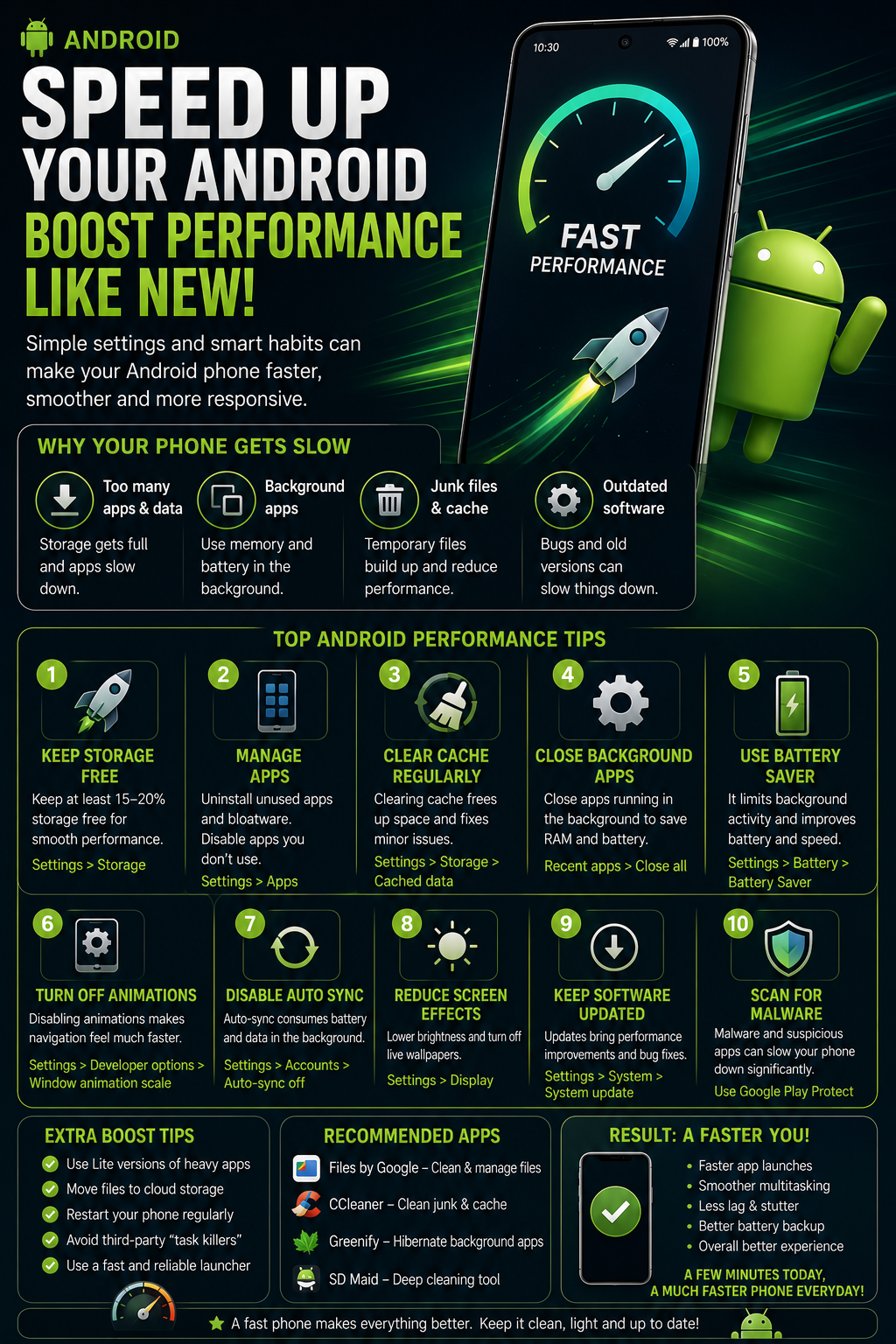
Android phones naturally slow down over time due to storage usage, background apps, software updates, aging hardware, and battery optimization. This comprehensive guide explains why Android becomes slow and provides proven methods to improve speed without installing unnecessary apps.
Guide Overview
- Guide type
- Evergreen
Why Android Phones Become Slow
Android phones naturally become slower over time because of software, storage, and hardware limitations.
Every Android phone gradually slows down as more apps, files and updates accumulate.

Storage becomes fragmented, background processes increase and system resources become busier.
Older processors also struggle to keep up with newer applications and Android versions.
Battery protection mechanisms may reduce processor performance when batteries age.
Fortunately, many slowdowns can be fixed without replacing your phone.
How Android Performance Works
Android performance depends on several hardware and software components working together.
The processor (CPU) handles calculations and app execution.
RAM stores active applications for faster multitasking.
Storage speed affects app loading times and file access.
The GPU renders graphics for games and animations.
Android intelligently manages all of these resources to provide smooth performance.
Signs Your Android Phone Is Slowing Down
Recognizing early symptoms helps prevent major performance issues.
Apps take longer to open.
Home screen animations stutter.
Keyboard appears with delay.
Camera launches slowly.
Games experience lower frame rates.
Multitasking frequently reloads apps.
Touch response feels delayed.
Restart Your Phone Regularly
Restarting clears temporary memory and stops unnecessary background processes.
A restart frees RAM occupied by long-running applications.
Temporary system files are cleared.
Background services restart cleanly.
Many minor software glitches disappear after rebooting.
Restarting once every few days helps maintain smooth performance.
Free Storage Space
Keeping enough free storage improves overall Android responsiveness.
Android requires free storage for temporary system operations.
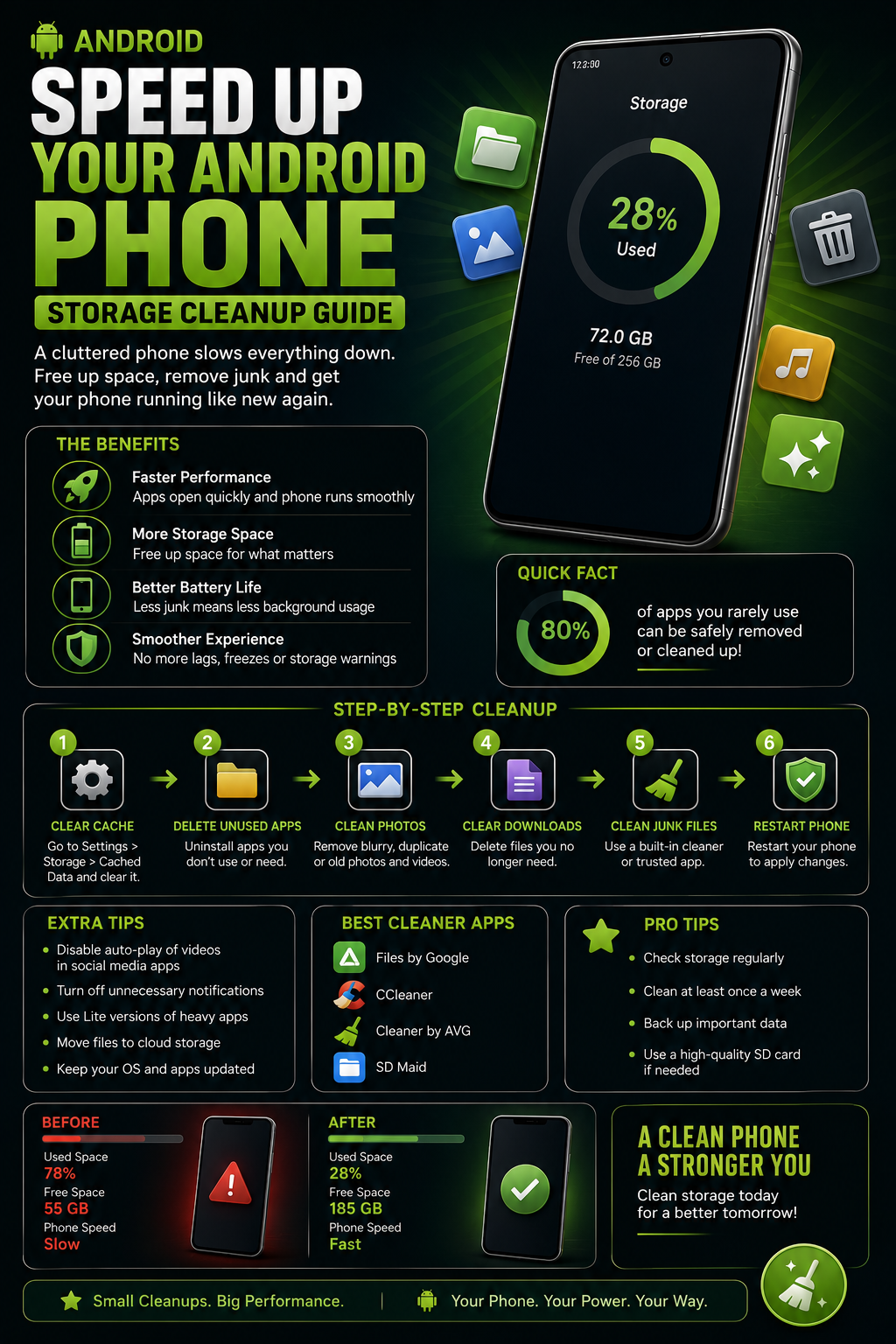
Nearly full storage slows app installation and updates.
Delete unnecessary photos, videos and downloads.
Move large files to cloud storage or external drives.
Aim to keep at least 15–20% storage free.
Delete Unused Apps
Unused apps waste storage and often continue running background services.
Review installed apps every few months.
Remove apps you no longer use.
Less installed software usually means fewer background activities.
Unused games often occupy several gigabytes of storage.
Removing unnecessary apps also improves security.
Clear App Cache
Cached data helps apps load faster but can become excessively large over time.
Clearing cache removes temporary files without deleting personal data.
Large caches may consume several gigabytes of storage.
Focus on browsers, social media and streaming apps.
Avoid clearing cache daily because Android rebuilds it automatically.
Clear cache only when apps become slow or storage is low.
Clean the Downloads Folder
Many users forget about downloaded files that accumulate over time.
Delete old APK files.
Remove duplicate PDFs.
Delete temporary ZIP archives.
Remove old screenshots if no longer needed.
Cleaning Downloads frees valuable storage.
Move Photos and Videos to Cloud Storage
Photos and videos usually occupy the largest portion of phone storage.
Use Google Photos or another trusted cloud service.
Back up important memories before deleting local copies.
Cloud storage reduces internal storage usage.
Free storage improves Android performance.
Keep offline copies only for frequently accessed media.
Reduce Home Screen Widgets
Widgets constantly update information and consume system resources.
Weather widgets refresh periodically.
News widgets download new content.
Multiple widgets increase CPU and battery usage.
Remove widgets you rarely use.
A cleaner home screen often feels faster.
Avoid Live Wallpapers
Animated wallpapers continuously use CPU and GPU resources.
Live wallpapers constantly render animations in the background.
They consume additional battery and processing power.
Static wallpapers use significantly fewer resources.
Older phones benefit the most from switching to static wallpapers.
Changing to a simple wallpaper can slightly improve overall responsiveness.
Disable Pre-installed Apps
Many pre-installed apps continue running even if you never use them.
Manufacturers include many apps that cannot always be uninstalled.
Disabling unused apps prevents background activity.
Disabled apps stop receiving updates and consuming RAM.
Never disable core Android services.
Disable only apps you clearly recognize and don't need.
Reduce Background Apps
Too many background apps increase RAM usage and battery drain.
Social media apps frequently sync data.
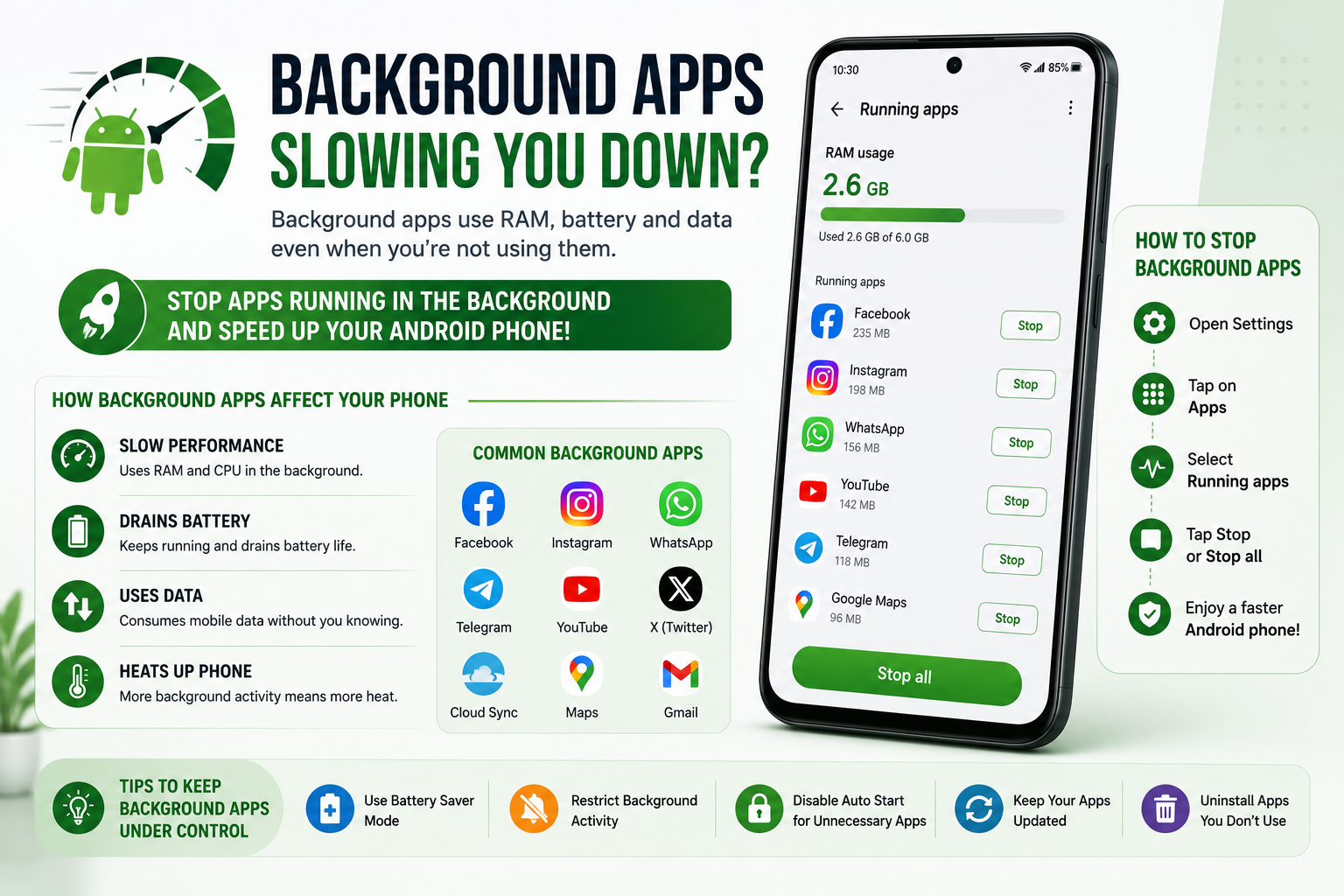
Messaging apps check for notifications.
Cloud storage apps upload files.
Background activity consumes RAM and processor time.
Restrict unnecessary background activity using Android Battery settings.
Battery Saver and Performance
Battery Saver reduces power consumption but may slightly reduce performance.
Battery Saver limits background activity.
Some devices reduce CPU speed to conserve energy.
Animations may become less smooth.
Disable Battery Saver while gaming or editing videos.
Enable it when battery life is more important than speed.
Developer Options for Faster Animations
Reducing animation scales makes Android feel much faster.
Developer Options include animation settings.
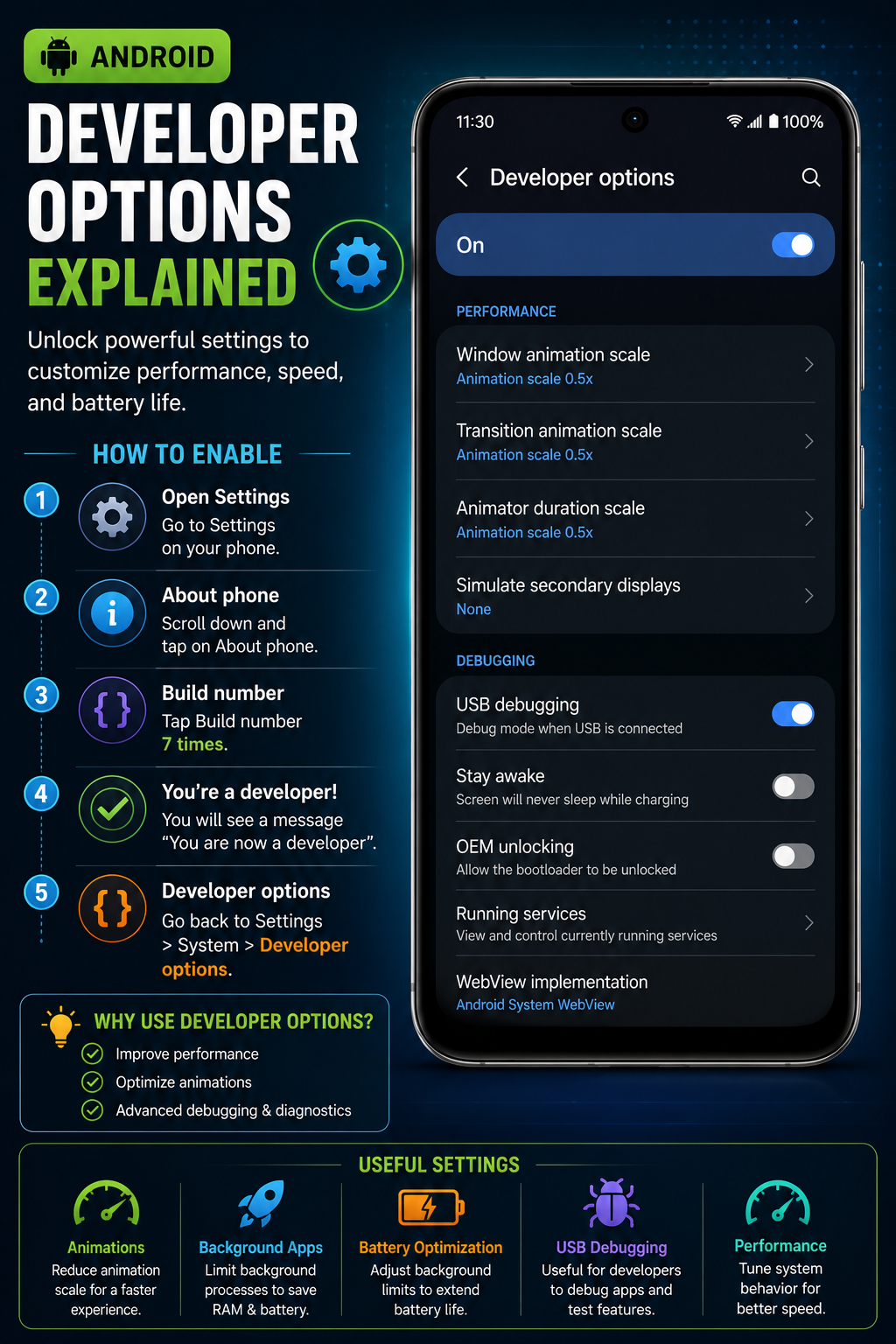
Changing animation speed does not increase processor performance.
Instead, Android spends less time displaying animations.
This makes the interface feel quicker.
It is one of the easiest ways to improve perceived performance.
Keep Android Updated
Software updates often include important performance improvements.
Android updates fix bugs.
Manufacturers optimize memory management.
Security patches improve system stability.
Some updates improve battery efficiency.
Install stable updates whenever available.
Keep Apps Updated
Updated apps often run faster and use fewer resources.
Developers continuously optimize application performance.
Updates fix crashes and memory leaks.
Outdated apps may not work efficiently with newer Android versions.
Enable automatic updates over Wi-Fi.
Remove apps that are no longer maintained.
Check for Malware
Malicious apps can slow down Android considerably.
Install apps only from trusted sources.
Review app permissions regularly.
Remove suspicious applications immediately.
Google Play Protect automatically scans installed apps.
Avoid downloading APKs from unknown websites.
Understand RAM Management
Android automatically manages RAM better than most third-party apps.
Unused RAM is wasted RAM.
Android intelligently closes inactive apps when memory is required.
Manual RAM cleaner apps often make performance worse.
Frequently forcing apps to close causes them to reload later.
Trust Android's built-in memory management.
Storage Speed Matters
Fast storage significantly improves Android responsiveness.
Modern phones use UFS storage.
Older budget phones often use slower eMMC storage.
Faster storage improves boot time.
Apps launch much quicker on UFS storage.
Storage technology has a major impact on overall performance.
High Refresh Rate Displays
120Hz displays make Android feel smoother.
Higher refresh rates reduce motion blur.
Scrolling appears smoother.
Animations become more fluid.
Higher refresh rates consume additional battery.
Adaptive refresh rate balances smoothness and battery life.
Enable Adaptive Battery
Adaptive Battery learns your usage habits to improve efficiency.
Frequently used apps receive higher priority.
Rarely used apps are restricted.
Background activity is reduced automatically.
Battery life improves over time.
Performance also becomes more consistent.
Samsung Performance Tips
Use Device Care regularly.
Enable Auto Optimization.
Keep RAM Plus configured appropriately.
Remove unnecessary Samsung apps.
Update One UI whenever available.
Google Pixel Performance Tips
Enable Adaptive Battery.
Install monthly Pixel Feature Drops.
Restart occasionally.
Keep Google Play System updated.
Use Storage Manager to free space.
Xiaomi Performance Tips
Clear Security app cache.
Disable unnecessary background permissions.
Remove unused themes.
Update HyperOS regularly.
Reduce Auto-start apps.
OnePlus Performance Tips
Enable Smart Optimization.
Update OxygenOS.
Keep storage below 85% usage.
Limit background processes.
Restart weekly.
OPPO Performance Tips
Keep ColorOS updated.
Use Phone Manager to clean junk files.
Disable apps you don't use.
Limit background activity for rarely used apps.
Restart your phone every few days.
realme Performance Tips
Update realme UI regularly.
Use Phone Manager to remove junk files.
Disable Auto Launch for unnecessary apps.
Keep at least 20% storage free.
Avoid installing duplicate cleaner apps.
vivo Performance Tips
Use iManager for storage cleanup.
Disable unnecessary startup apps.
Keep FunTouch OS updated.
Enable battery optimization for unused apps.
Remove duplicate photos and videos regularly.
Motorola Performance Tips
Use Device Help diagnostics.
Keep Android Security updates installed.
Clear large app caches periodically.
Limit background apps.
Remove apps you no longer use.
Nothing Phone Performance Tips
Keep Nothing OS updated.
Enable Adaptive Battery.
Use RAM Booster only if needed.
Reduce unnecessary Glyph notifications.
Keep storage below 85% usage.
Should You Factory Reset Your Phone?
Factory reset is the most effective software solution when performance problems persist.
Back up all important data first.
Factory reset removes accumulated software issues.
Only reset after trying simpler optimization methods.
Reinstall only the apps you actually need.
A clean installation often restores original performance.
When Should You Upgrade Your Phone?
Sometimes hardware limitations cannot be solved through software optimization.
Phones older than four to five years may struggle with newer Android versions.
Devices with 3GB RAM or less may experience frequent slowdowns.
Older eMMC storage is significantly slower than modern UFS storage.
Battery degradation can also reduce processor performance.
If optimization no longer helps, upgrading may be the best long-term solution.
Best Practices for Long-Term Android Performance
Common Android Performance Myths
Myths
Myth
RAM cleaner apps always make Android faster.
Fact
Android already manages RAM efficiently.
Myth
Task killers improve battery and speed.
Fact
Force closing apps often increases battery usage.
Myth
Antivirus apps always improve performance.
Fact
Most Android phones do not need third-party antivirus software.
Myth
Clearing cache every day speeds up Android.
Fact
Cache helps apps load faster and should only be cleared when necessary.
Myth
Developer Options overclock the processor.
Fact
Reducing animation scales only makes Android feel faster.
Android Performance Troubleshooting
Issues
Problem
Apps open slowly
Solution
Free storage and update the apps.
Problem
Phone freezes
Solution
Restart the device and check available storage.
Problem
Games lag
Solution
Reduce graphics settings and close background apps.
Problem
Keyboard delay
Solution
Clear keyboard cache and restart the phone.
Problem
Phone overheats
Solution
Remove heavy cases, stop gaming while charging and allow the phone to cool.
Final Verdict
Most Android phones can be made noticeably faster without installing third-party optimization apps.
Keep storage free.
Update Android regularly.
Reduce unnecessary background activity.
Avoid fake cleaner apps.
Use factory reset only as a last resort.
Frequently Asked Questions
Why is my Android phone slow?
Low storage, too many background apps, outdated software and aging hardware are the most common causes.
Does restarting make Android faster?
Yes. Restarting clears temporary memory and background processes.
Does clearing cache improve performance?
Yes, especially when apps have accumulated very large cache files.
Should I use RAM cleaner apps?
No. Android manages RAM automatically.
How much free storage should I keep?
Keeping around 15–20% free storage helps maintain smooth performance.
Does factory reset make Android faster?
Yes. It often restores performance by removing accumulated software issues.
Can Developer Options improve speed?
Reducing animation scales makes Android feel faster but does not increase processor power.
Does UFS storage matter?
Yes. UFS storage is significantly faster than older eMMC storage.
Does full storage slow phones?
Yes. Nearly full storage reduces overall responsiveness.
When should I upgrade my Android phone?
If your phone is several years old and optimization no longer helps, upgrading may be the best solution.
More Guide Details
Reading Time
22-28 minutes
Last Updated
2026-07-19
Author
Name
Godealio Editorial Team
Type
Organization
Images
Role
hero
Path
/images/guides/speed-up-android-phone.png
Alt
Speed Up Android Phone
Role
section
Path
/images/guides/storage-cleanup.png
Alt
Free Storage Space
Role
section
Path
/images/guides/background-apps.png
Alt
Background Apps
Role
section
Path
/images/guides/developer-options.png
Alt
Developer Options
Role
section
Path
/images/guides/android-performance-tips.png
Alt
Android Performance Tips
Quick Answer
Question
How can I make my Android phone faster?
Answer
Free storage space, remove unused apps, clear cache, reduce background activity, update Android, and enable built-in optimization features to improve Android performance.
Related Guides
- /guides/android-battery-calibration
- /guides/android-battery-drains-overnight
- /guides/battery-health-explained
- /guides/fast-charging-myths
- /guides/wireless-charging-explained
- /guides/ufs-vs-emmc-storage-explained
Schema
Article
@Context
https://schema.org
@Type
Article
Headline
How to Speed Up Your Android Phone: 35+ Proven Ways to Make Android Faster
Author
@Type
Organization
Name
Godealio Editorial Team
Publisher
@Type
Organization
Name
Godealio
Faq
@Context
https://schema.org
@Type
FAQPage
Howto
@Context
https://schema.org
@Type
HowTo
Name
How to Speed Up an Android Phone
Breadcrumb
@Context
https://schema.org
@Type
BreadcrumbList
Featured
false