
How to Hide Apps on Android: Samsung, Pixel, Xiaomi, OnePlus & More
Learn different ways to hide apps on Android using built-in features, launchers, Secure Folder, Private Space, and App Lock.
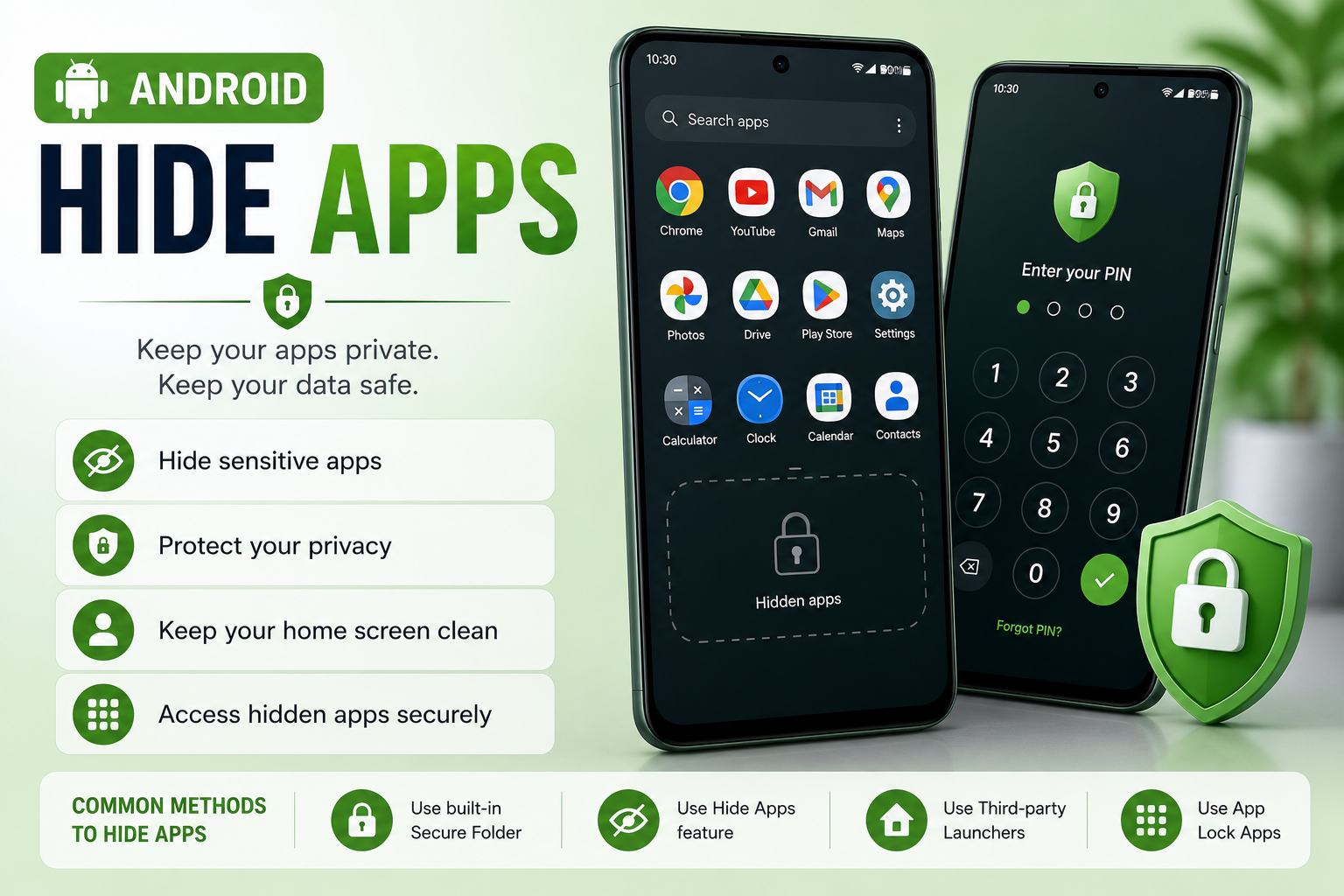
Whether you want to keep personal apps private, organize your home screen, or prevent others from accessing sensitive apps, Android offers several ways to hide applications. This guide explains how app hiding works across major Android brands, the difference between hiding and disabling apps, and the safest methods for improving privacy.
Guide Overview
- Guide type
- Evergreen
What Does Hiding Apps Mean?
Hiding an app removes it from the home screen or app drawer without uninstalling it.
Hidden apps remain installed on your phone.

The app data and settings remain unchanged.
Most hidden apps continue receiving updates from Google Play.
Notifications may still appear depending on your device settings.
Hiding apps is useful for improving privacy and reducing home screen clutter.
Why Do People Hide Apps?
People hide apps for privacy, security and better organization.
Hide banking applications.
Protect work-related apps.
Hide social media from children.
Reduce clutter in the app drawer.
Keep personal information private when sharing your phone.
Hide vs Disable vs Uninstall
These options perform completely different functions.
Hiding an app does not free storage space.
Disabling is available mainly for built-in system apps.
Uninstalling permanently removes the application unless reinstalled.
Do Hidden Apps Still Receive Notifications?
In most cases, yes.
Hiding an app does not stop background services.
Messaging apps continue receiving notifications.
Banking apps continue security verification.
Cloud backup apps continue syncing.
Notification behavior depends on the manufacturer's implementation.
Built-in Ways to Hide Apps
Many Android phones include app hiding features without requiring extra software.
Samsung includes Secure Folder.
Google Pixel includes Private Space on supported versions.
OnePlus includes Hide Apps.
Xiaomi offers App Lock and hidden app features depending on HyperOS version.
Several brands also support hiding apps through the launcher.
Hide Apps Using the Launcher
Many Android launchers include built-in options for hiding apps.
Open Home Screen settings.
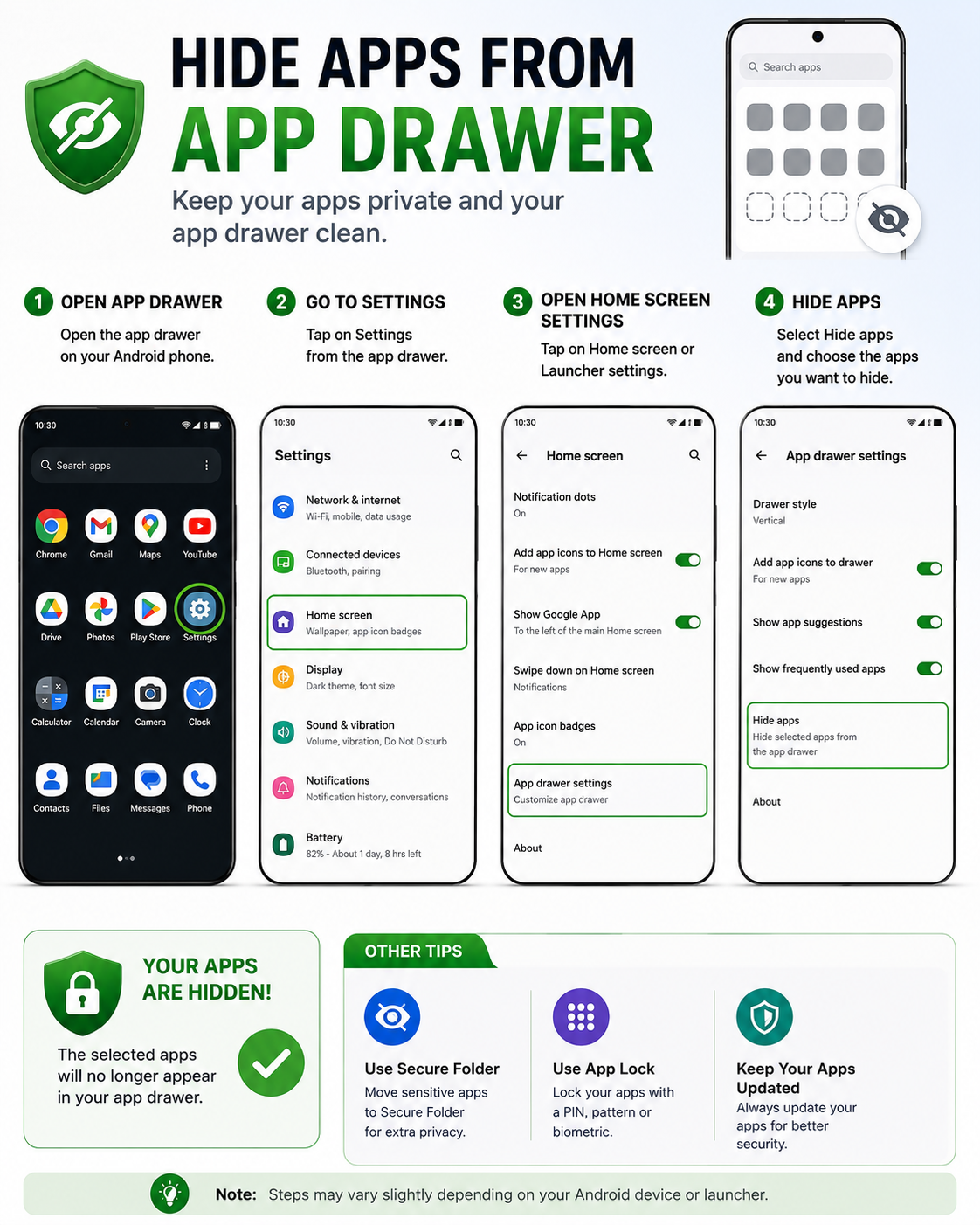
Look for Hide Apps or Hidden Apps.
Select the applications you want to hide.
Save the changes.
The selected apps disappear from the app drawer.
Hide Apps on Samsung (One UI)
Samsung offers two different methods for hiding apps.
You can hide apps directly from the app drawer.
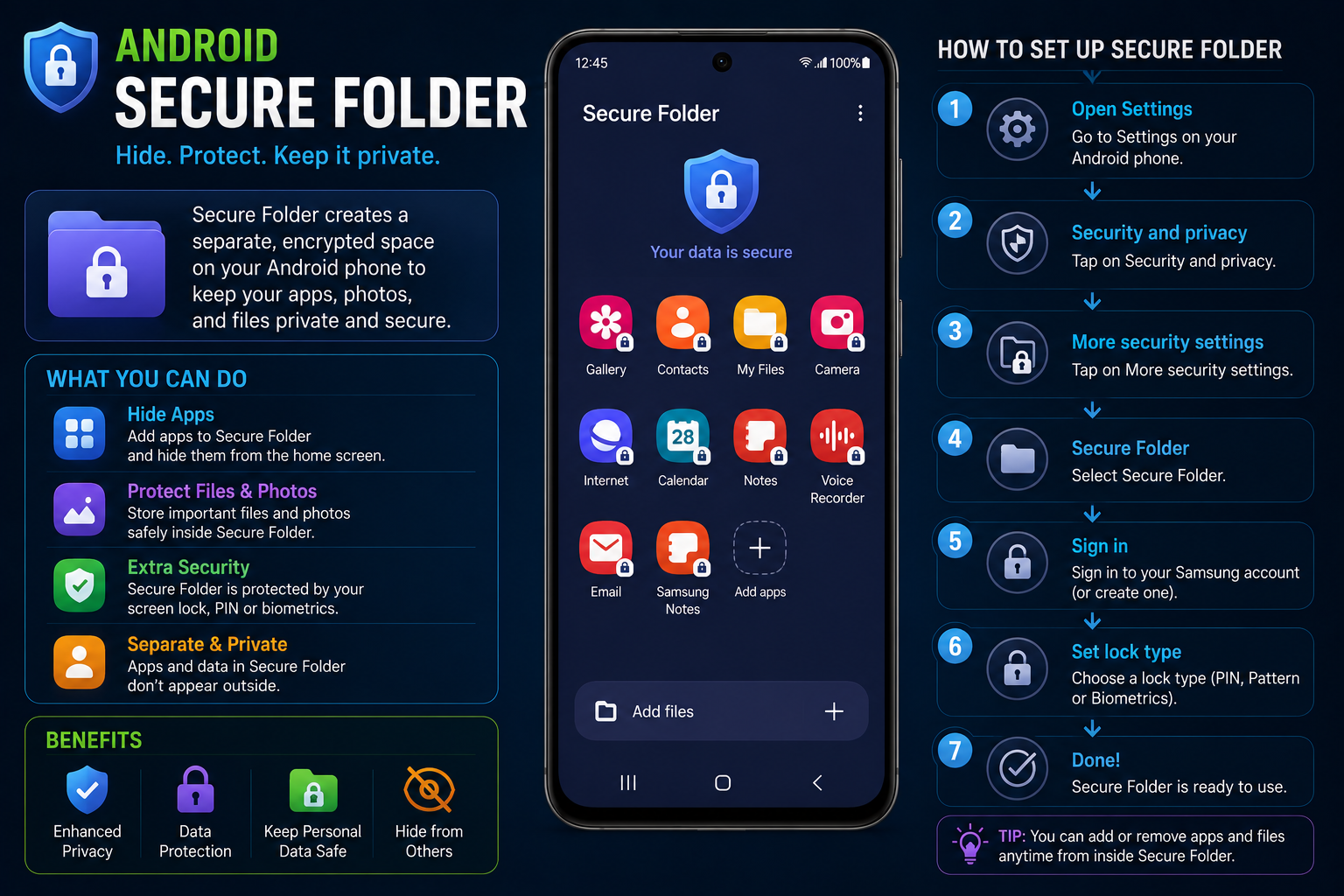
Secure Folder provides stronger privacy protection.
Apps inside Secure Folder require authentication.
Secure Folder creates a completely isolated environment.
Sensitive apps like banking or work applications are best placed inside Secure Folder.
Google Pixel Private Space
Private Space provides a secure area for sensitive applications.
Private Space keeps selected apps separate from the main profile.
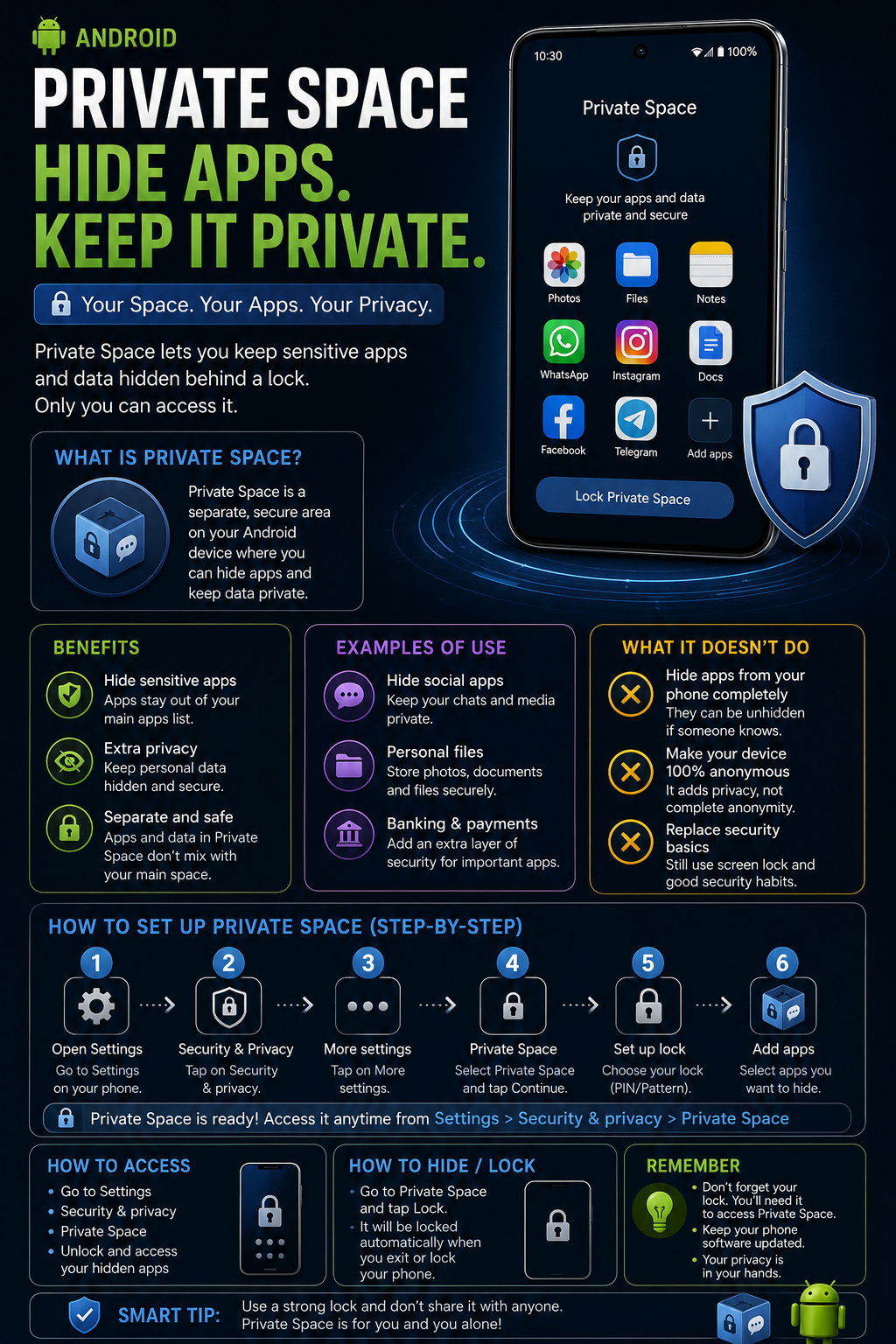
Apps remain hidden until unlocked.
Notifications can also remain private.
Private Space requires authentication.
Supported devices running newer Android versions include this feature.
Hide Apps on Xiaomi HyperOS
HyperOS includes privacy tools for hiding apps and locking applications.
Open Security settings.
Enable App Lock.
Use Hidden Apps if supported on your model.
Configure fingerprint or password protection.
Keep HyperOS updated for the latest privacy features.
Hide Apps on OnePlus
OxygenOS includes a dedicated Hide Apps feature.
Swipe inside the app drawer to access Hidden Space.
Add applications you want to hide.
Protect Hidden Space using a password.
Notifications remain configurable.
Hidden apps continue working normally in the background.
Hide Apps on realme UI
realme UI includes app hiding with password protection.
Open Settings and navigate to Privacy.
Select App Lock.
Enable Hide Home Screen Icons.
Choose the apps you want to hide.
Set a privacy password for additional protection.
Hide Apps on OPPO ColorOS
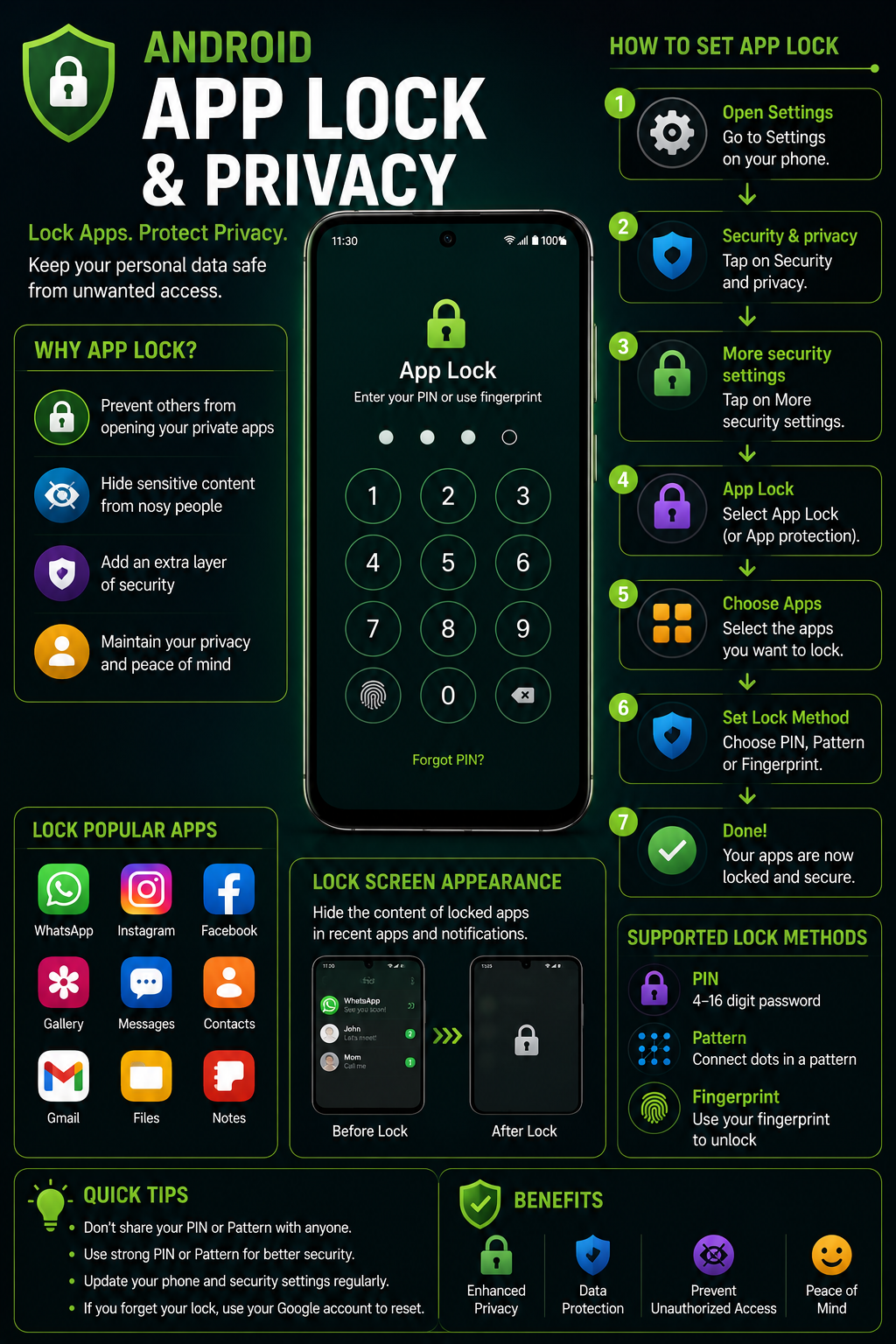
ColorOS allows apps to be hidden after enabling App Lock.
Go to Settings > Privacy.
Enable App Lock.
Turn on Hide Home Screen Icons.
Assign a privacy password.
Hidden apps remain accessible through a secure access method.
Hide Apps on vivo
Funtouch OS offers app hiding on supported models.
Open Settings.
Navigate to Privacy.
Enable Hide Apps.
Choose apps to hide.
Secure access using fingerprint or password.
Hide Apps on Motorola
Most Motorola phones rely on launcher-based hiding or third-party launchers.
Stock Android has limited hiding options.
Use Secure Folder alternatives if available.
Third-party launchers provide additional hiding features.
Private Space is supported on newer Android versions.
Keep Motorola software updated.
Hide Apps on Nothing Phone
Nothing OS offers a clean Android experience with Android privacy features.
Use Android Private Space if available.
Install updates regularly.
Use App Lock for sensitive apps.
Configure notification privacy.
Consider launcher-based hiding if required.
Hide Apps on Honor Phones
Honor devices include privacy tools depending on MagicOS version.
Use App Lock.
Enable Private Space if supported.
Configure fingerprint protection.
Hide sensitive applications.
Keep MagicOS updated.
Hide Apps on Huawei Phones
Huawei offers PrivateSpace on supported devices.
PrivateSpace creates a second secure environment.
Apps remain invisible outside PrivateSpace.
Separate passwords protect both spaces.
Notifications remain isolated.
Ideal for work and personal separation.
Samsung Secure Folder Explained
Secure Folder provides one of Android's strongest built-in privacy features.
Apps inside Secure Folder are encrypted.
Separate app copies can exist inside Secure Folder.
Files remain isolated.
Fingerprint or PIN protects access.
Perfect for banking, work and private apps.
Android Private Space
Private Space creates a secure profile for sensitive apps.
Available on supported Android versions.
Keeps apps separate from your main profile.
Notifications remain private.
Apps cannot be viewed without authentication.
Provides stronger privacy than simply hiding icons.
App Lock vs Hide Apps
These features serve different purposes.
Hide WhatsApp
Use Secure Folder on Samsung.
Use Private Space on Pixel.
Use App Lock for additional protection.
Disable lock screen previews.
Protect backups with encryption.
Hide Banking Apps
Keep banking apps inside Secure Folder when available.
Enable biometric authentication.
Never install unknown APKs.
Keep banking apps updated.
Avoid sharing unlocked phones.
Hide Games
Hide games from children.
Reduce home screen clutter.
Use launcher hiding features.
Disable notifications if required.
Keep games updated.
Hide Apps From Kids
Use Google Family Link where appropriate.
Enable parental controls.
Hide shopping apps.
Protect payment apps.
Use App Lock together with hidden apps.
Using Third-Party Launchers
Several launchers include advanced app hiding options.
Nova Launcher
Microsoft Launcher
Lawnchair Launcher
Niagara Launcher
Smart Launcher
Hide Apps Using Nova Launcher
Nova Launcher offers one of the best app hiding experiences on Android.
Install Nova Launcher from Google Play.
Open Nova Settings.
Navigate to App Drawer.
Select Hide Apps.
Choose the applications you want to hide.
Microsoft Launcher
Microsoft Launcher offers hidden folders and home screen customization.
You can organize sensitive apps into secure folders.
Use Microsoft account sync for backups.
Customize gestures for quick access.
Keep the launcher updated.
Lawnchair Launcher
Lawnchair provides a Pixel-like Android experience.
Some versions support hidden apps.
Customize the app drawer.
Use icon packs for better organization.
Suitable for users wanting a lightweight launcher.
Security Risks of Hiding Apps
Hiding apps improves privacy but should not replace proper security practices.
Hidden apps remain installed on the device.
Anyone with administrator access may still discover hidden apps.
Use strong PINs or biometric authentication.
Keep Android Security updates installed.
Avoid downloading fake app-hiding applications.
Common Mistakes
Using unknown third-party app lockers.
Forgetting the privacy password.
Assuming hidden apps cannot receive notifications.
Ignoring software updates.
Not backing up important application data.
Troubleshooting Hidden Apps
Issues
Problem
Hidden app still appears
Solution
Restart the launcher and verify Hide Apps settings.
Problem
Cannot find hidden apps
Solution
Open Secure Folder, Private Space or Hidden Space.
Problem
Notifications still appear
Solution
Disable notifications separately in Android Settings.
Problem
Forgot Secure Folder password
Solution
Use your Samsung account recovery options.
Problem
Launcher doesn't support hiding apps
Solution
Use a launcher like Nova Launcher or your phone's built-in privacy features.
Best Practices
Final Verdict
Android offers multiple ways to hide apps depending on your phone manufacturer and Android version.
Samsung Secure Folder provides excellent privacy.
Google Pixel Private Space is one of the safest methods.
Launcher-based hiding works well for general organization.
App Lock adds an extra layer of protection.
Combining multiple privacy features offers the best security.
Frequently Asked Questions
Can I hide apps without uninstalling them?
Yes. Most Android phones allow apps to be hidden while keeping them installed.
Do hidden apps still receive notifications?
Yes. Notifications continue unless they are disabled separately.
Can I hide WhatsApp?
Yes. WhatsApp can be hidden using Secure Folder, Private Space or launcher features depending on your phone.
Can I hide banking apps?
Yes. Secure Folder and Private Space are recommended for banking apps.
Is Samsung Secure Folder safe?
Yes. It provides encrypted storage protected by your Samsung account and biometric authentication.
Can hidden apps still update?
Yes. Apps continue receiving updates through Google Play.
Does hiding apps improve battery life?
No. Hiding apps mainly improves privacy and organization.
Can someone find hidden apps?
A knowledgeable user with device access may still locate hidden apps depending on the hiding method.
Do all Android phones support hiding apps?
No. Available options vary by manufacturer and Android version.
Which method is the most secure?
Samsung Secure Folder and Android Private Space provide stronger protection than simply hiding app icons.
More Guide Details
Reading Time
18-22 minutes
Last Updated
2026-07-19
Author
Name
Godealio Editorial Team
Type
Organization
Images
Role
hero
Path
/images/guides/android-hide-apps.png
Alt
Hide Apps on Android
Role
section
Path
/images/guides/app-drawer-settings.png
Alt
App Drawer Settings
Role
section
Path
/images/guides/private-space.png
Alt
Android Private Space
Role
section
Path
/images/guides/secure-folder.png
Alt
Samsung Secure Folder
Role
section
Path
/images/guides/app-lock-privacy.png
Alt
App Lock Privacy
Quick Answer
Question
How can I hide apps on Android?
Answer
Many Android phones let you hide apps using built-in launcher settings, Secure Folder, Private Space, or third-party launchers without uninstalling the apps.
Related Guides
- /guides/speed-up-android-phone
- /guides/android-battery-calibration
- /guides/battery-health-explained
- /guides/android-find-my-device
- /guides/android-private-space
- /guides/android-app-lock
Schema
Article
@Context
https://schema.org
@Type
Article
Headline
How to Hide Apps on Android: Samsung, Pixel, Xiaomi, OnePlus & More
Author
@Type
Organization
Name
Godealio Editorial Team
Publisher
@Type
Organization
Name
Godealio
Faq
@Context
https://schema.org
@Type
FAQPage
Howto
@Context
https://schema.org
@Type
HowTo
Name
How to Hide Apps on Android
Breadcrumb
@Context
https://schema.org
@Type
BreadcrumbList
Featured
false